
A group is one part of your act, such as Doors Open, Walk-on or Mentalism. Splitting a show into groups keeps it easy to read, easy to rehearse and easy to rearrange.
The show editor
Open a show and its groups are listed under Groups, in running order.
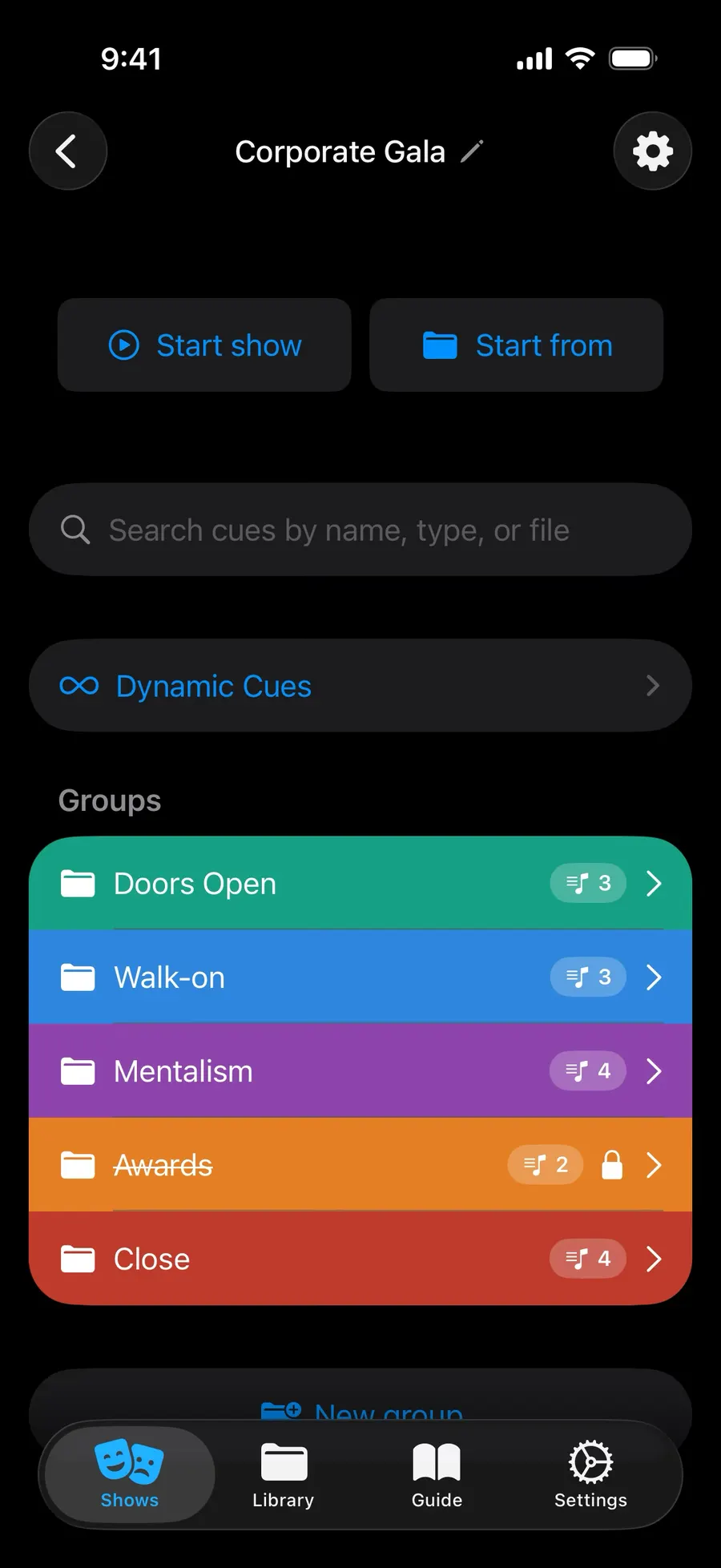
Each row shows:
- the group's name, in its colour if you've given it one;
- the number of cues in it;
- a lock if the group is disabled. Disabled groups are skipped when you run the show. See Enable, disable and copy groups.
Tap a group to open it.
Inside a group
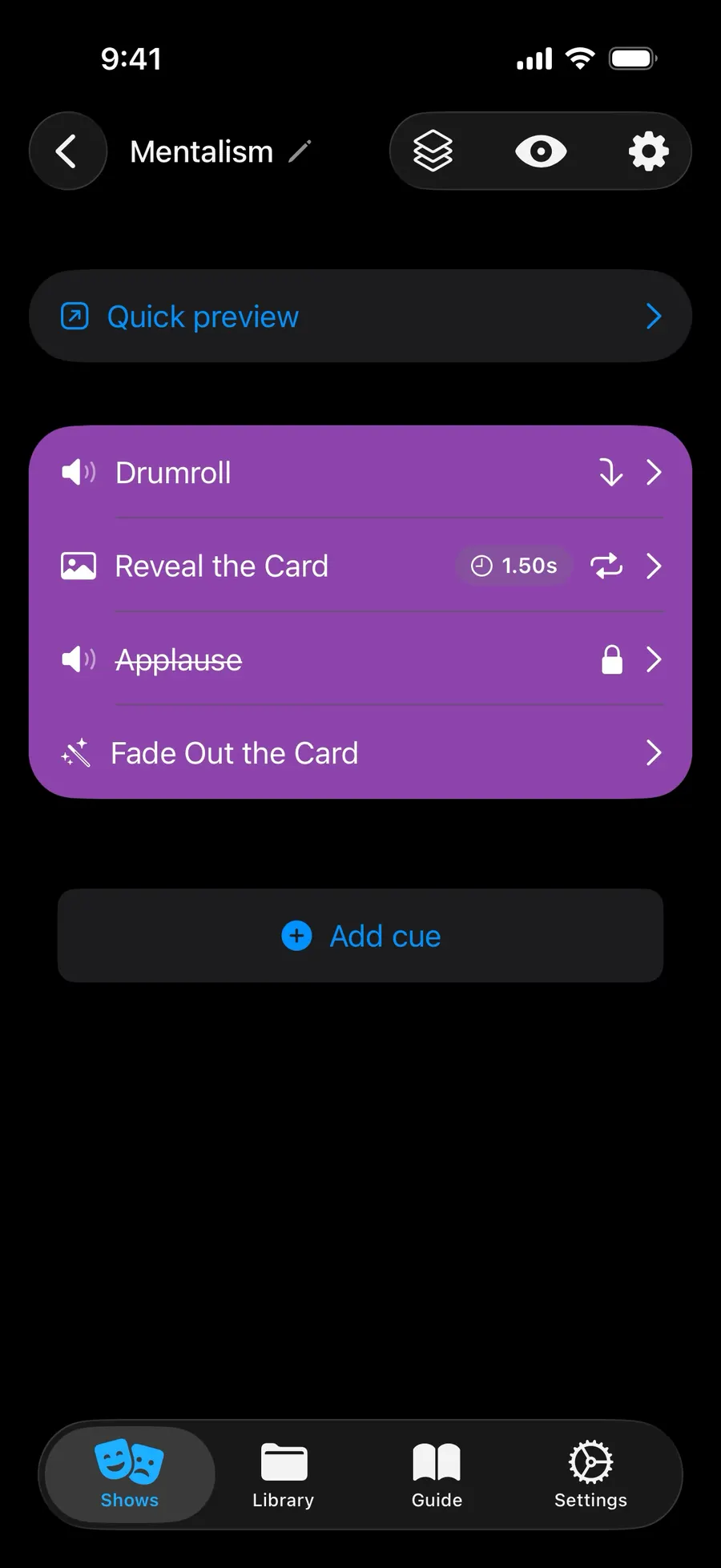
A group lists its cues in the order they fire. Each cue shows an icon for its type and its name, and small badges for anything special about it:
- a clock for a delay;
- a turn-down arrow for auto-follow;
- a repeat symbol for a cue that loops;
- a wand for a transition that's linked to other cues;
- a lock, and the name struck through, for a disabled cue.
Tap the eye at the top to choose which badges you see: Cue Position, Layer Number, Cue Delay and Cue Type.
How groups play
When you start the show, iQ Pro runs every group from top to bottom, then every cue in each group, in order. Each tap of Cue fires the next cue, carrying on into the next group when one finishes.
- To rehearse one group, open it and tap Quick preview.
- To start part-way through, tap Start from in the show editor and pick a group.
See Preview a group.
