
A voice-over cue speaks a script for you: a pre-show announcement, a "please welcome to the stage", or narration between scenes. You choose a voice, write the lines and set the pauses. iQ Pro turns it into audio and saves it with your show, so it plays offline, exactly like an audio cue.
Add a voice-over cue
- 1
Open your show, tap the group the announcement belongs in, then tap Add cue.
- 2
Under Media, tap Voice-over.
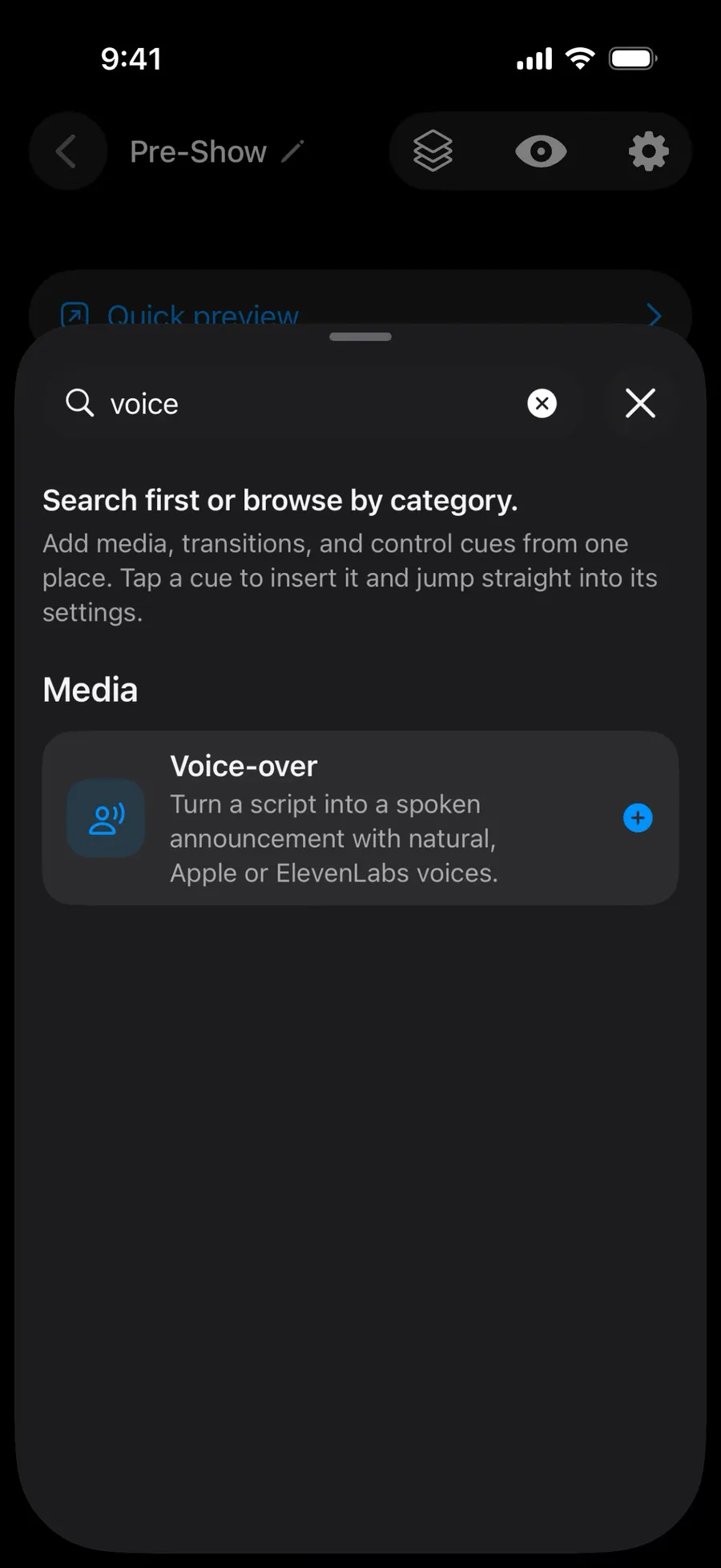
Voice-over turns a script into speech - 3
In the cue's settings, tap Configure Voice-over.
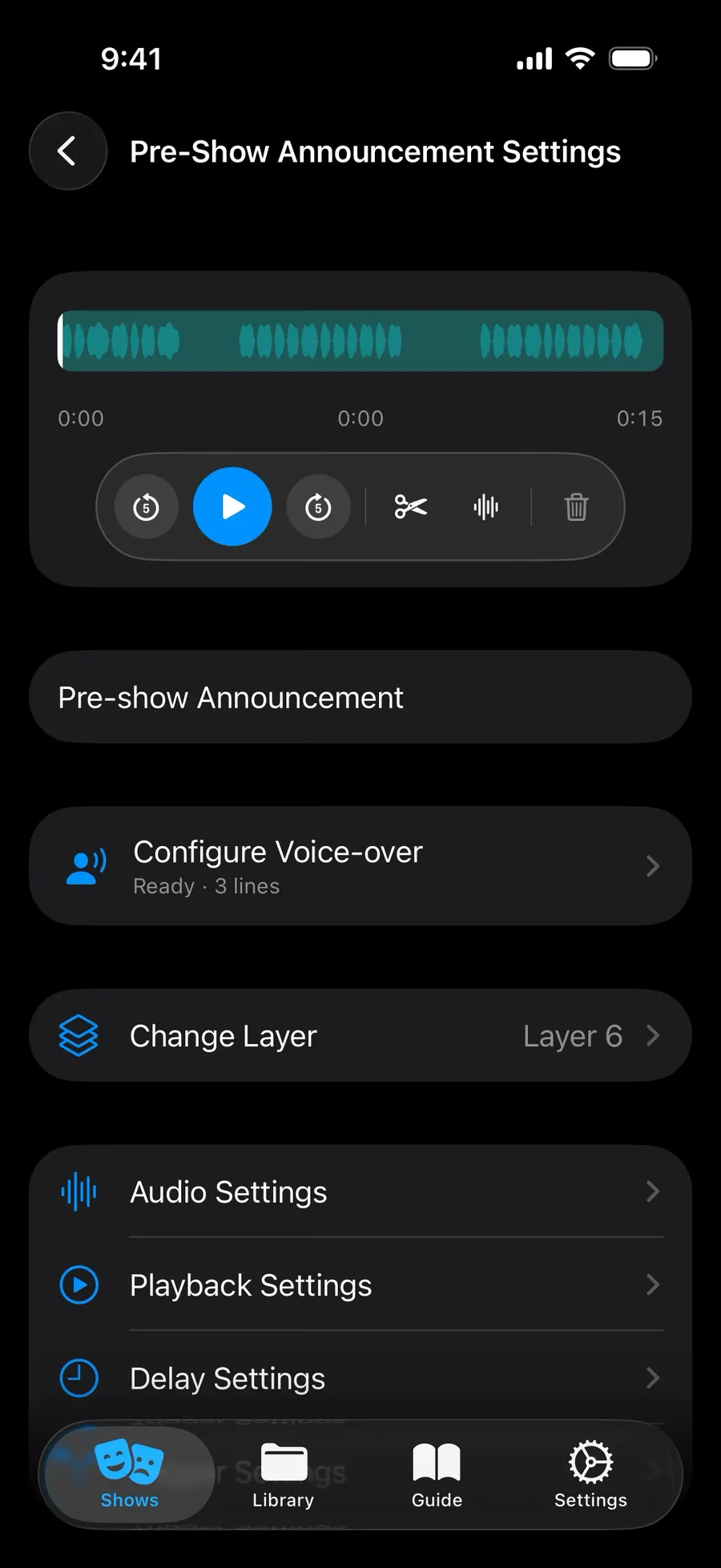
Configure Voice-over takes the place of the file picker - 4
Check the Voice at the top. Tap it to choose a different one.
- 5
Tap Configure Script and type the first line in Line 1, such as Ladies and gentlemen, please take your seats.
- 6
Tap Add line for the next part, and set the Pause under each line before the next. Tap + or − to change it by half a second.
- 7
Tap Back. iQ Pro generates the voice-over, then takes you back.
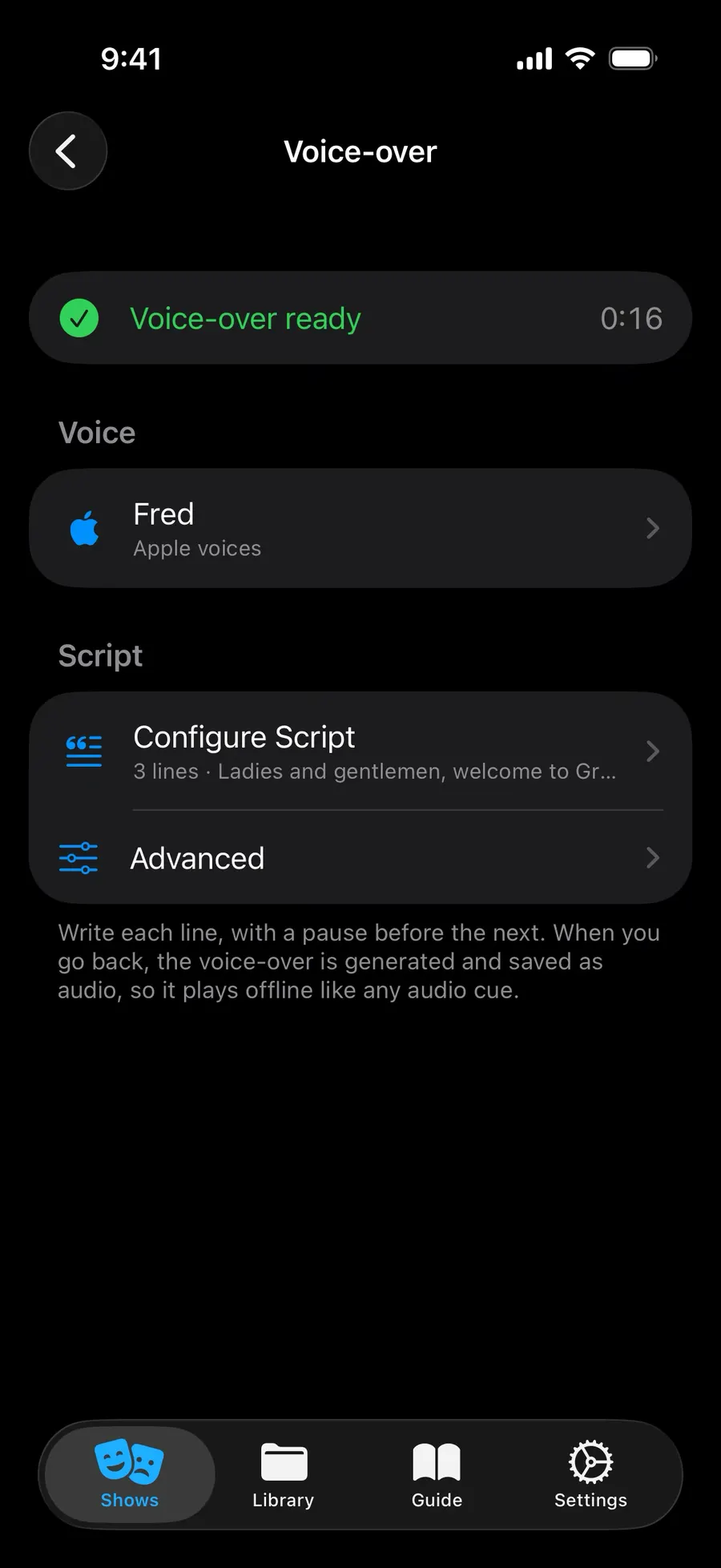
Configure Voice-over shows Voice-over ready and the length once it's done. The waveform at the top of the cue's settings plays the whole thing, and you can trim it like any audio cue.
Write the script
On Configure Script, each line has its own box:
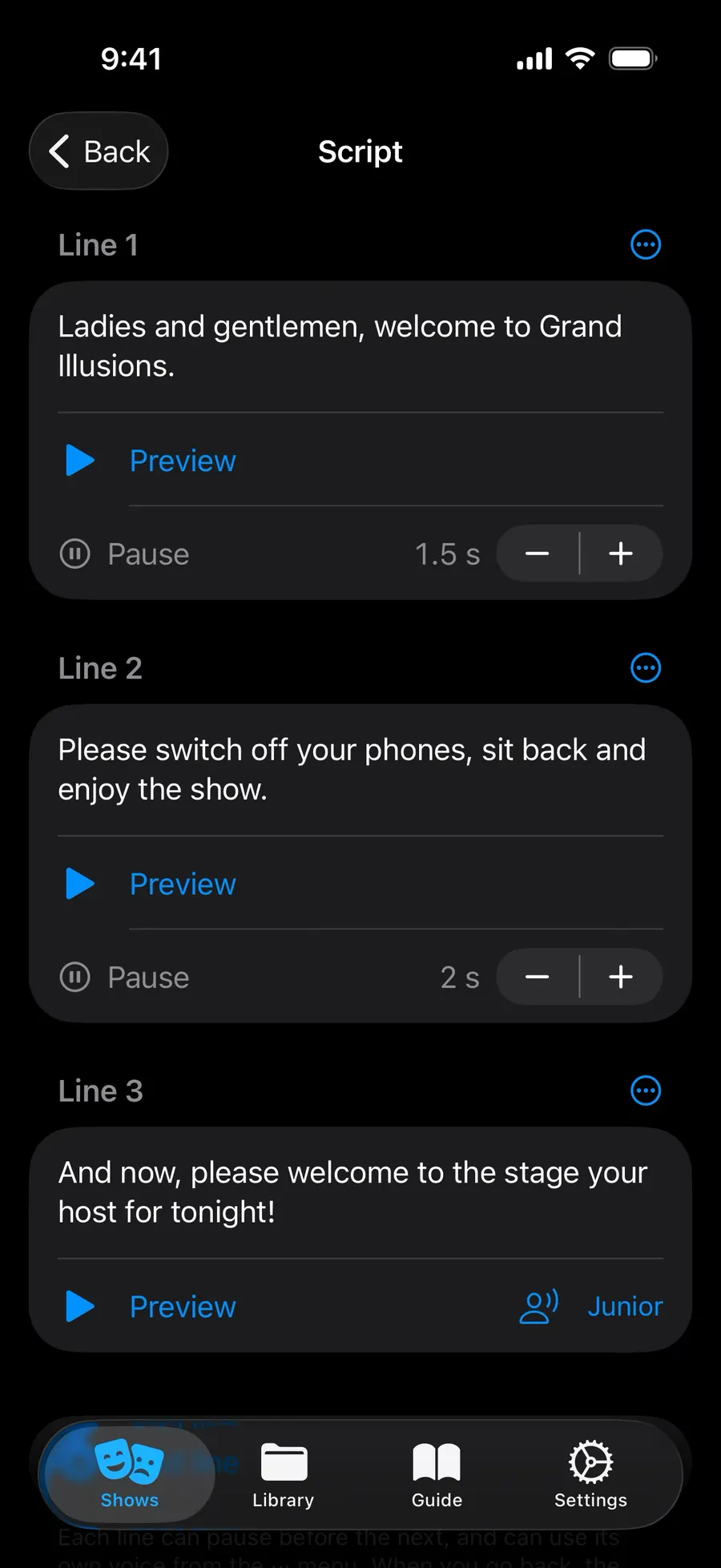
- Tap Preview under a line to hear just that line, as it will sound in the cue.
- Tap ··· beside a line to give it a different voice (for a second character, say), duplicate it, move it up or down, or delete it.
- Empty lines are skipped.
When you tap Back after changing the script, a sheet generates the new audio. Only new or changed lines are generated, so small edits are quick. Tap Cancel to go back without updating; the show keeps playing the previous version until you update it.
Choose the voice
Tap Voice on Configure Voice-over to choose:
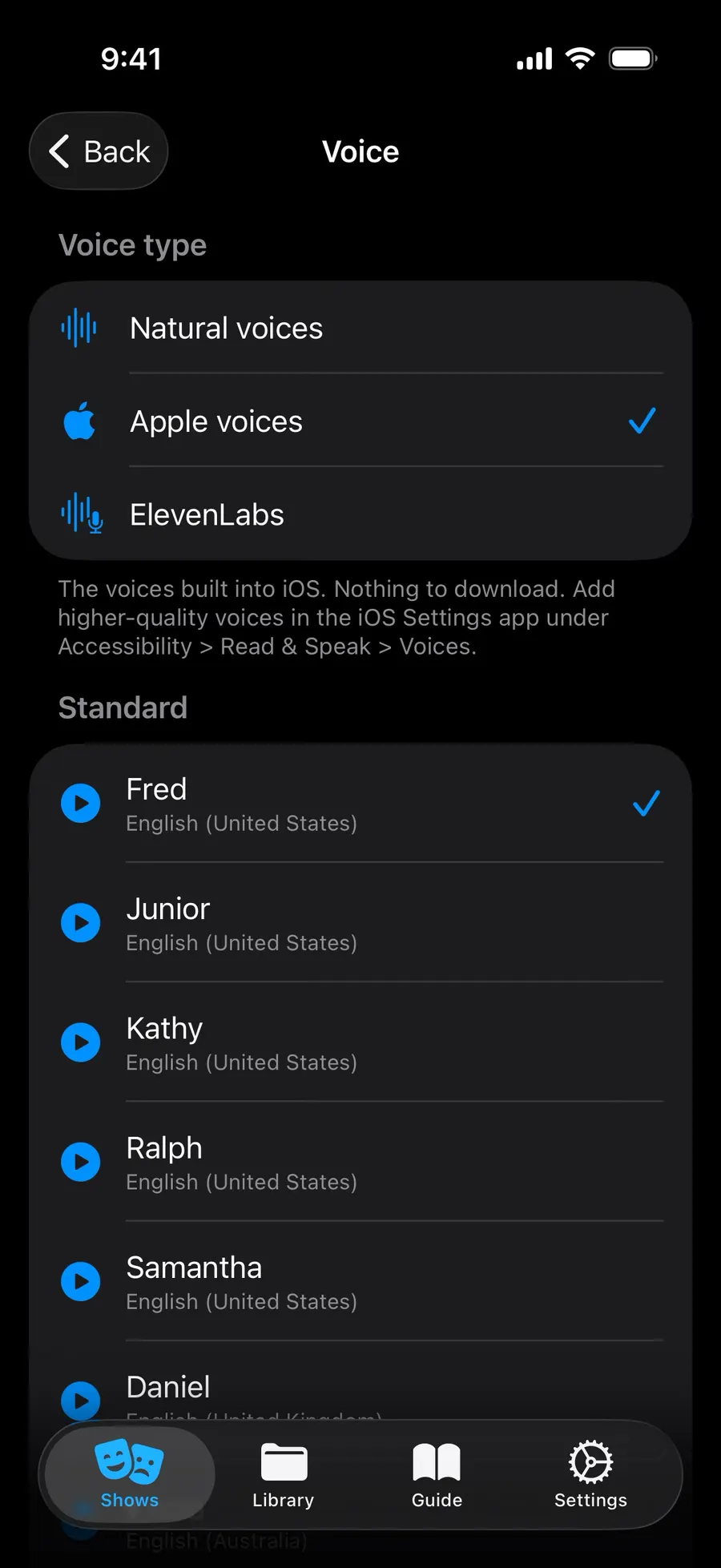
- Natural voices run on your device after a one-time download. They're quick and free to use.
- Apple voices are built into iOS, with nothing to download. They also have a Pitch setting.
- ElevenLabs voices are studio quality, and include your own cloned voices. They need your ElevenLabs account and an internet connection to generate.
Tap the play button beside a voice to hear a sample, and drag Speed to speak faster or slower. A new voice-over starts with the voice chosen in Settings › Voice & Speech. To connect ElevenLabs or download the natural voice, see Voice & Speech: set up voices.
ElevenLabs voices
ElevenLabs uses your account's credits, so before it generates, the sheet asks first and says roughly how many credits it will use. Tap Generate voice-over to go ahead, or Not now to go back and generate later from Configure Voice-over.
Not happy with how a line came out? Tap ··· beside it and choose New take to hear a different performance of the same words.
On the Voice page, open Fine-tune delivery to adjust:
- Model: Multilingual v2 is the most lifelike, Eleven v3 the most expressive, and Flash v2.5 the fastest, at half the credits.
- Stability: lower for more emotion and variety, higher for a steadier read.
- Similarity: how closely to match the original voice.
- Style exaggeration: amplifies the voice's character. Keep it low for clean announcements.
- Speaker boost: sharpens the likeness to the original speaker.
Advanced options
Tap Advanced on Configure Voice-over for:
- Silence before and Silence after: padding at the start and end of the cue.
- Even out volume: brings every line to the same loudness, so different voices and takes sit together. It's on for new cues.
- Trim silence around lines: removes the gap voices leave around each line, so your pauses are exact.
- Reset pauses and Use the script's voice for every line, to tidy a script quickly.
The rest of the cue's settings are the same as an audio cue's: Audio Settings for its level, Playback Settings, Delay Settings and Trigger Settings. New voice-over cues play once rather than loop.
