
A click track plays a metronome alongside an audio cue. iQ Pro sends the click to one side of the output (left or right) and the music to the other. Wire the click side to in-ear monitors and the music side to the PA, and performers hear the beat while the audience only hears the music.
Turn it on
- 1
Open the audio cue's settings and tap Audio Settings.
- 2
Turn on Enable Click Track, then tap Click Track Settings.
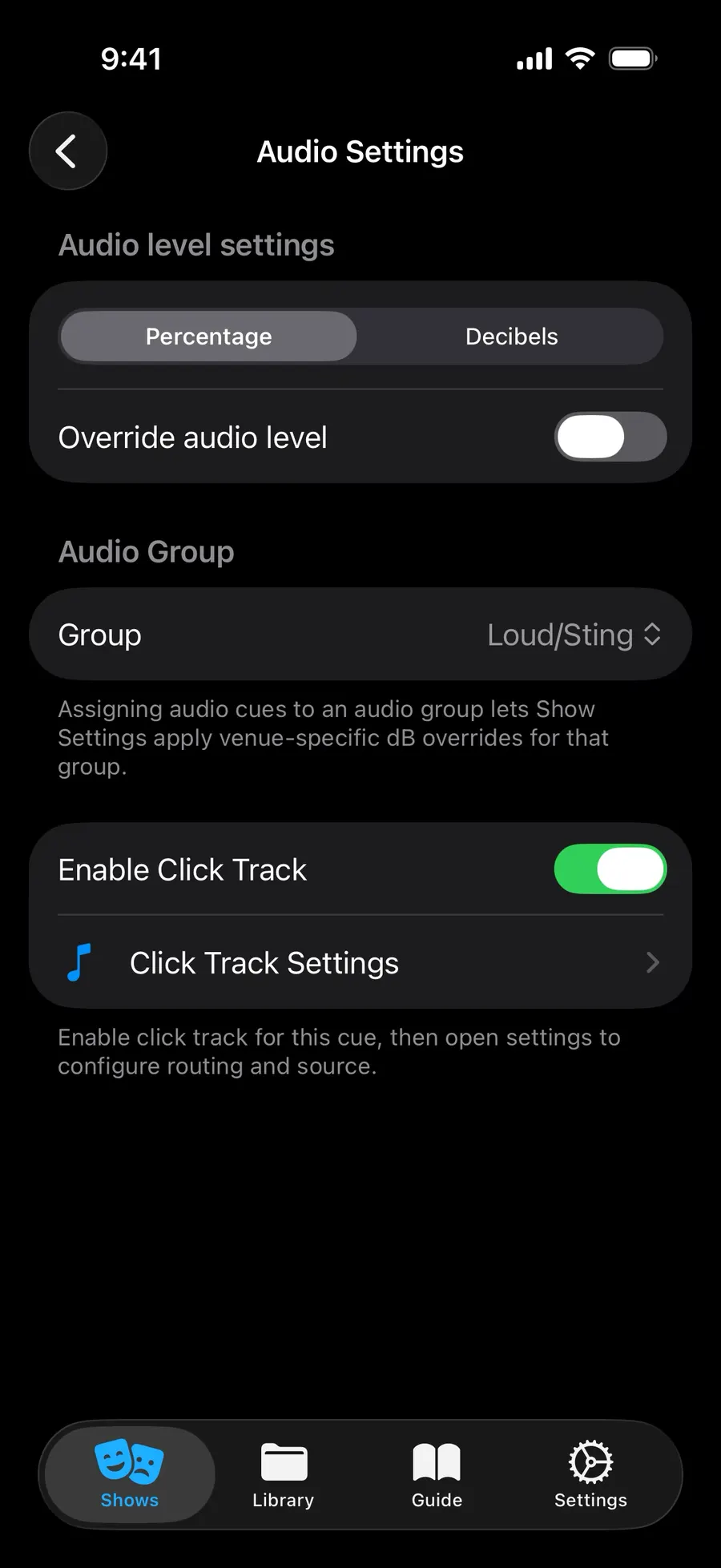
The click track belongs to this cue
Set up the click
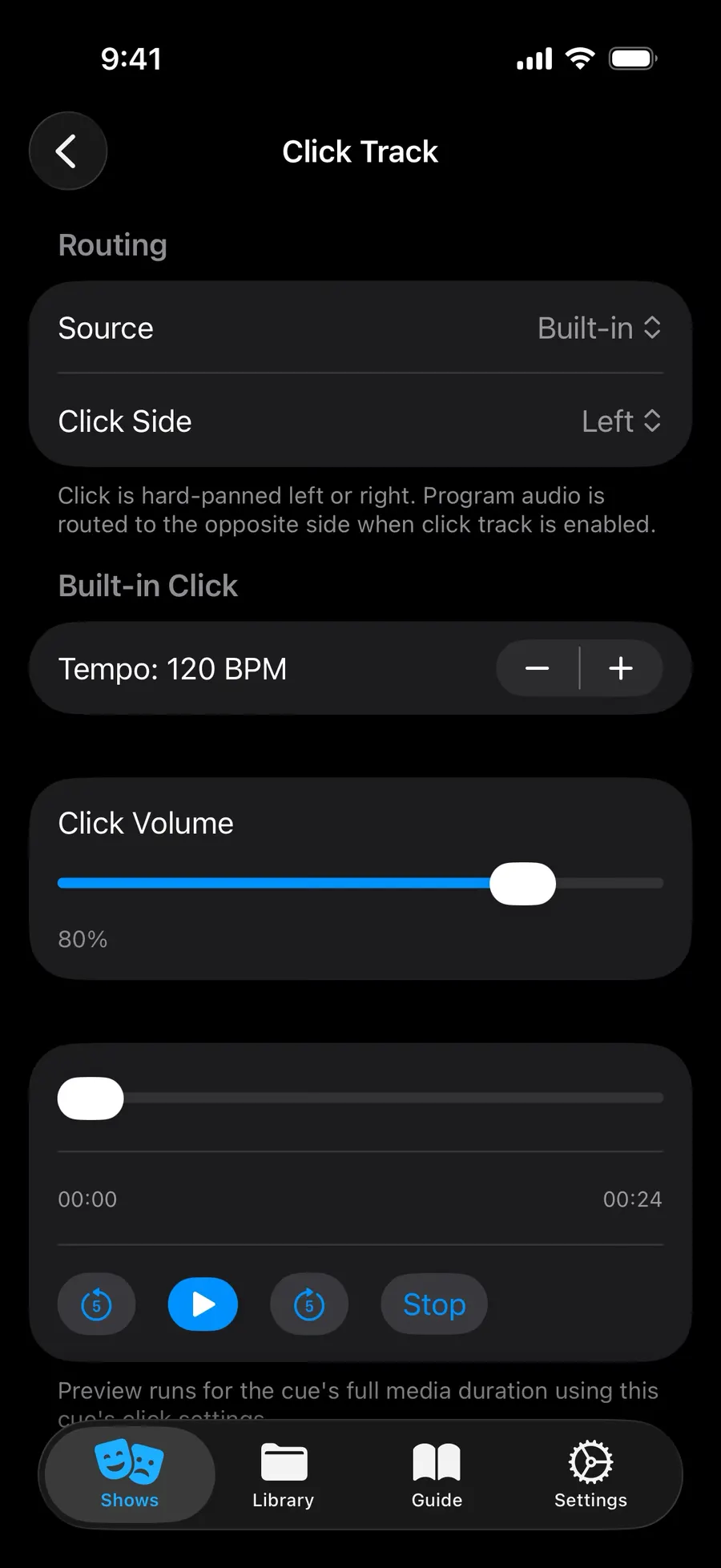
- Source: Built-in plays iQ Pro's click at the tempo you set. Custom File plays your own audio file, such as a click with spoken count-ins, looped for as long as the cue plays.
- Click Side: Left or Right. The cue's music goes to the other side.
- Tempo: for the built-in click, set the beats per minute, from 30 to 300. Match it to the song.
- Click Volume: how loud the click is, as a percentage.
With Custom File, tap Choose Click Audio File to pick it from Files.
Check it
Use the controls at the bottom to hear the click on its own: play or pause, jump 5 seconds back or forward, and Stop. The preview runs for the length of the cue.
