
Music from different places is mastered at different levels, so one track can blast out while the next is barely there. Audio Normalization measures every audio and video cue in your show and turns the loud ones down to match.
Run it
- 1
Open the show and tap the gear at the top right for its settings.
- 2
Tap Audio Normalization.
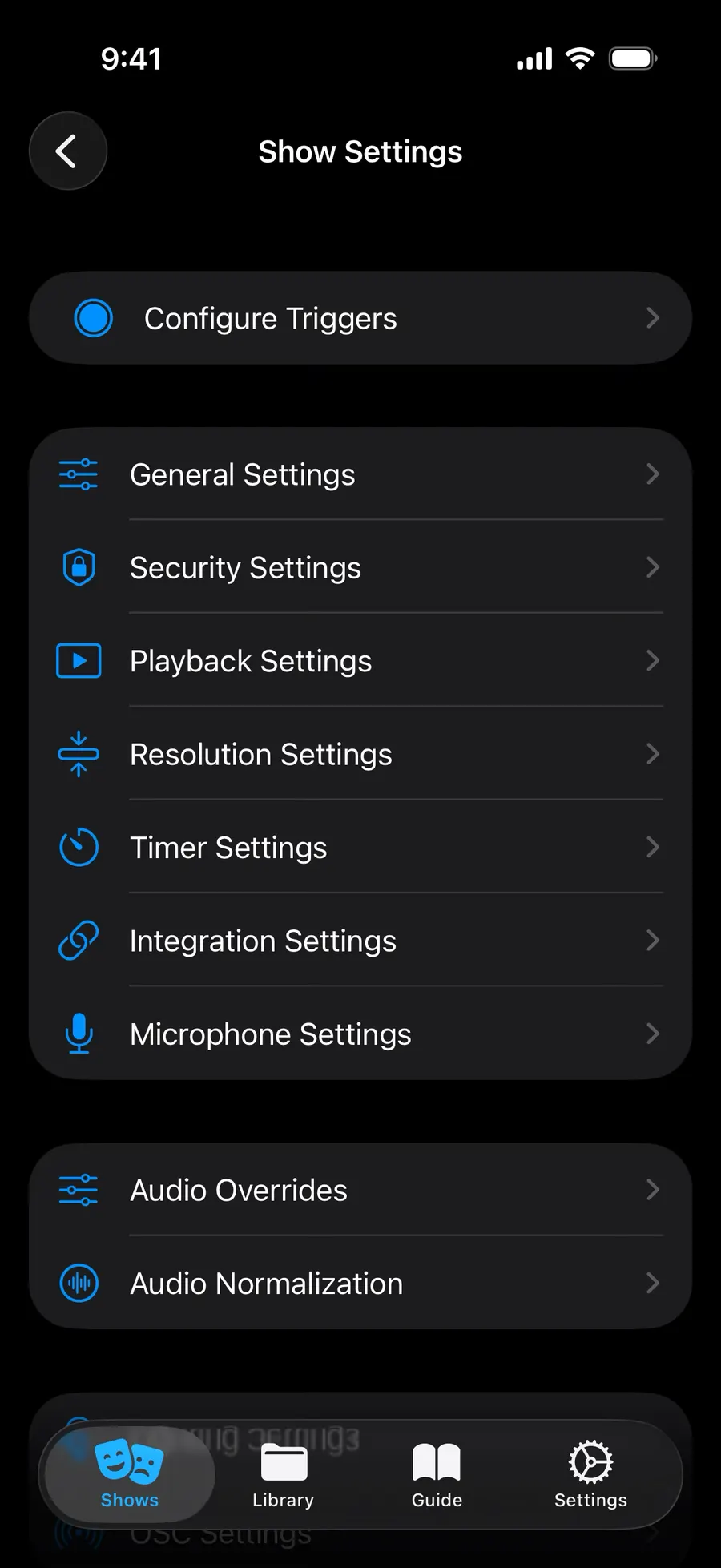
Audio Overrides and Audio Normalization - 3
Audio/video cues shows how many cues will be checked. Tap Normalize All Audio Tracks.
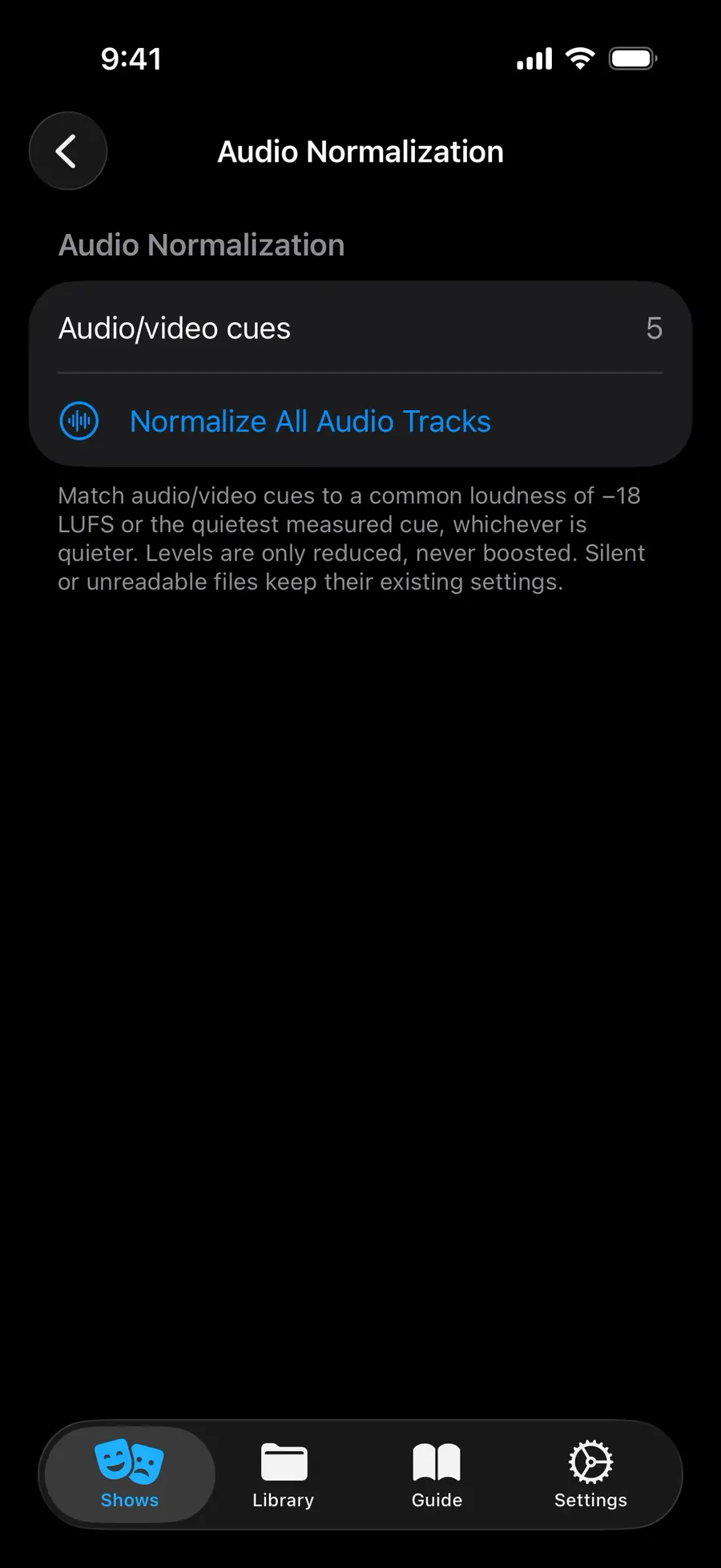
Normalise every audio and video cue in the show - 4
Wait while iQ Pro analyses each file. You'll see the overall progress and the progress of the current file. Cancel stops without changing anything.
When it's done, Last run shows the result.
What it does
- Each cue is brought to a common loudness of −18 LUFS, or to the level of your quietest cue if that's quieter.
- Levels are only ever reduced, never boosted, so nothing distorts.
- Cues switch to Decibels, so you can fine-tune any of them afterwards. See Volume, dB and loudness analysis.
- Files that are silent or can't be read keep their existing settings, and are listed under Could not analyze.
- Nothing is saved until every file has been analysed.
Undo it
After a run, Reset to Original Settings puts every cue back to the level it had before. iQ Pro asks you to confirm first.
