
Every venue sounds different. In a small room the walk-in music might be too loud, while in a theatre the stings get lost. Audio groups let you fix that in seconds: tag each cue with a group once, then turn a whole group up or down for the venue you're in.
Put a cue in an audio group
- 1
Open an audio or video cue's settings and tap Audio Settings.
- 2
Under Audio Group, tap Group and choose one.
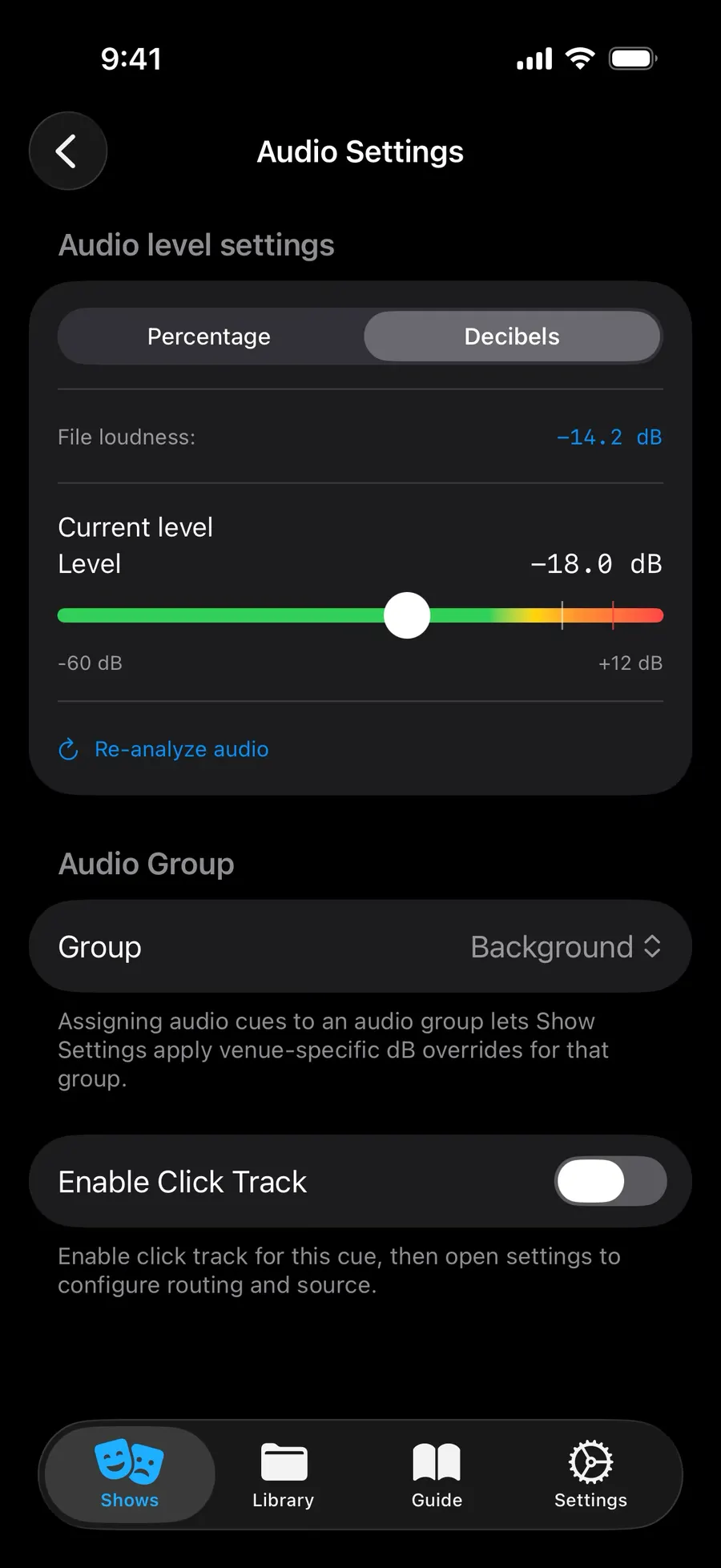
Overture is in the Background group
- Background suits walk-in music, beds and ambience.
- Loud/Sting suits stings, hits and sound effects.
- Custom Group... asks for a name, such as Voice-over or Crowd. Once you've made one, it's in the list for every cue in the show.
- Not Set takes the cue out of any group.
Set the overrides for a venue
- 1
Open the show and tap the gear at the top right for its settings.
- 2
Tap Audio Overrides. Each audio group used in the show has its own slider.
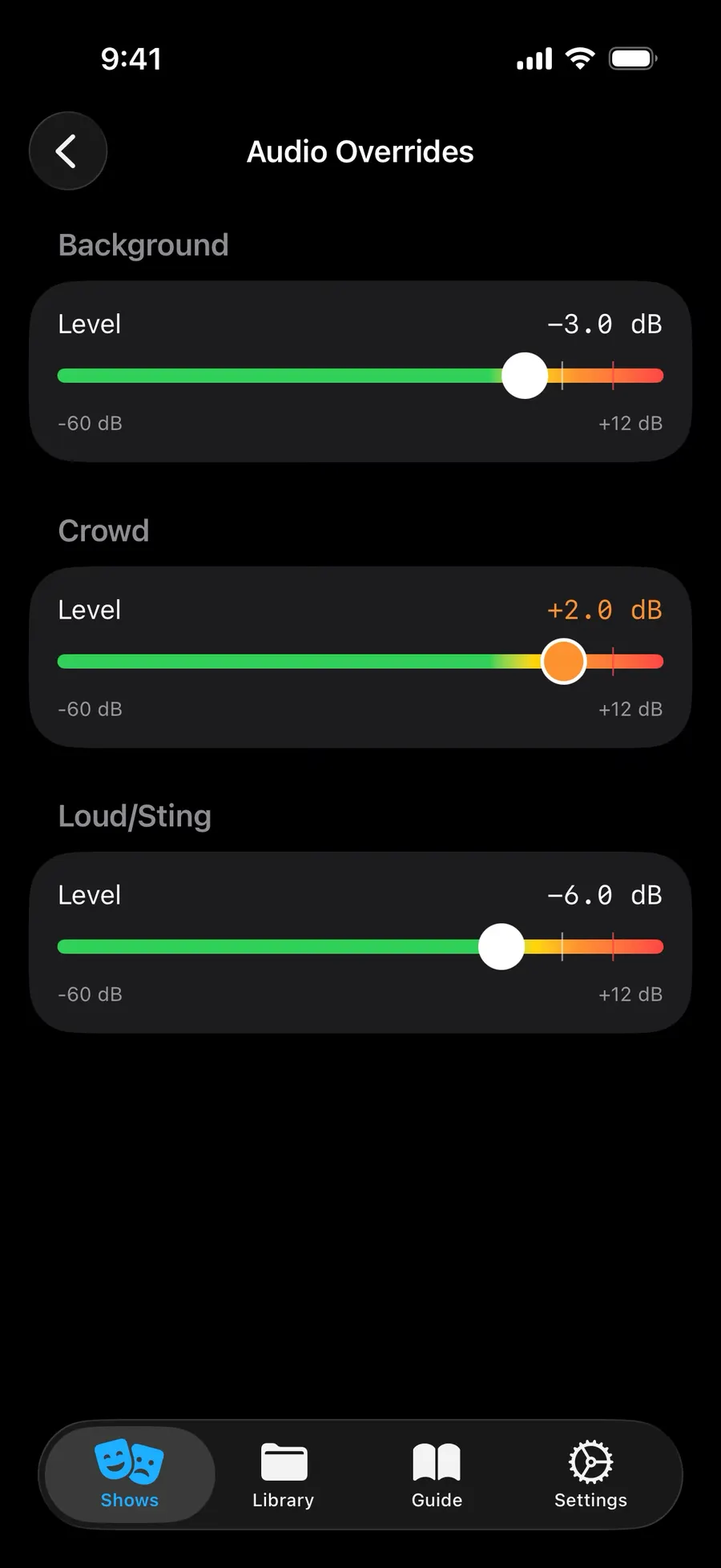
Turn each audio group up or down in dB - 3
Drag a group's slider to change the level of every cue in it, in dB. 0 dB leaves the group as it is. Negative values turn it down.
Overrides are added to each cue's own level, so the balance you set between cues within a group stays the same. They belong to the show, so set them again for each venue or keep a copy of the show for each one.
