
Video cues play title sequences, reveal clips, walk-on stings and anything else that moves. Each one plays a single video, full screen or as part of a layout with other pictures.
Add the cue
- 1
Open the group the video belongs in and tap Add cue.
- 2
Tap Video.
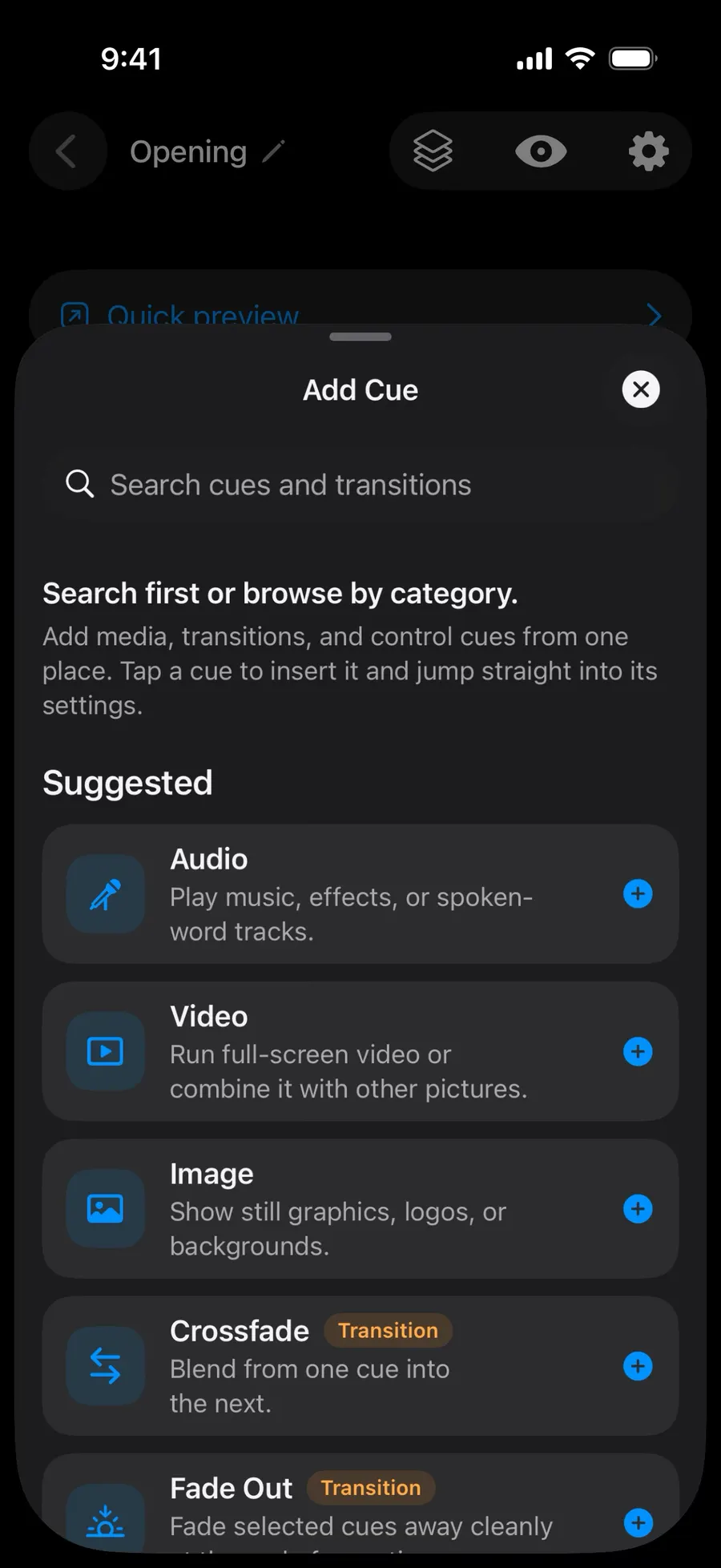
Video: run full-screen video or combine it with other pictures - 3
On Video Cue Setup, tap Choose import source and pick where the file comes from: From files, From photo library, From built-in library or From stock library. Import media explains each one.
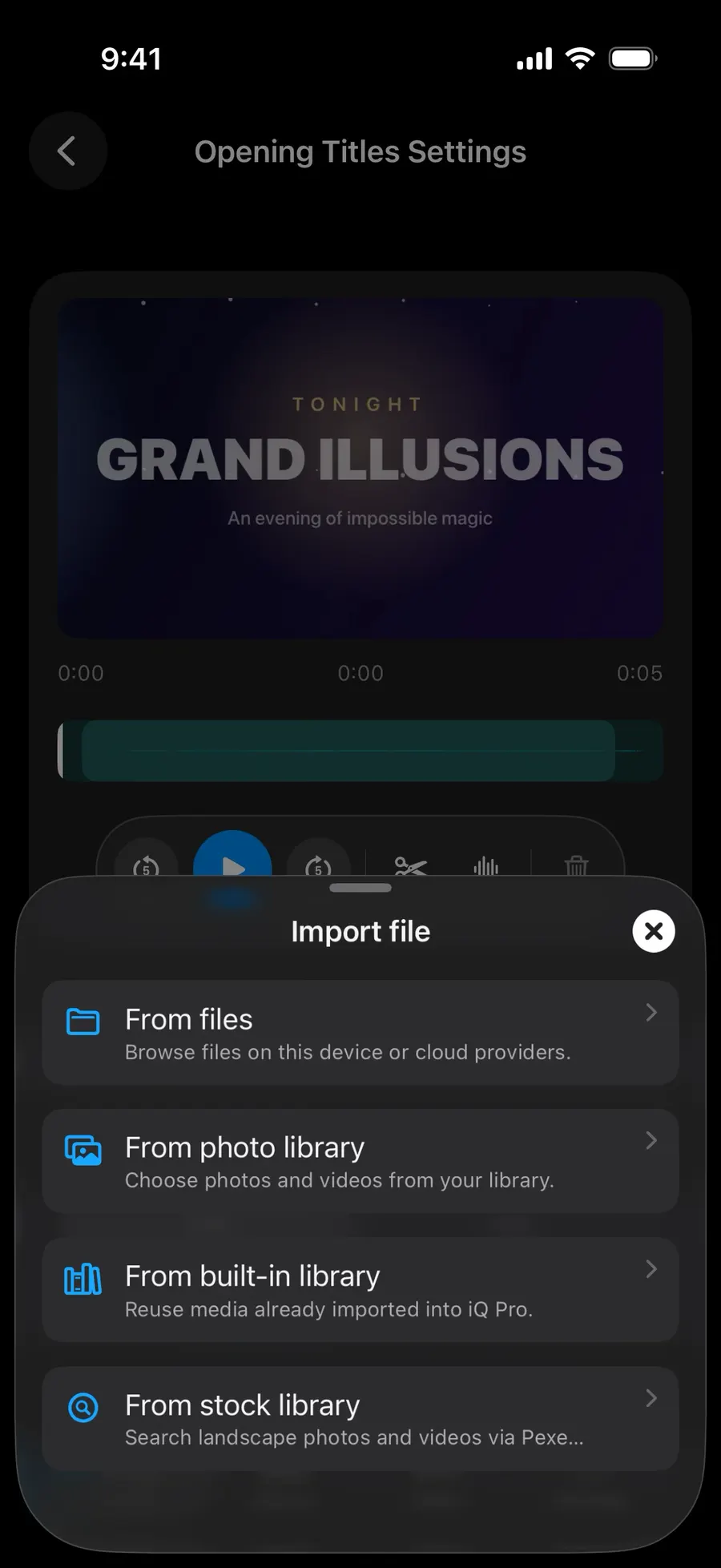
Four places to get a video - 4
Pick the video, then type a Cue Name you'll recognise mid-show, such as Opening Titles, and tap Continue.
From Files, iQ Pro accepts MP4 and MOV videos.
The video's settings
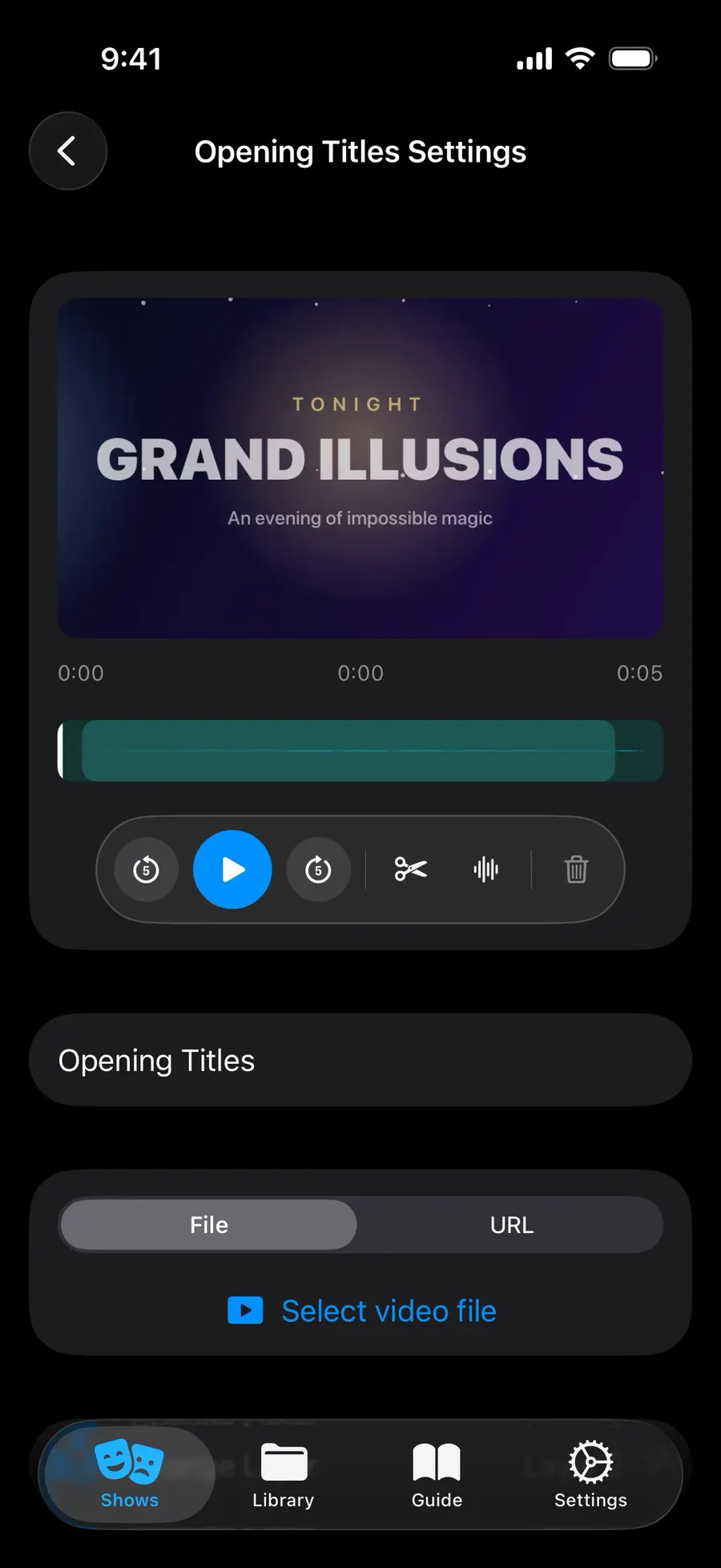
- The preview at the top plays the video, with the trim and level tools underneath. See Trim, loop, hold last frame, start paused and speed.
- The name field renames the cue.
- File or URL chooses where the video comes from. Select video file swaps the file. With URL, type the web address of a video to stream it instead.
- Change Layer sets which layer the video plays on, in shows with Automatic cue layout off. See Change a cue's layer.
- Delay Settings, Playback Settings, Audio Settings and Trigger Settings hold the rest.
- Configure Time Code fires other cues at set moments in the video.
Sound from a video
Videos play their own soundtrack. Tap Audio Settings to set its level, turn on Mute audio to play the picture only, or put the video in an audio group.
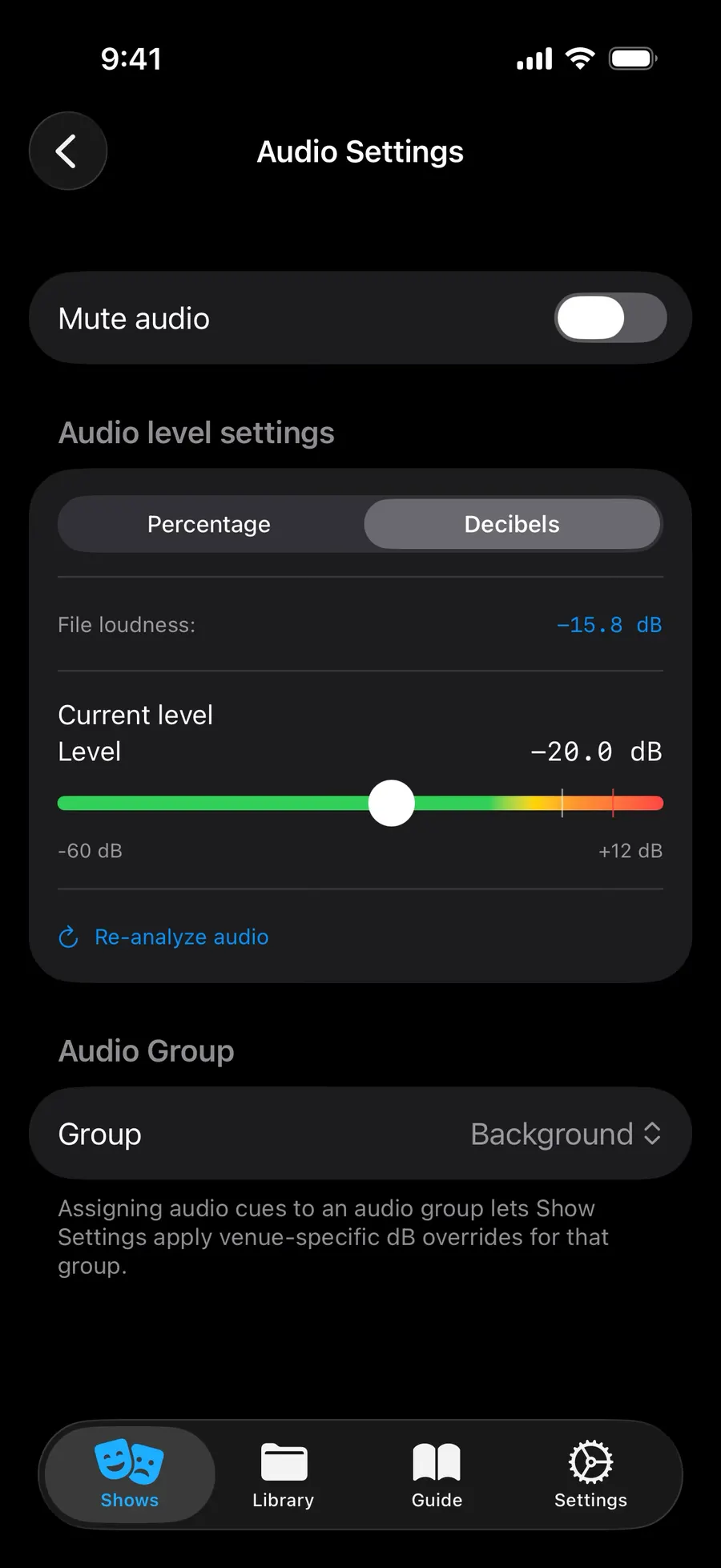
Levels work just like an audio cue's. See Volume, dB and loudness analysis.
