
Image cues show still pictures: title cards, logos, sponsor slides and reveals. Add one like any cue: tap Add cue, then Image, then Choose import source on Image Cue Setup. Images from Files can be PNG or JPEG.
Choose how the image fills the screen
Your output is wide, usually 16:9. When an image is a different shape, such as a portrait poster, iQ Pro needs to know how to fit it.
- 1
Open the image cue's settings. The preview at the top shows how the image looks on a 1920×1080 output.
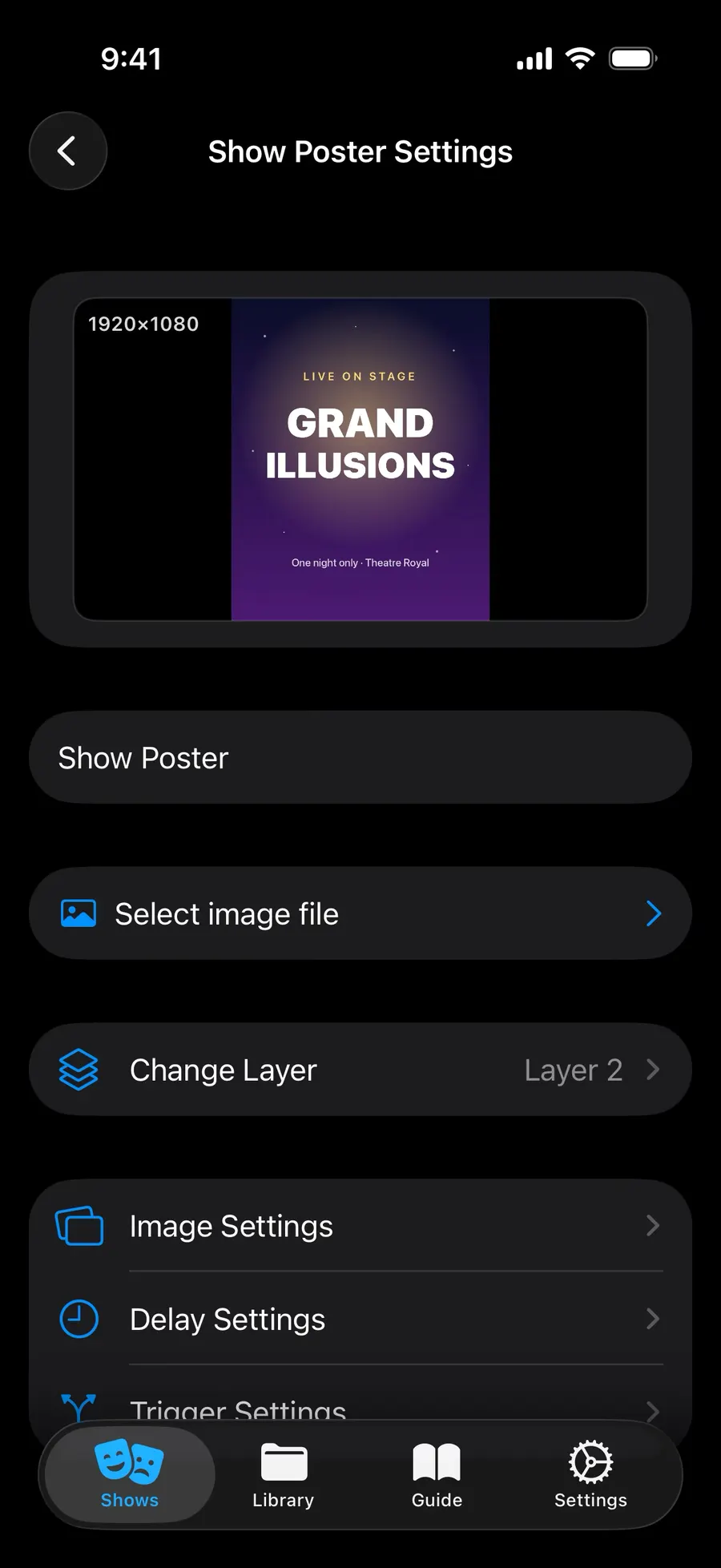
A portrait poster, shown with Fit - 2
Tap Image Settings.
- 3
Under Display mode, choose Cover, Fit or Fill. New image cues start on Fit. The preview underneath updates straight away.
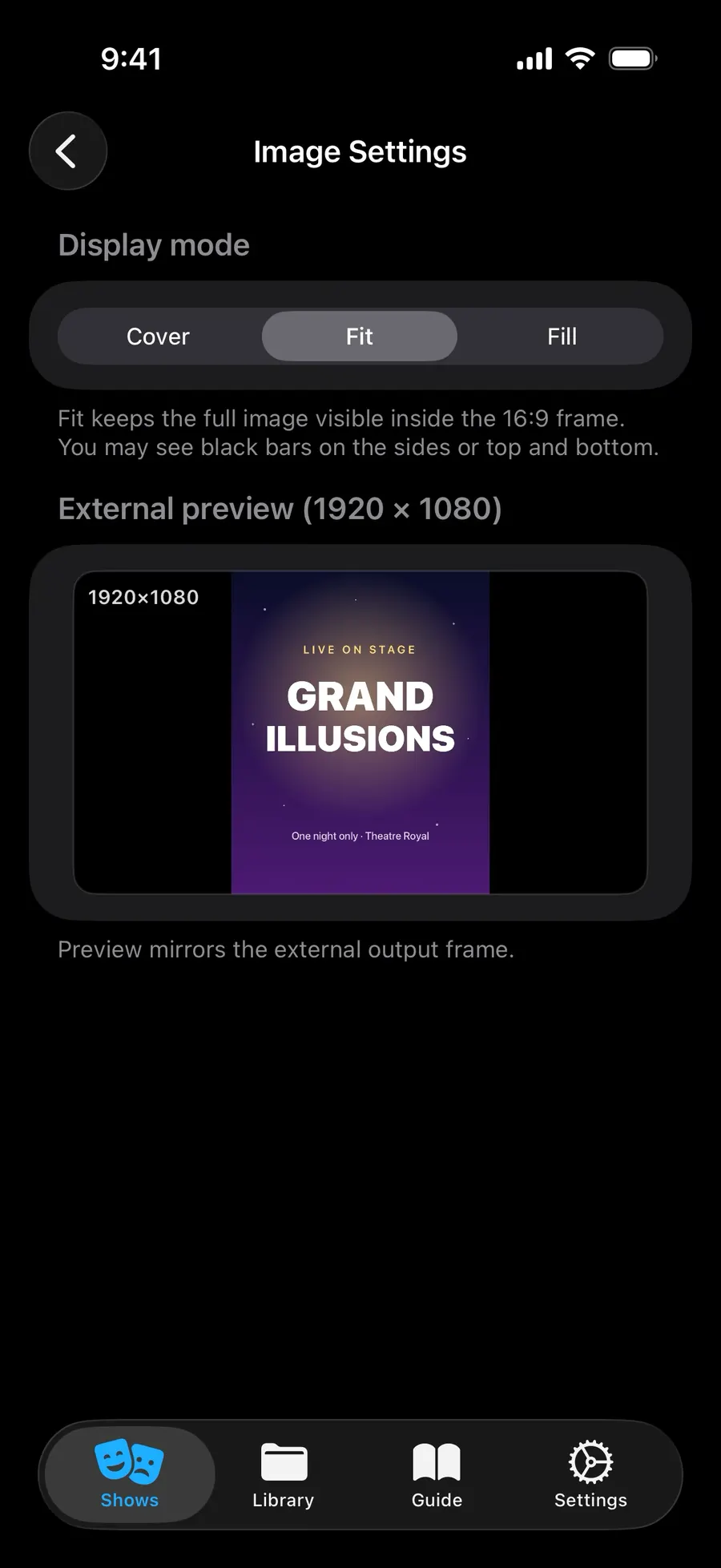
Fit shows the whole poster, with black bars at the sides
- Cover fills the whole frame and keeps the image's proportions. Edges may be cropped. It suits photos and backgrounds.
- Fit keeps the whole image visible inside the frame. You may see black bars at the sides or at the top and bottom. Use it for posters, logos and anything with text near the edge.
- Fill stretches the image to exactly match the frame. Nothing is cropped, but the image may look squashed or stretched.
The layer editor and the output show the same thing: a Fit image's box takes the image's shape, while Cover and Fill use the whole frame.
The rest of an image's settings
- Select image file swaps the picture.
- Change Layer sets the image's layer, in shows with Automatic cue layout off. See Change a cue's layer.
- Delay Settings waits before the image appears.
- Trigger Settings can start the next cue as soon as this one fires.
To make an image smaller, move it, or give it a border or rounded corners, use the layer editor.
