
A video cue doesn't have to play from the first frame to the last. Trim it, loop it, freeze on its final frame, or wait on its first frame until you're ready.
Trim the video
The preview at the top of the cue's settings has the same tools as an audio cue.
- 1
Tap play to watch it. The arrows jump 5 seconds back or forward.
- 2
Tap the scissors. Handles appear at each end of the waveform under the picture.
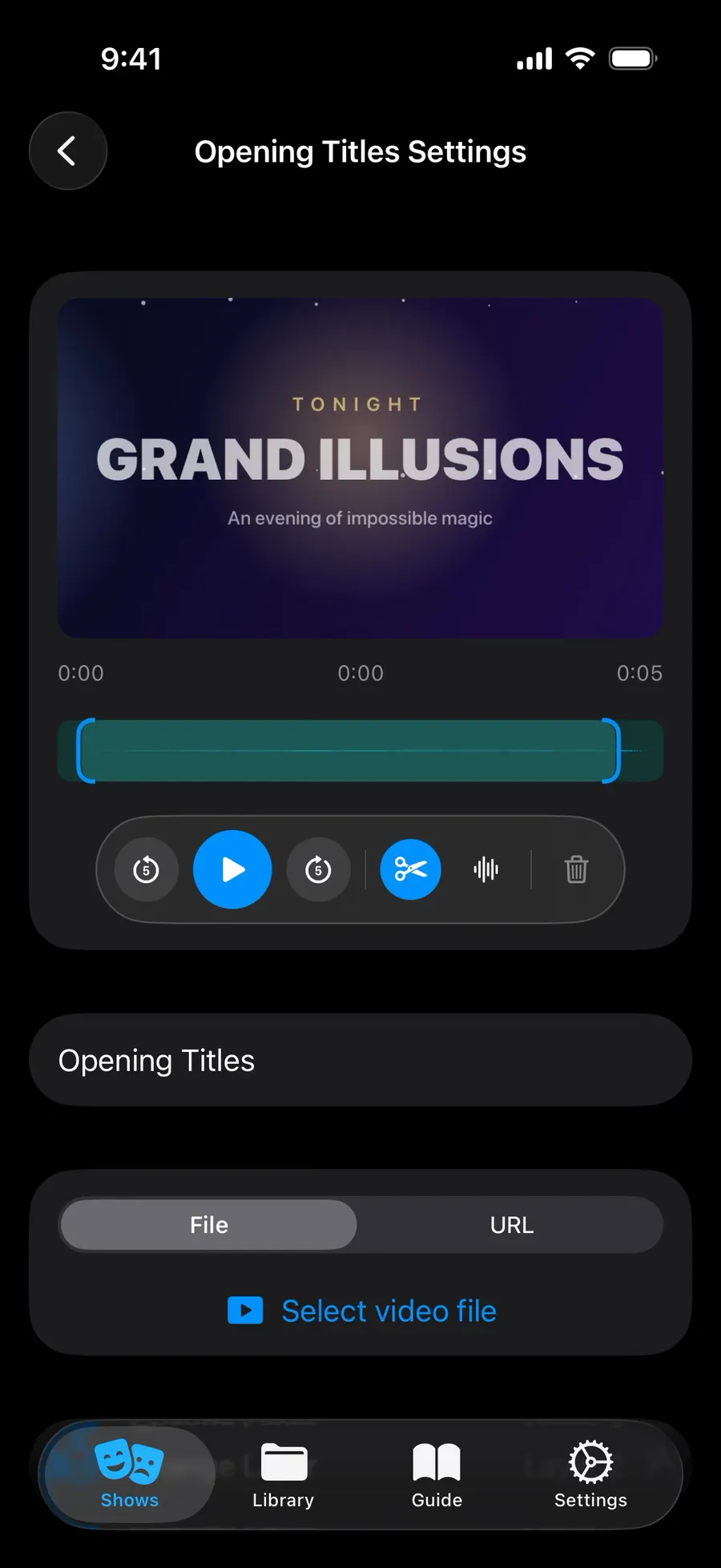
Drag the handles to set where the video starts and ends - 3
Drag the left handle to the first frame you want, and the right handle to the last. Drag the middle to move both together.
- 4
Tap the scissors again to finish.
The waveform button next to the scissors shapes the soundtrack's level over time, just like an audio cue. See Trim and loop with the waveform editor.
Playback Settings
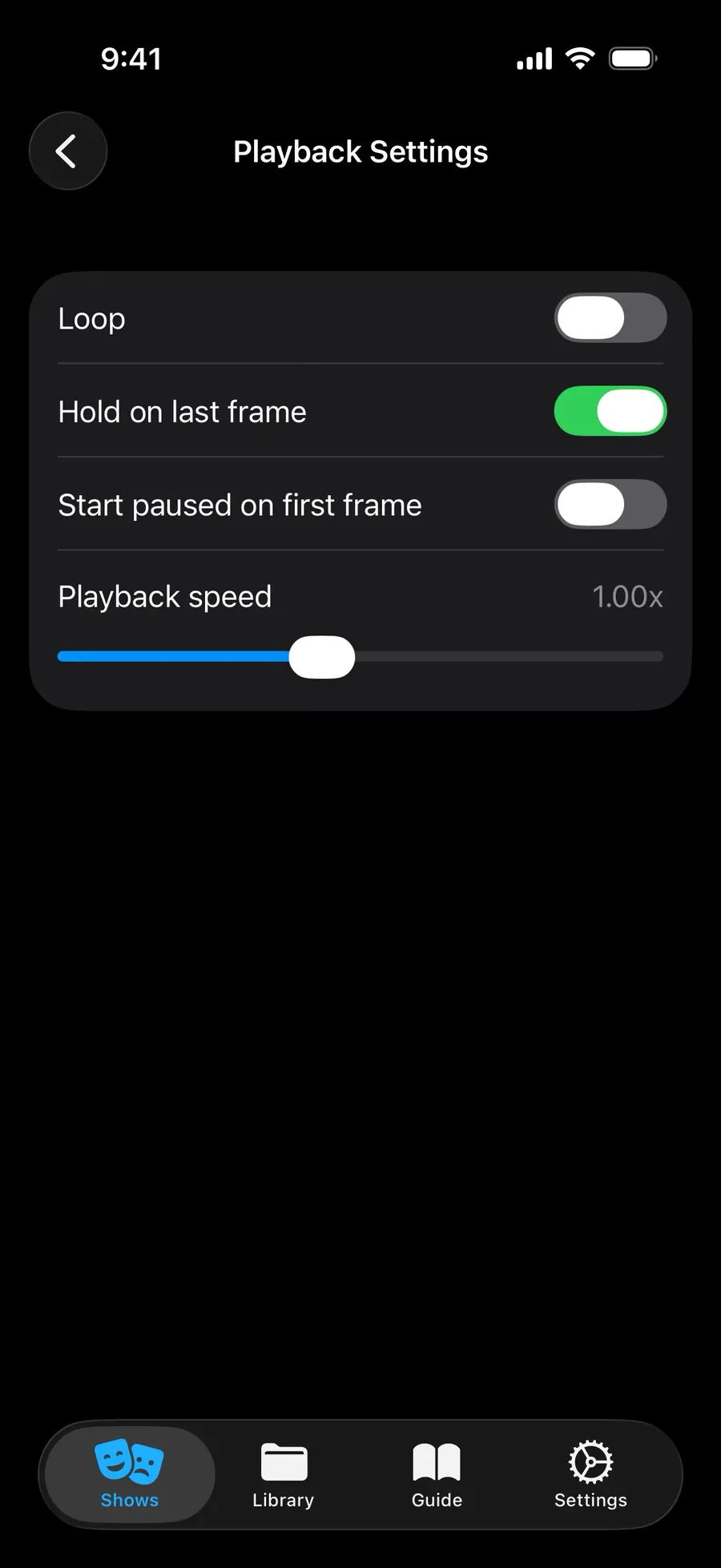
Tap Playback Settings in the cue's settings.
- Mute audio plays the picture without its sound.
- Loop plays the trimmed part over and over until the video is stopped or faded out. Use it for backgrounds and holding loops.
- Hold on last frame keeps the final frame on screen when the video ends, instead of clearing it. It's only offered when Loop is off.
- Start paused on first frame shows the first frame and waits. Start it with a Play/Pause Video cue when you're ready. See Play and pause video cues.
- Playback speed runs the video from 0.25x (slow motion) to 2.00x (double speed).
