
A loop cue plays several videos, images and slides one after another on a single layer, then starts again. Use it for walk-in music visuals, sponsor slides, or anything that should keep running in the background. Loop cues are part of the Pro and Pro+ plans.
Add a loop cue
- 1
Tap Add cue, then Loop. You'll find it under Media.
- 2
On Loop Settings, tap Configure Items. The row shows how many items there are and how long one loop takes.
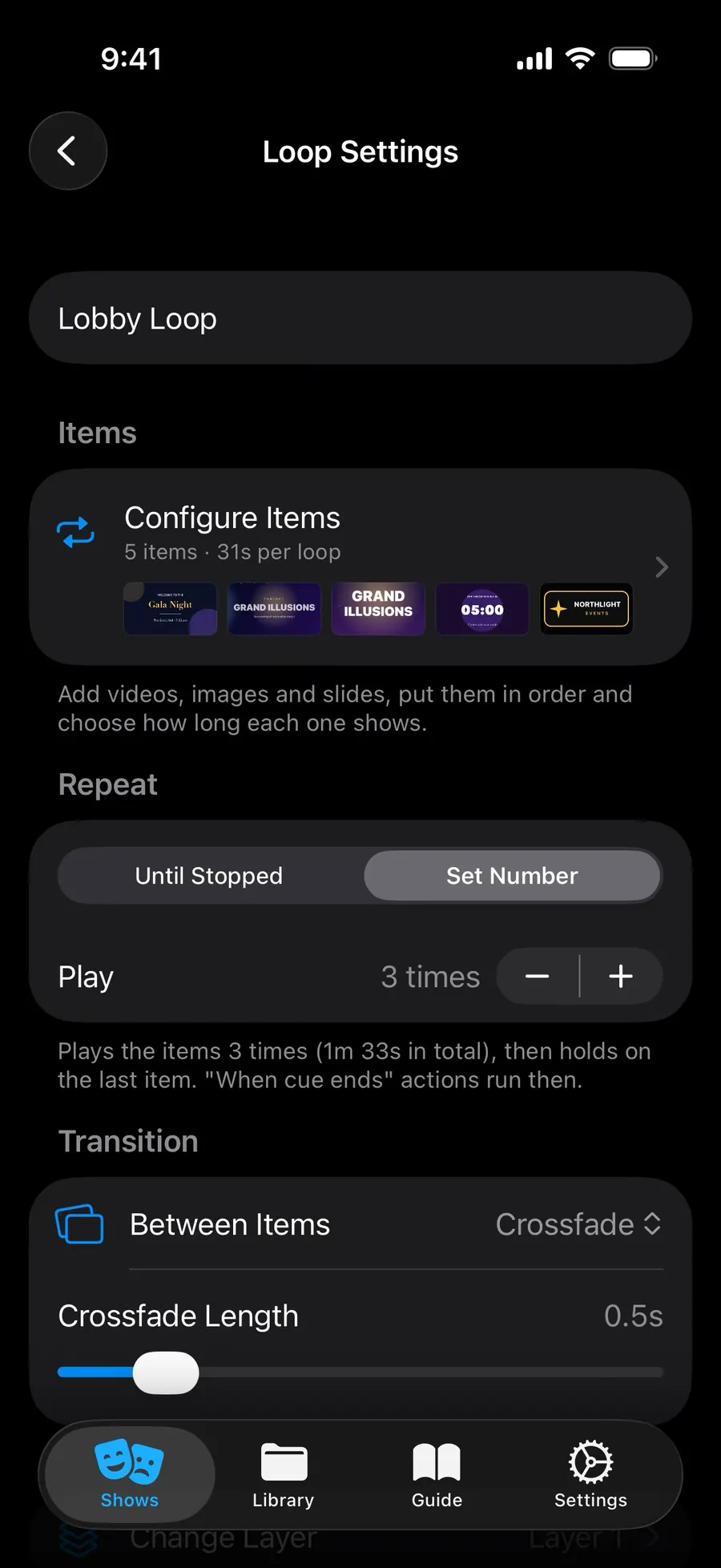
Configure Items opens the list of items - 3
Tap Add Items and choose where they come from: Slides you've designed, the Media Library, Photos or Files.
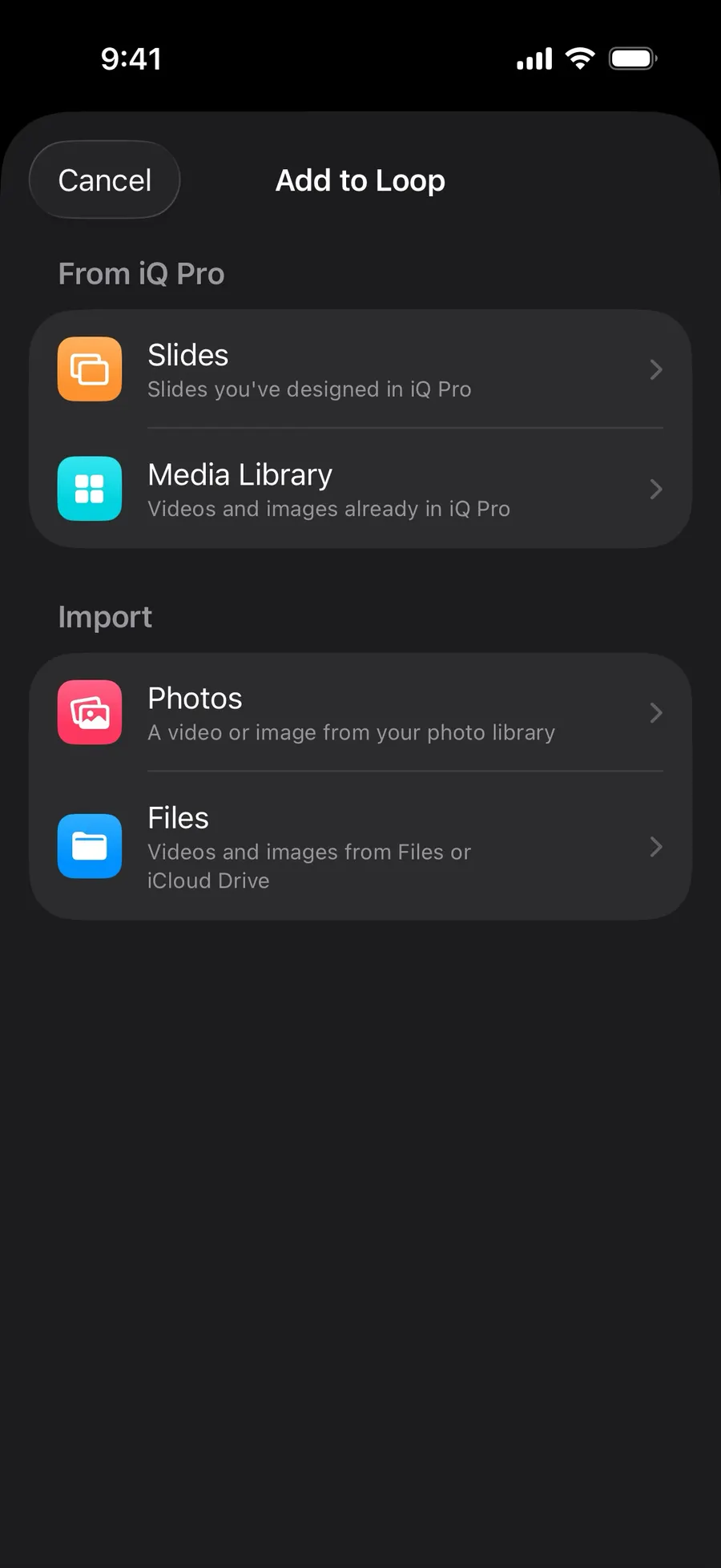
Pick slides, or videos and images - 4
Hold and drag an item to change the play order. Swipe left to remove one.
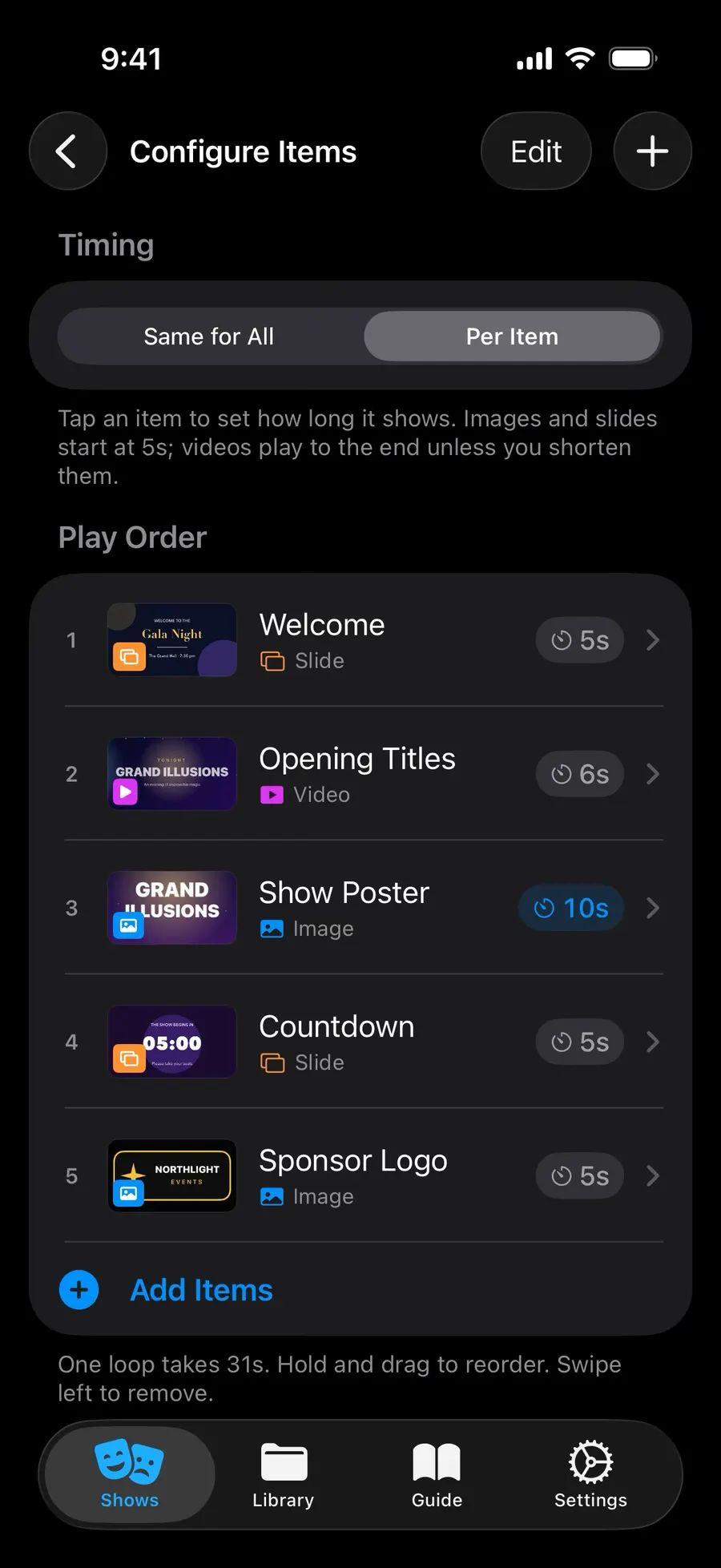
Items play from top to bottom
Choose how long each item shows
Under Timing on Configure Items:
- Same for All shows every image and slide for the same time, 5 seconds to start with. Videos play to the end.
- Per Item lets you tap an item and set its own length under Shows For. You can also shorten a video, so it moves on before it ends.
Choose how often it repeats
Under Repeat on Loop Settings:
- Until Stopped starts again from the first item after the last one, until a fade, a stop or another cue on the same layer takes over.
- Set Number plays the items a set number of times, then holds on the last item. When cue ends actions run at that point.
Choose the transition
Under Transition, Between Items can be Crossfade or Cut. A crossfade blends straight from one item into the next, with no dip to black. Set how long it takes with Crossfade Length (0.5 seconds to start with).
The rest of a loop's settings
- Change Layer sets the loop's layer, in shows with Automatic cue layout off. See Change a cue's layer.
- Delay Settings waits before the loop starts.
- Trigger Settings can start the next cue as soon as this one fires.
To make a loop smaller or move it on screen, use the layer editor.
