
An Animated Background cue fills the screen with a gently moving background that loops seamlessly. It's ideal for walk-in, between acts, or behind titles and a logo. There's no file to import: iQ Pro draws it live, sharp at any screen size.
Add one
- 1
Open a group, tap Add cue, then tap Animated Background. You'll find it under Media, below Image.
- 2
In the cue's settings, tap Configure Background. Below it you'll see the current preset, style, motion and speed.
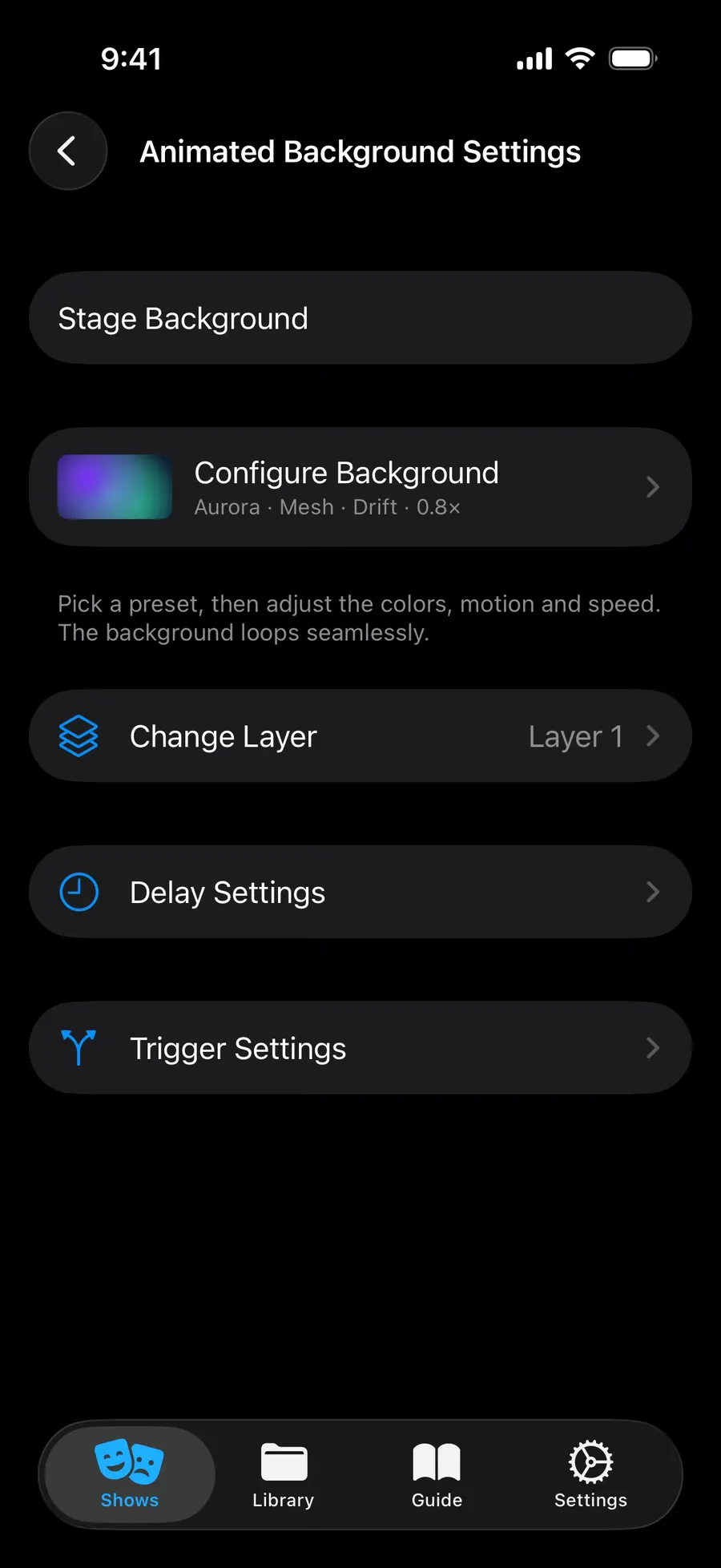
Configure Background, with Change Layer, Delay and Trigger settings
The editor
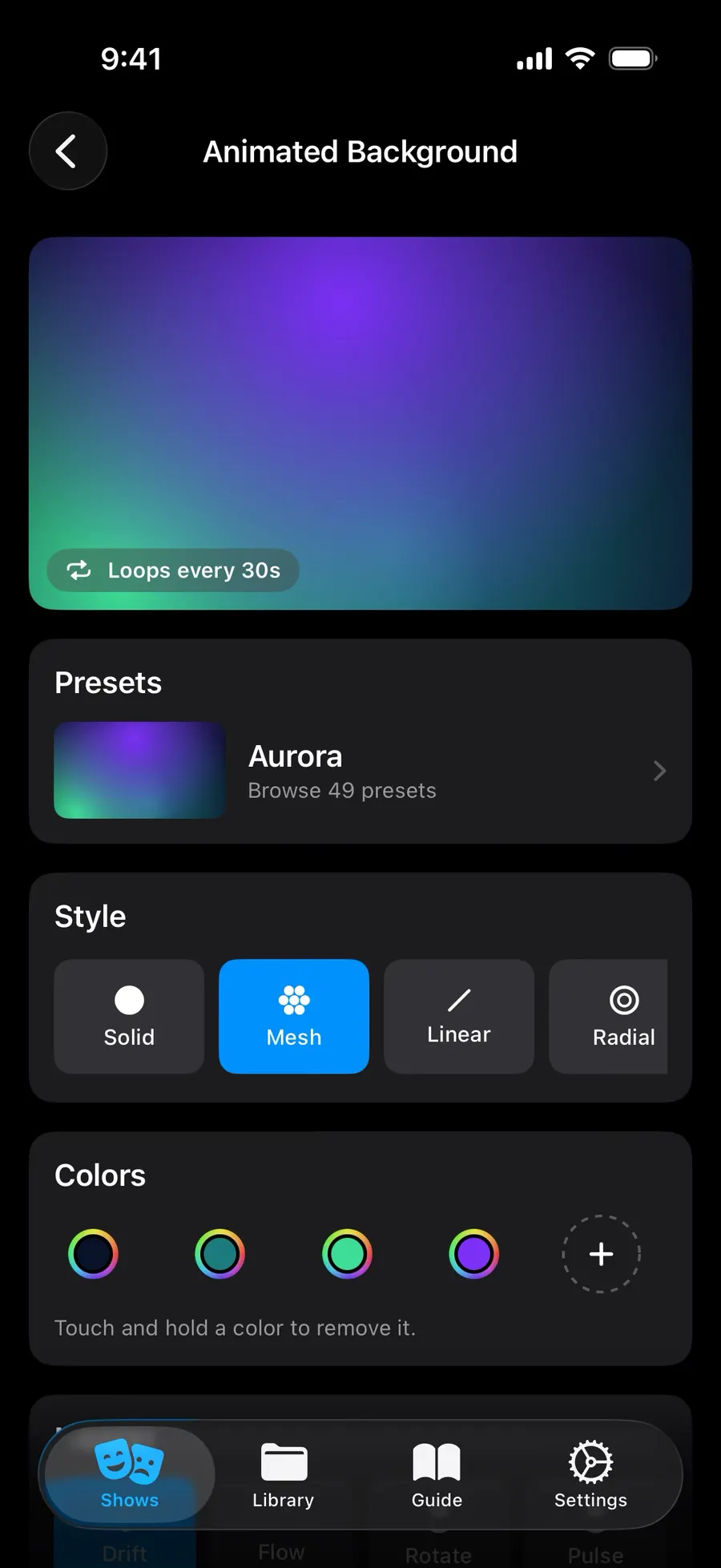
The preview at the top plays your background exactly as the audience will see it. For gradients, the badge in its corner shows how long one loop takes, such as Loops every 24s. Below the preview, the settings run from top to bottom: Presets, Style, Colors, Motion, Effects and Logo. Changes are saved as you go.
Start from a preset
Tap Presets to browse ready-made backgrounds. Filter them by All, Mesh, Linear, Radial, Angular or Sparkle (gradients with an effect on top), then tap one to use it.
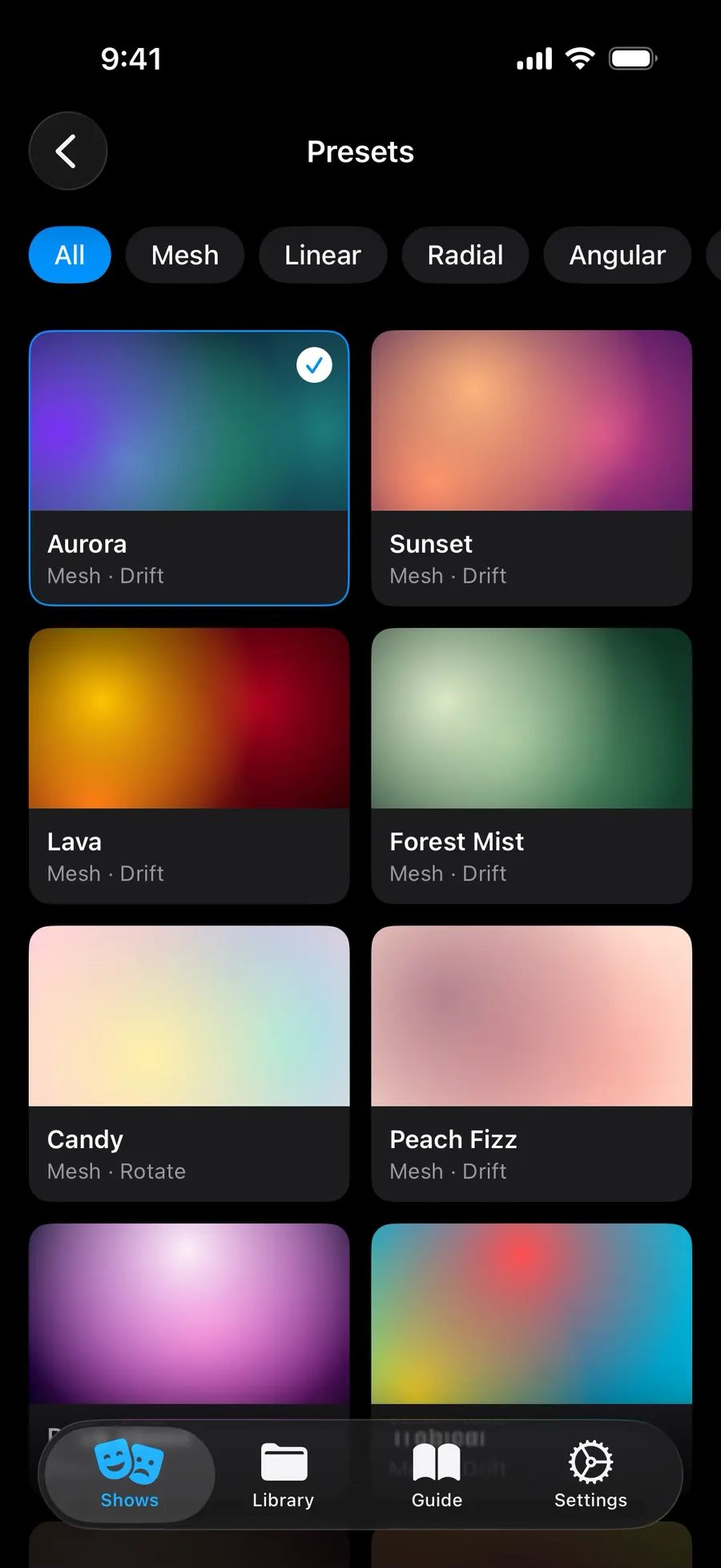
A preset is only a starting point: it sets the style, colours, motion and effect, and everything stays editable. Your mosaic pictures and logo are kept when you change preset. Once you change a setting, the background shows as Custom.
Styles
The style decides the shape of the background. These clips are shortened: each shows one whole loop.
Solid fills the screen with one colour. It doesn't move on its own, so it's best with an effect on top, such as snow over a dark blue.
Colors
- Mesh, Linear, Radial and Angular use 2 to 6 colours. Tap a colour to change it, or + to add one. Touch and hold a colour, then tap Remove Color to remove it.
- The order matters: the gradient blends from each colour into the next.
- Solid has one Color. For Mosaic, the Background Colors fill the gaps between pictures.
Motion
Choose how the colours move. To compare them, these clips use the same colours throughout.
Then fine-tune it:
- Speed: from 0.25× to 4×. At 1× a loop takes 24 seconds; at 2× it takes 12. Slow speeds suit walk-in and quiet moments.
- Amount: how far the colours move. Shown for Drift and Pulse only.
- Direction: the angle of a Linear gradient, and which way Flow moves on a Mesh. Radial and Angular gradients have no direction.
- Size: from 0.5× to 2×. Larger sizes give broader, softer areas of colour; smaller sizes show more colours at once.
Every motion loops seamlessly, so a background can run all night without a visible jump.
Effects
Effects are drawn on top of any style, including Solid and Mosaic. Each one moves on its own, so it works even over a still background.
- Amount: how many shapes there are.
- Size: from 0.5× to 2×.
- Color: the colour of Stars, Glitter, Bubbles and Snow. Confetti and Bokeh use your gradient colours instead.
Choose None to turn the effect off.
Scroll your own pictures
Choose the Mosaic style to scroll a wall of pictures across the screen, such as sponsor logos or photos of your cast.
- Add Images: choose from Photo Library or Files, up to 40 pictures. Touch and hold a picture, then tap Remove Image to remove it.
- Straight or Diagonal: level rows, or the whole wall tilted. With Diagonal, set the Tilt from -60° to 60°.
- Left or Right: which way the rows scroll. Turn on Alternate rows to scroll every other row the opposite way.
- Show whole images: fits each whole picture in its tile instead of cropping it to fill the tile. Use it for logos and transparent PNGs.
- Spacing and Rounded corners: the gap between pictures and how round their corners are.
- Under Scrolling, set the Speed and Tile size.
Pictures are placed so the same one is never next to itself, and the scroll never jumps back to the start, however many pictures you add.
Add a logo
Under Logo, tap Choose Logo and pick a picture from Photo Library or Files. It's drawn in the middle of the screen, over the background and any effect, and keeps its proportions. Use Scale to set its size, from 5% to 100% of the screen. Tap Replace Logo to change it, or Remove to take it off. Transparent PNGs work best.
