
A Play/Pause Video cue pauses a video that's playing, or plays one that's paused. Use it to freeze a clip on a reveal, then carry on when the applause dies down.
Add the cue
- 1
Open a group, tap Add cue, and tap Play/Pause Video under Transitions.
- 2
Tap Selected video.
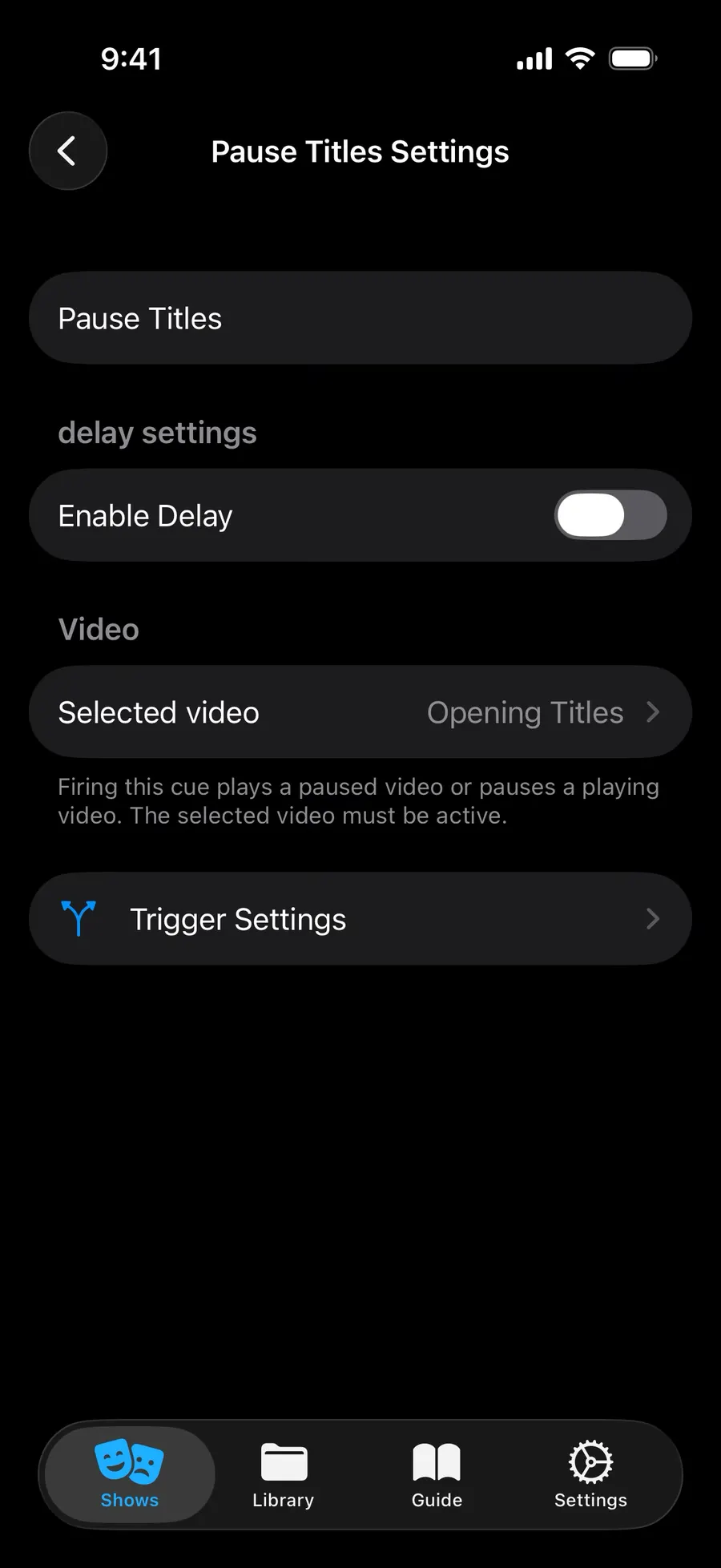
Pause Titles controls the Opening Titles video - 3
Tap the video this cue controls. Videos from this group are listed first.
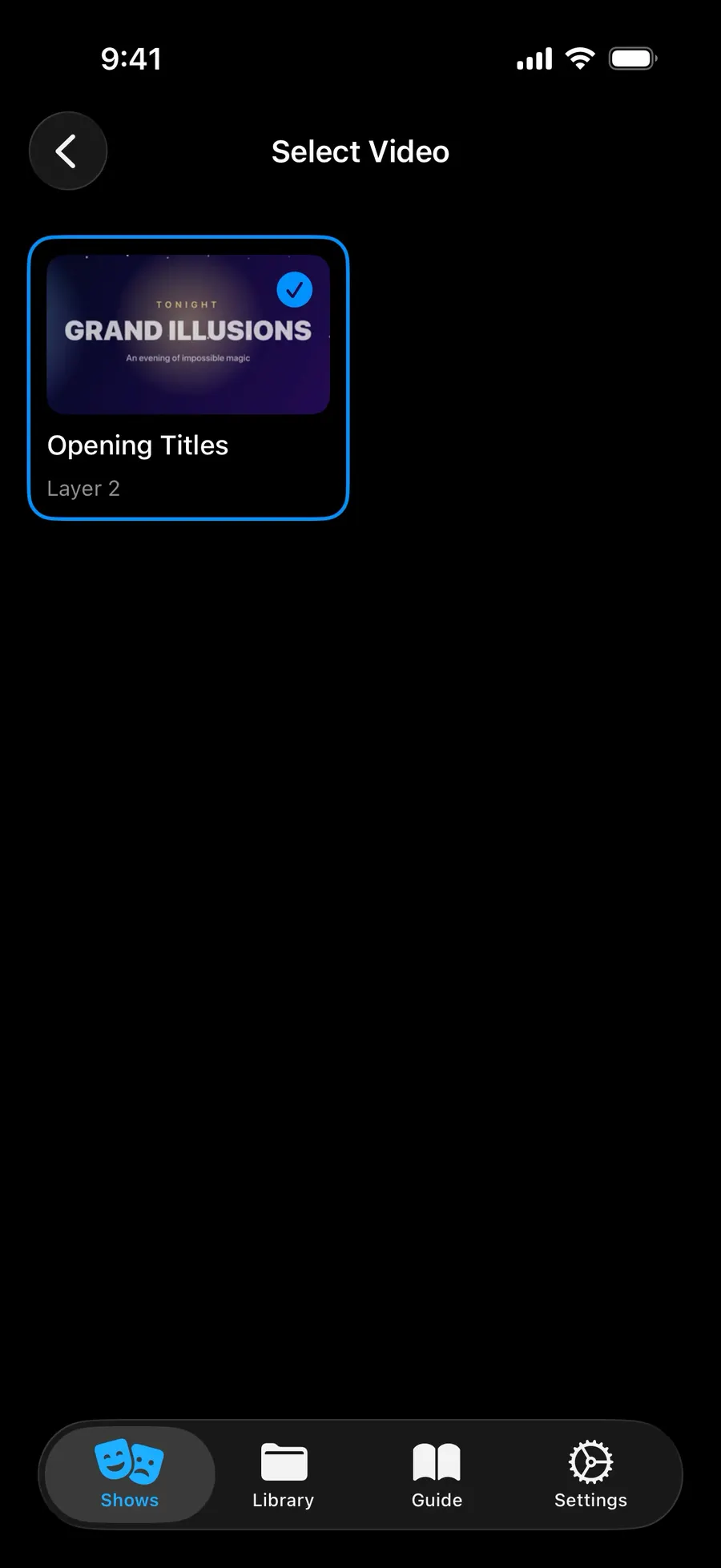
Choose the video to play or pause
Delay settings waits before the cue acts, and Trigger Settings can start the next cue at the same time.
How it behaves
- If the video is playing, the cue pauses it on the current frame.
- If the video is paused, the cue plays it from where it stopped.
- The video must be on screen when you fire the cue. A Play/Pause Video cue doesn't start a video that hasn't been fired.
To pause and later resume, add two Play/Pause Video cues for the same video at the right points in your running order.
