
A Crossfade fades one or more cues out while it fades others in, so one picture or track melts into the next. A Cut does the same switch instantly.
Add a crossfade or cut
- 1
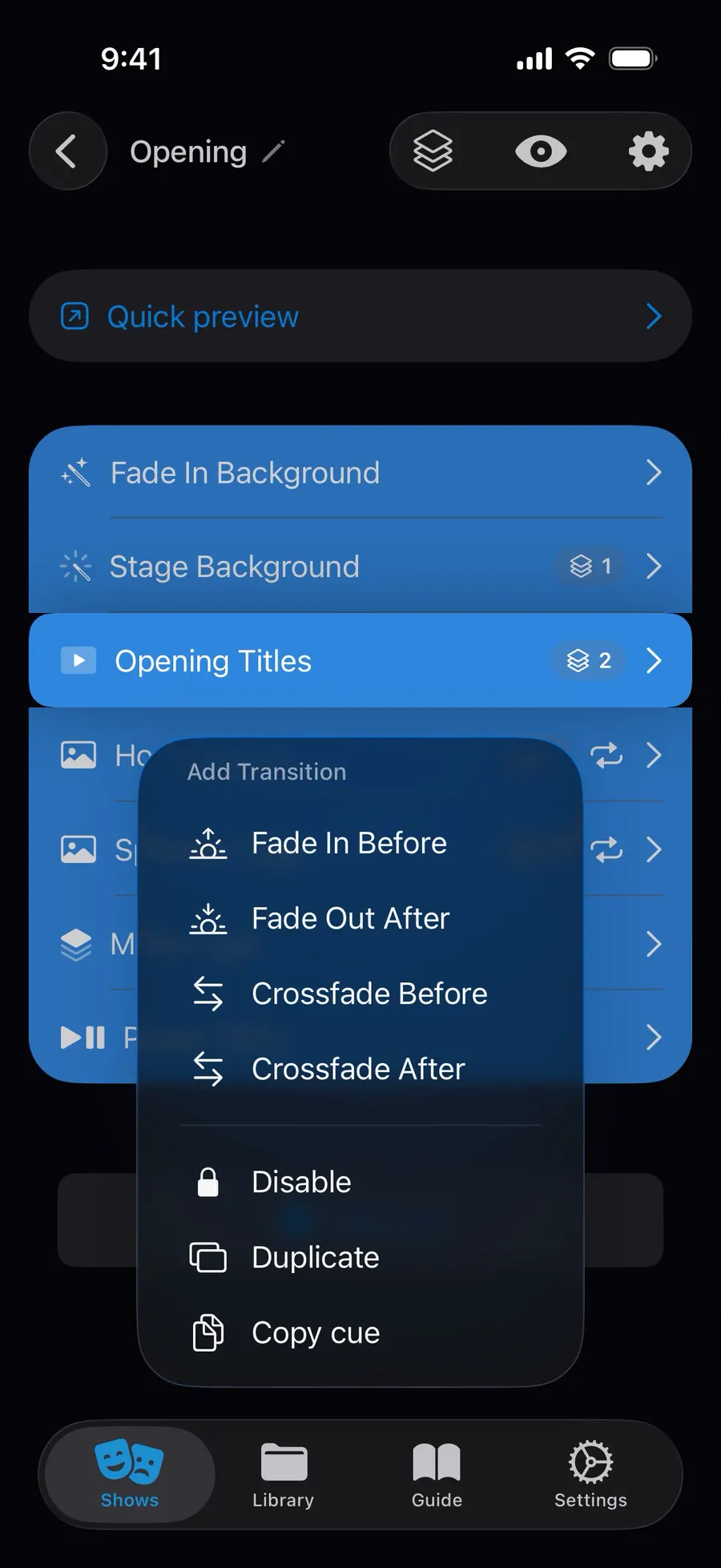
Open a group, tap Add cue, and tap Crossfade or Cut under Transitions.
- 2
Place it before the cue it switches to. Firing the crossfade starts that cue for you, so you don't fire it separately.
Crossfade settings
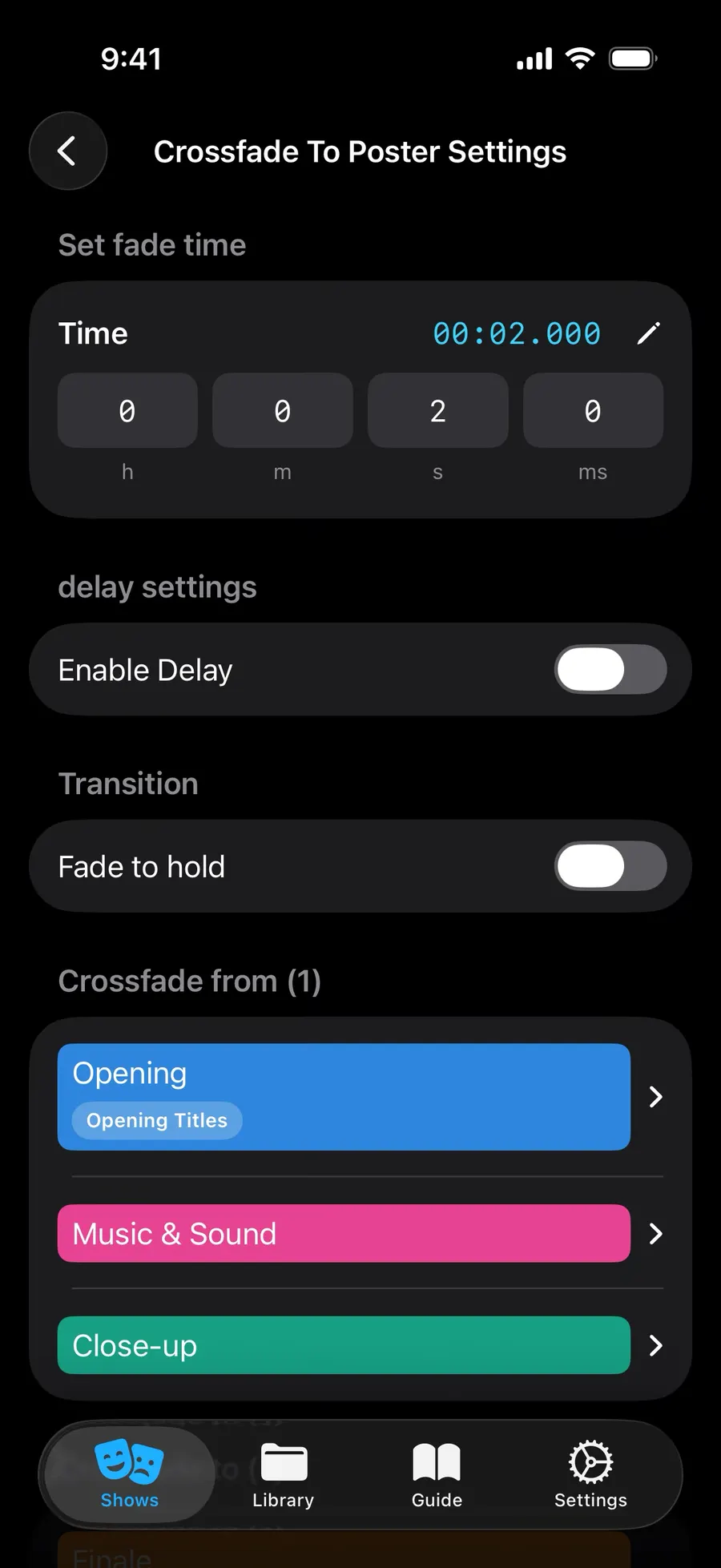
- Set fade time is how long the blend takes.
- Delay settings waits before it starts.
- Crossfade from lists the cues that come before the crossfade. Tick the ones to fade out.
- Crossfade to lists the cues that come after it. Tick the ones to fade in.
Both lists group the cues by the group they're in, and show how many you've ticked. Other transitions aren't listed.
Fade to hold
Turn on Fade to hold under Transition to fade the old cues out completely, hold on black and silence for the time you set, then fade the new cues in. It's a dip to black rather than a blend, and works well between acts.
Cut settings
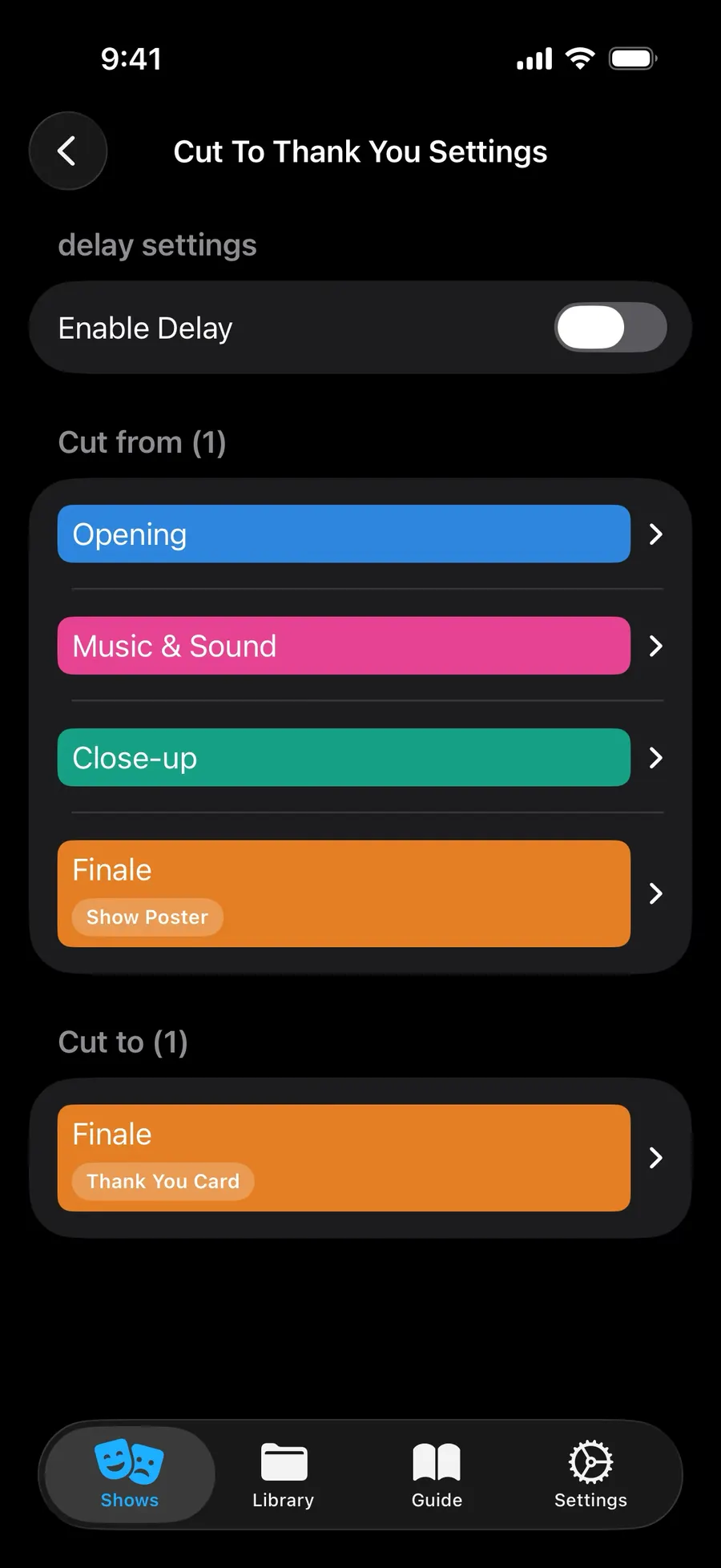
A cut has no fade time. Tick the cues under Cut from and Cut to: when you fire it, the first set stops and the second set starts at once.
