
An Animate Cue moves a picture that's already showing to a new position and size. Use it to shrink a full-screen video into a corner as your presenter walks on, or to slide a logo from the corner to the middle for the finale.
Add the cue
- 1
Open a group, tap Add cue, and tap Animate Cue under Transitions. Place it after the picture it moves.
- 2
Tap Selected cue and pick the picture to move. It's set to the previous picture in the group to start with.
- 3
Under Animation duration, set how long the move takes.
Set where it goes
Tap Set destination on canvas.
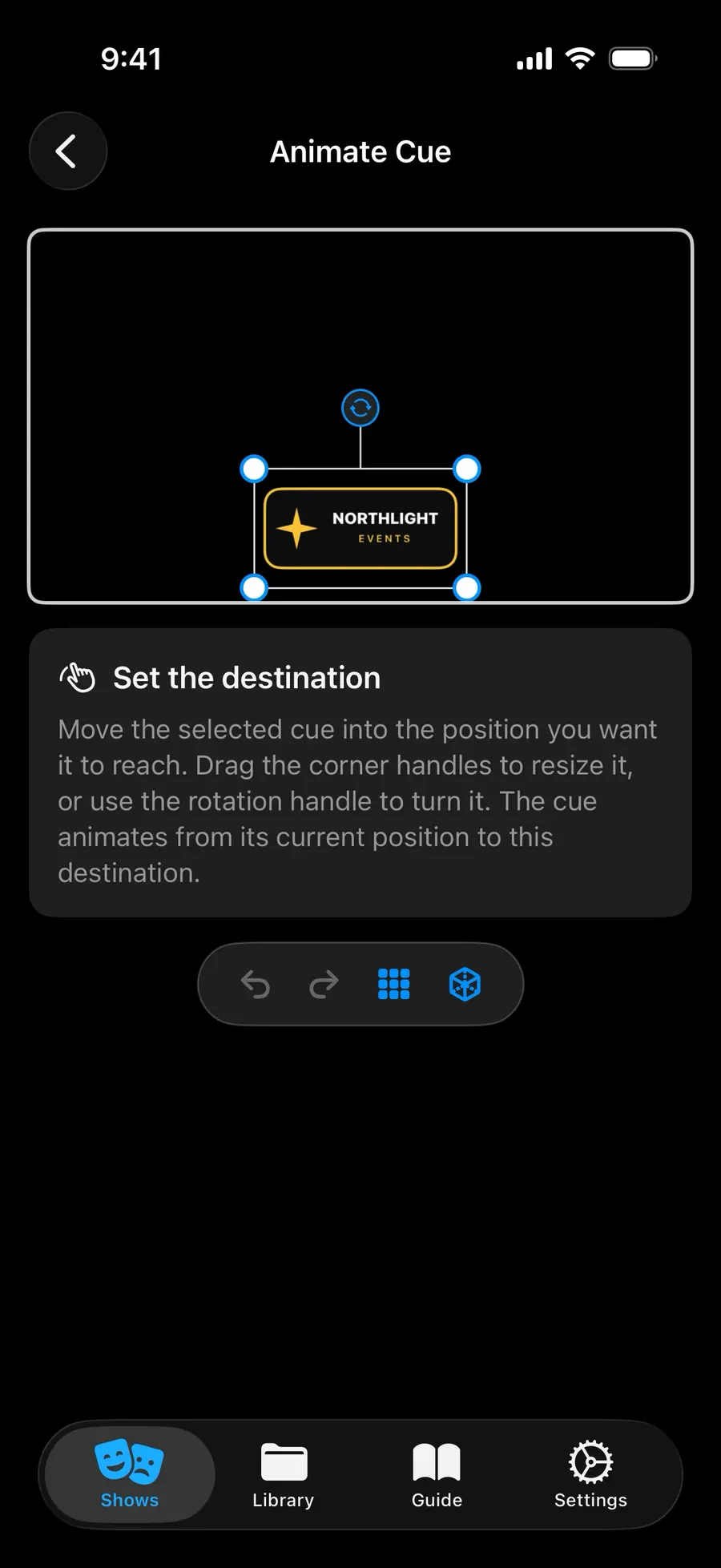
The canvas shows the cue in its destination. Move it into place:
- Drag it to move it.
- Drag a corner handle to resize it, or the round handle above it to rotate it.
- Use undo and redo while you work. Touch and hold undo to start again from the cue's current position.
- The grid button snaps to a grid, and the cube lets you move each corner on its own for a 3D effect, just like the layer editor.
When you fire the cue, the picture glides from wherever it is now to this destination.
