
The waveform at the top of an audio cue's settings is a small editor. Use it to play just the part of a track you need, and to shape how loud it is from start to finish.
Listen first
Open the cue's settings. The waveform shows the whole file, with three times underneath: where the cue starts, where the playhead is, and where it ends.
- Tap play to listen, and the arrows either side to jump 5 seconds back or forward.
- Drag along the waveform to move the playhead.
Trim the start and end
- 1
Tap the scissors. Handles appear at the start and end of the waveform.
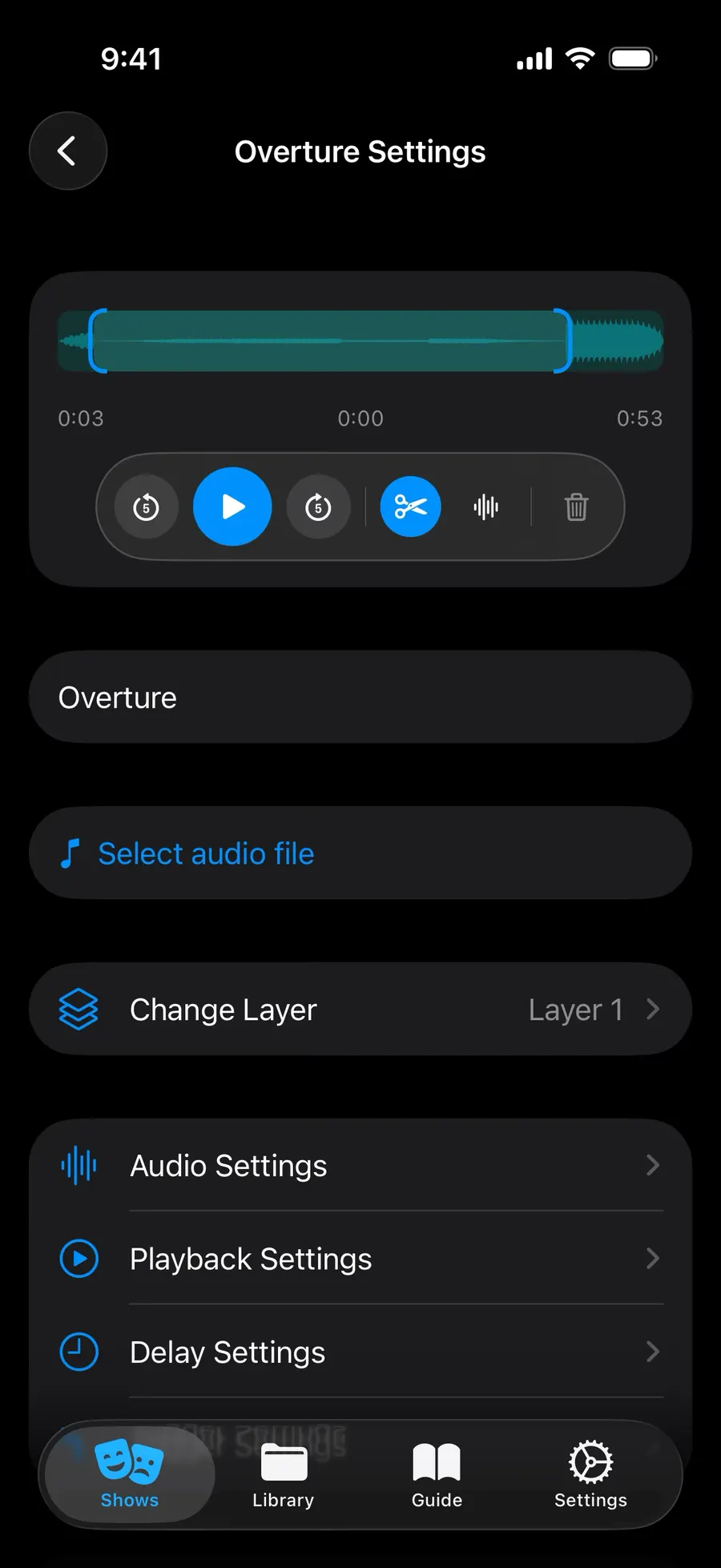
Overture, trimmed to skip its quiet intro - 2
Drag the left handle to where the cue should start, and the right handle to where it should stop. The times underneath update as you drag.
- 3
To move the whole selection, drag the middle of it. It keeps its length.
- 4
Tap play to check, then tap the scissors again to finish.
The file itself isn't changed. Only this cue plays the trimmed part, so other cues can use the same file in full.
Shape the level over time
Tap the waveform button to draw the cue's level as a line over the track.
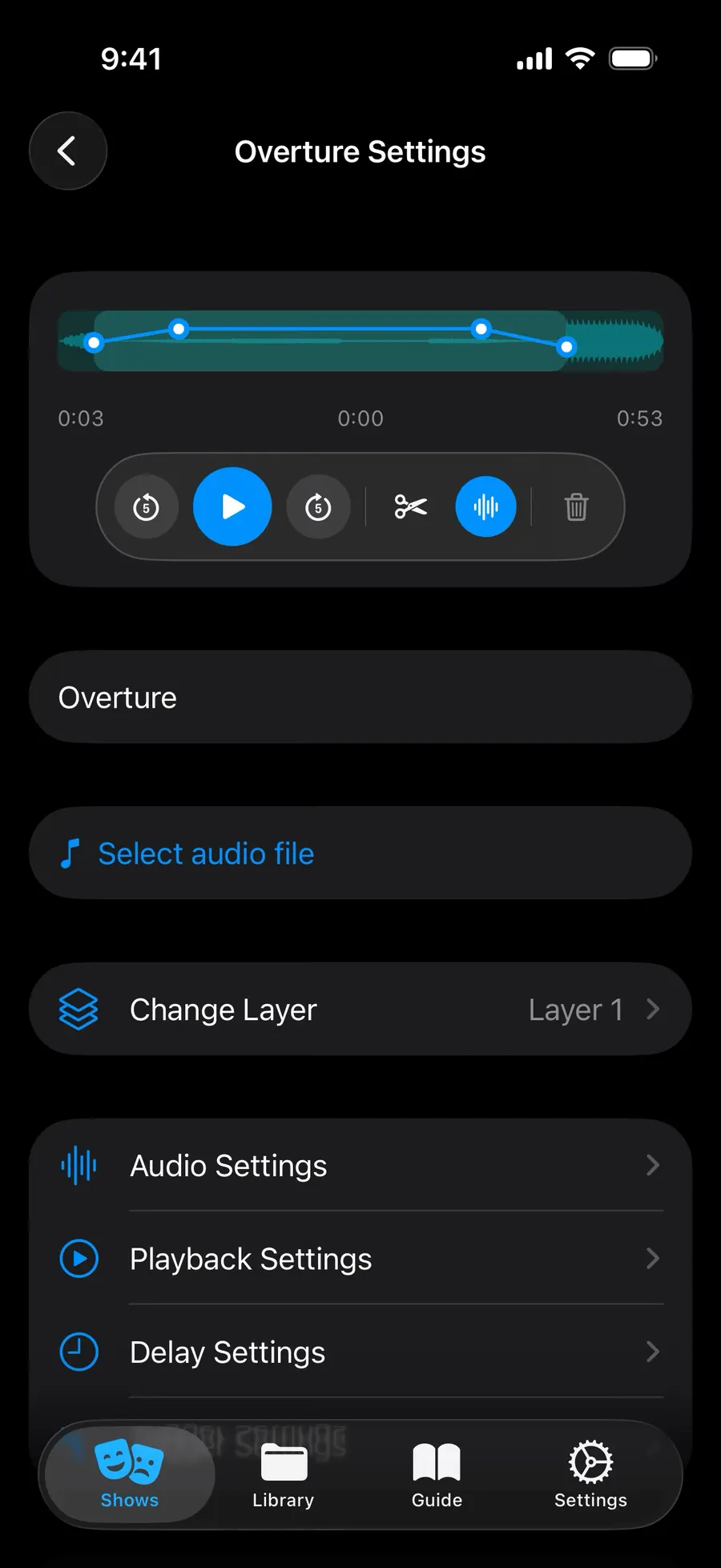
- Tap the line to add a point, then drag it up to make that moment louder, or down to make it quieter.
- Drag a point sideways to move it in time.
- Select a point and tap the bin to remove it.
Use it to build a fade-in, dip the music under a voice-over, or fade out a track that has no proper ending. Shaping the level switches the cue to Decibels. See Volume, dB and loudness analysis.
Loop a cue
- 1
In the cue's settings, tap Playback Settings.
- 2
Turn Loop on to repeat the trimmed part until the cue is stopped or faded out, or off to play it once.
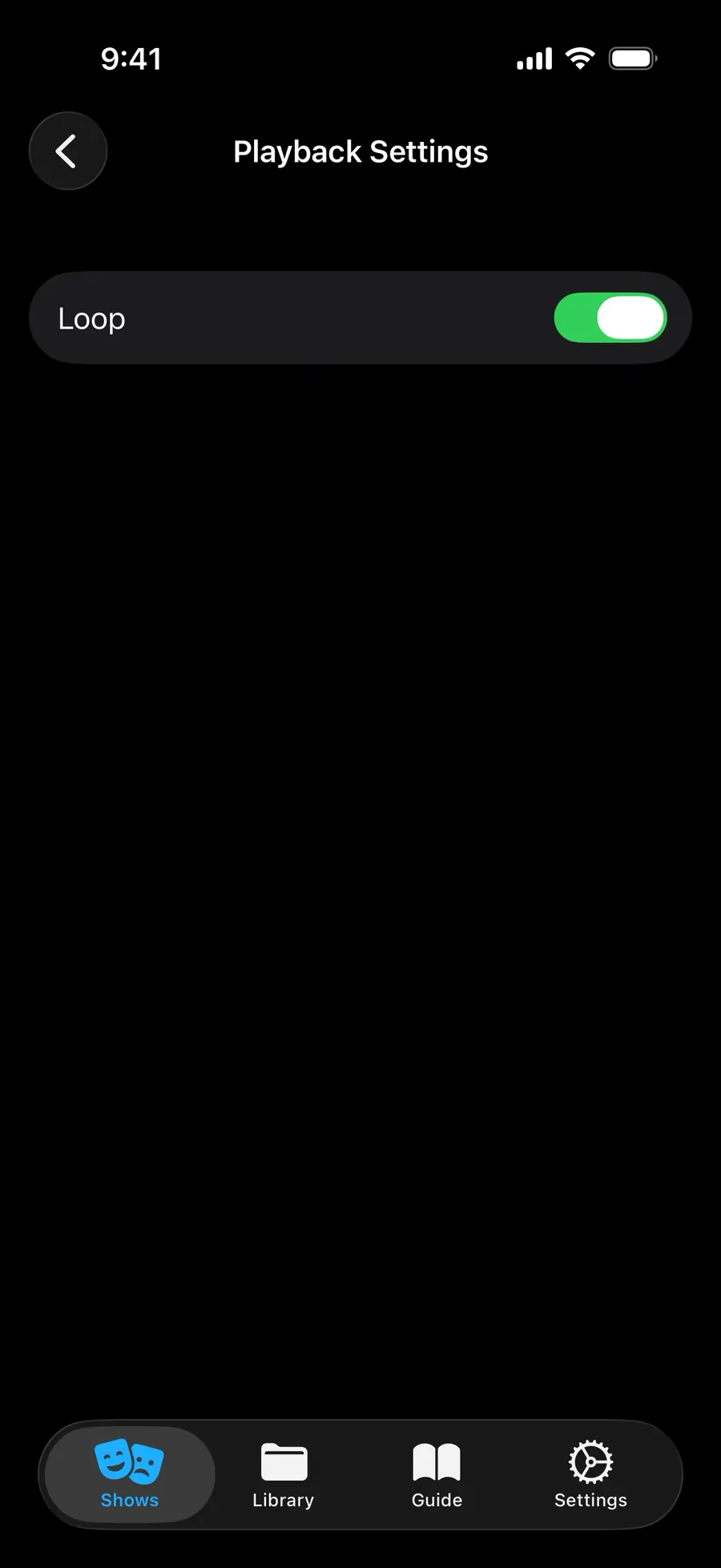
Loop is on for walk-in music
Loop is on for new audio cues, which suits walk-in and background music. Turn it off for stings and sound effects.
