
Every audio cue, and every video cue with sound, has its own level. Set it in the cue's settings under Audio Settings. Choose between two ways of working with Volume Mode at the top.
Percentage
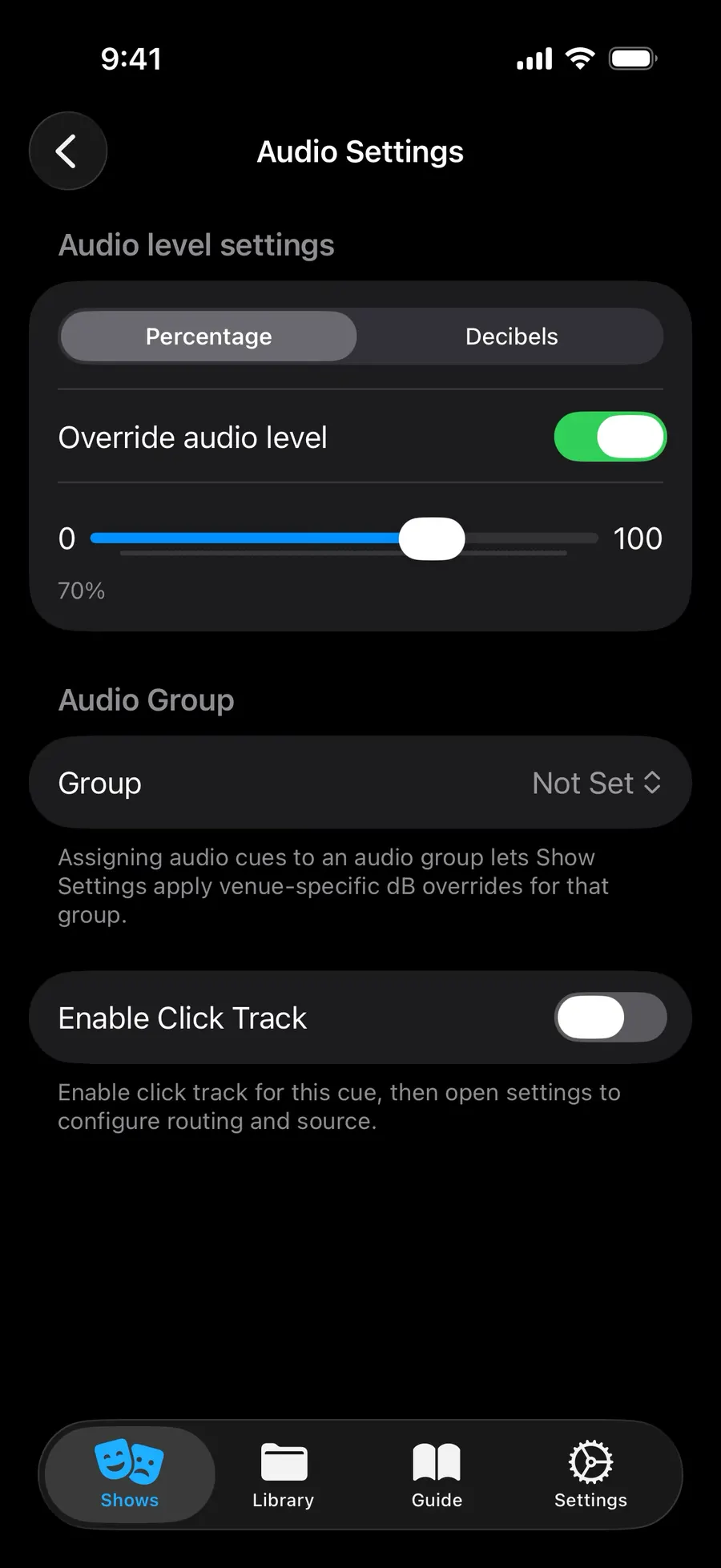
Turn on Override audio level and drag the slider from 0 to 100. 100% plays the file as it was recorded. With the override off, the cue plays at full level.
Percentage is quick and simple, and fine when all your files are at similar levels.
Decibels
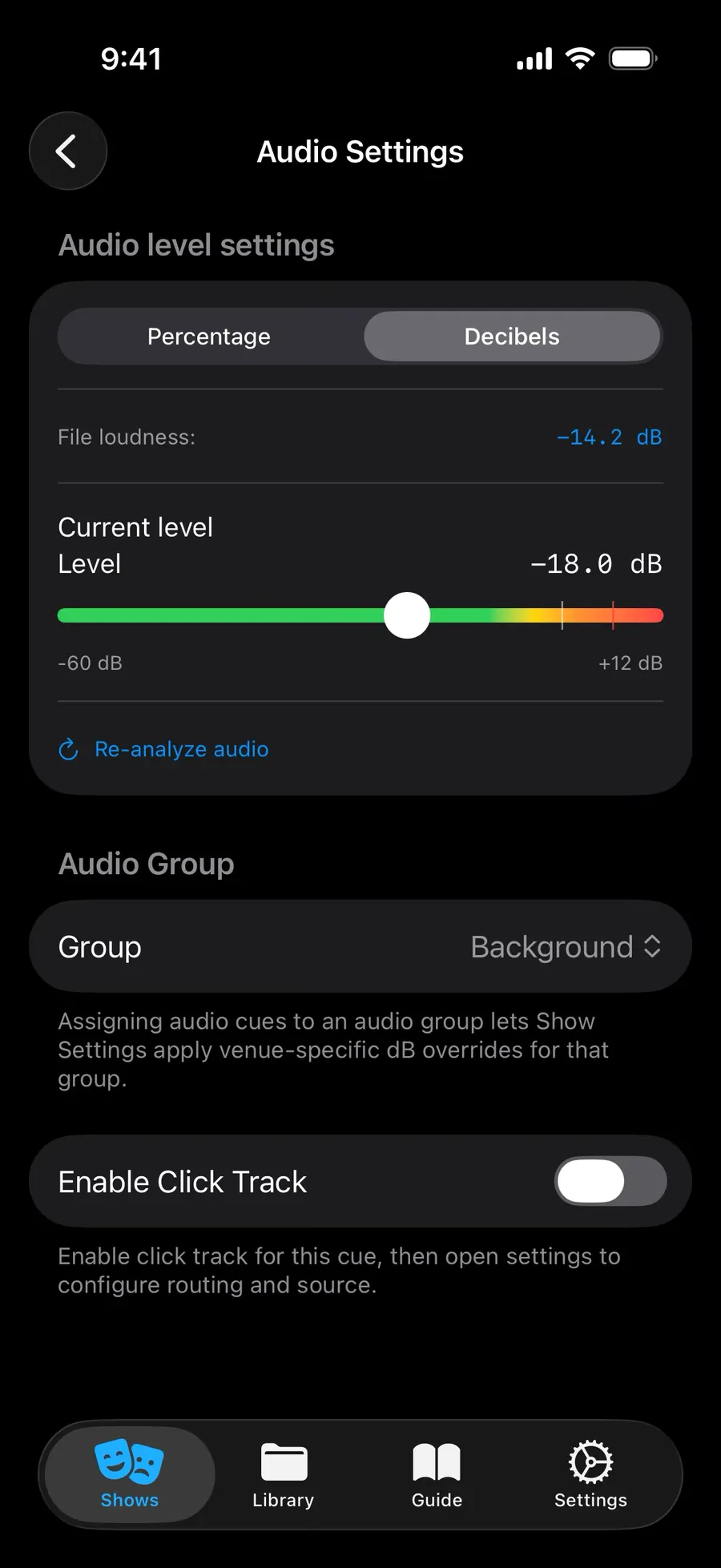
When you choose Decibels, iQ Pro analyses the file and shows its measured loudness as File loudness. You then set Current level to how loud you want the cue to sound, from -60 dB to +12 dB. iQ Pro works out how much to turn the file down to get there.
This means two tracks set to the same level sound about as loud as each other, even if one was mastered much louder.
- Re-analyze audio measures the file again. Do it after you've replaced the file.
- If the level you set is louder than the file itself, it plays at its recorded level. iQ Pro never boosts a file.
- With a level shape drawn on the waveform, Current level follows that shape. See Trim and loop with the waveform editor.
Everything that affects the level
When a cue plays, iQ Pro combines, in order:
- The cue's own level, from Percentage or Decibels.
- Its audio group's override, if it has one. See Audio groups and venue overrides.
- The level meter on the Perform screen, which caps everything that's playing. See The Perform screen at a glance.
A Volume cue can then change the level of a playing cue mid-show.
