
Frame Settings dresses up a camera cue. A frame sits on top of the picture: a lower third with a name, a logo or a border. A background sits behind it, revealed when you shrink the camera. Save the combination as a template to reuse it in any show.
Open the camera cue and tap Frame Settings. The Live Preview at the top shows the camera with everything you add.
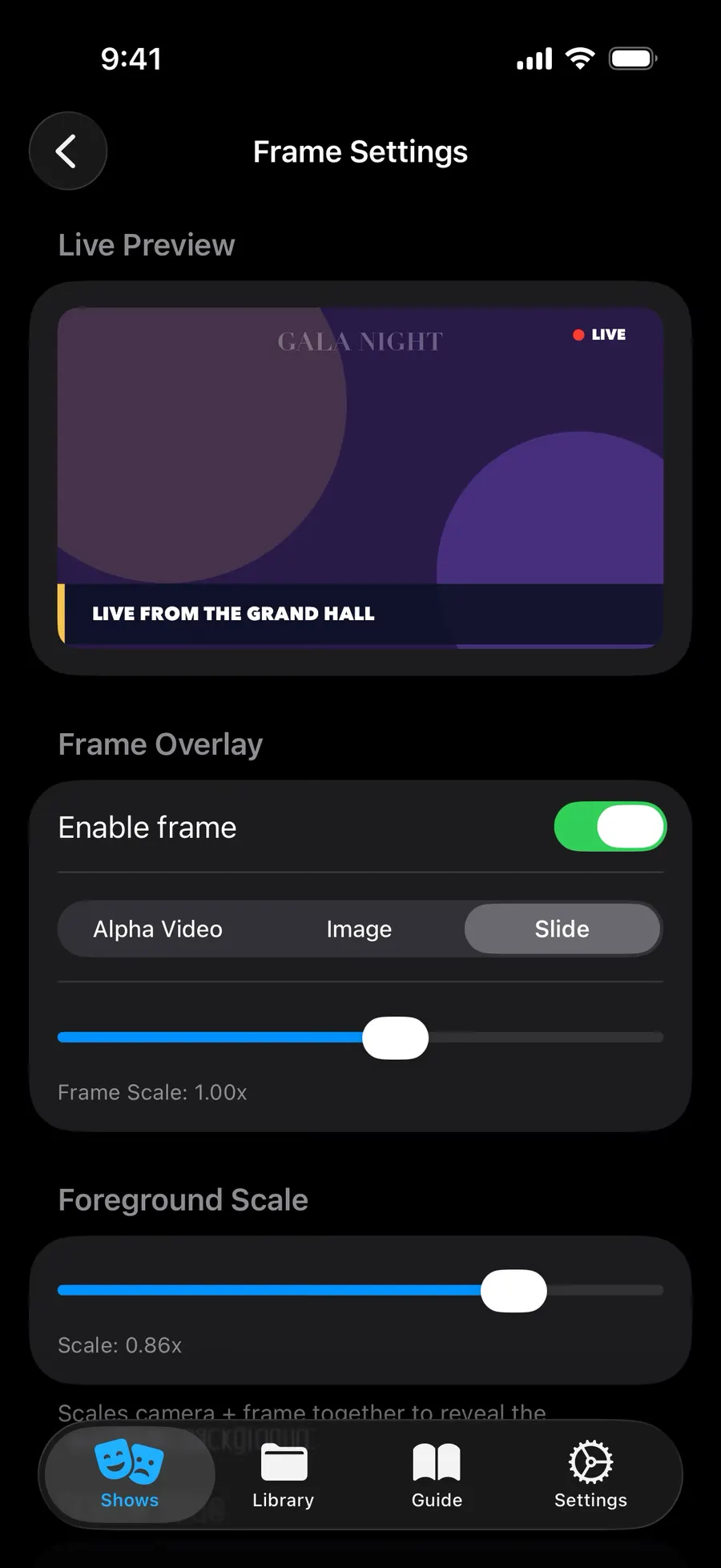
Add a frame
- 1
Under Frame Overlay, turn on Enable frame.
- 2
Choose the Frame source: Alpha Video (a video with transparency, such as an animated border), Image (a transparent PNG works best) or Slide (any slide from your library).
- 3
For a video or image, tap Select alpha video or Select image and pick the file. For a slide, choose it under Frame Slide.
- 4
Drag the slider to set the Frame Scale.
Add a background
- 1
Under Background, turn on Enable background.
- 2
Choose the Background source: Video (it loops), Image or Slide. Tap Select background video or Select background image, or choose the slide under Background Slide.
- 3
Drag Foreground Scale below 1.00×. The camera and frame shrink together to reveal the background around them.
Save and reuse a template
Under Templates:
- Save current as template saves the frame and background settings with a name.
- Import from template applies a saved template to this cue.
- With a template applied, Delete template removes it.
Templates are stored app-wide, so the same look is ready in every show. They save the frame and background only; the camera source and grade stay with each cue.
