
Face tracking zooms into the camera's picture and follows the face it finds, so a speaker who walks around stays in the middle of the shot. The camera itself never moves: leave it on a stand and let iQ Pro do the framing.
Turn it on
- 1
Open the camera cue's settings.
- 2
Turn on Enable face tracking.
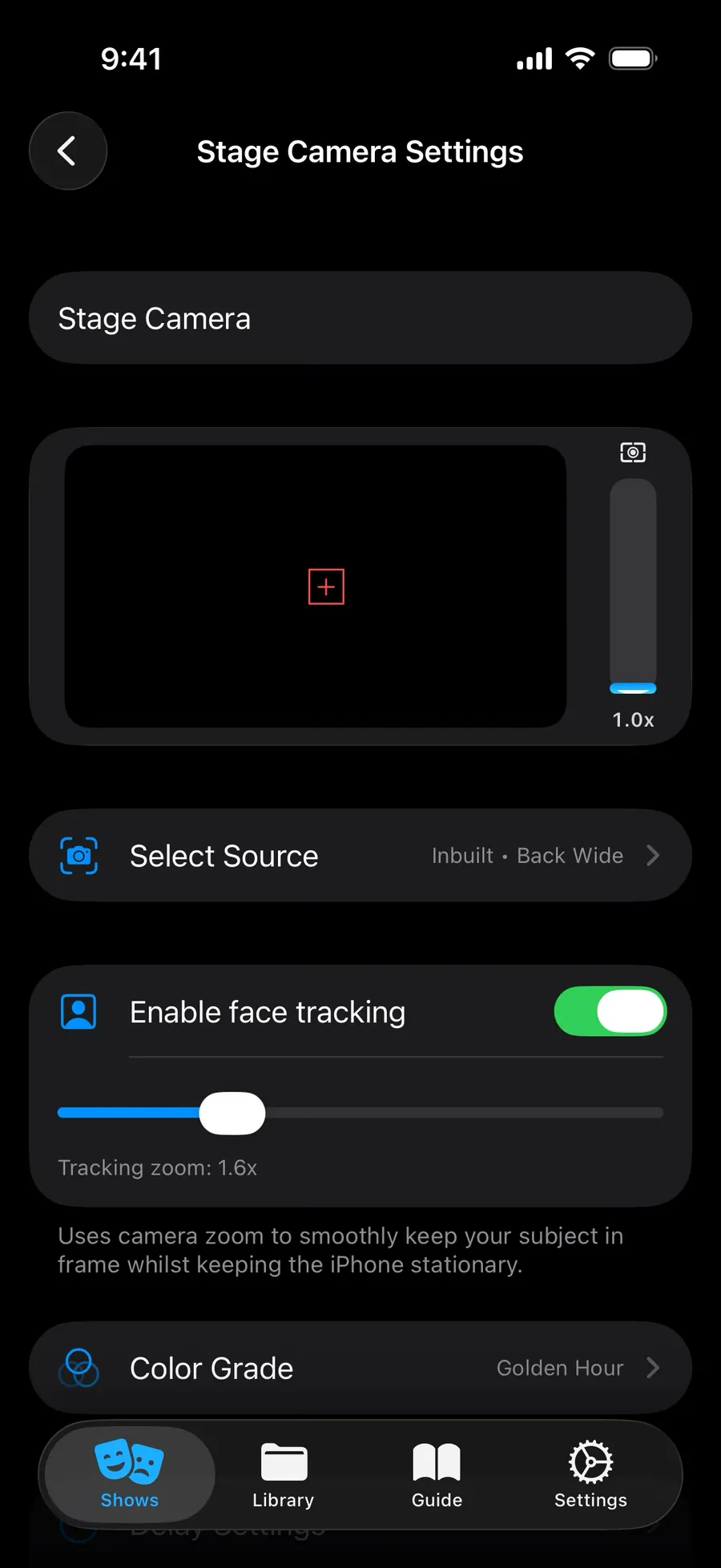
Enable face tracking, with the tracking zoom below - 3
Drag the slider to set how tight the shot is. Tracking zoom shows the value, from 1.1× to 3.0×.
The preview at the top shows the result. With face tracking on, the tracking zoom replaces the cue's normal zoom.
Get the best results
- Zoom out the camera, not the shot. Use Back Wide or Back Ultra-Wide and a tracking zoom of around 1.5×. That leaves room to follow someone across the stage.
- Light the face. Tracking needs to see a face clearly. A dark stage with a bright screen behind the speaker makes it harder.
- One face works best. With several people in shot, the framing may move between them.
