
The Slide Designer is where you build a slide from elements: text, images, shapes, QR codes, a countdown timer and live captions. Open it from a slide cue: tap Configure Slide, then tap the slide. The designer always uses a dark theme, so colours look the way they will on a dark stage.
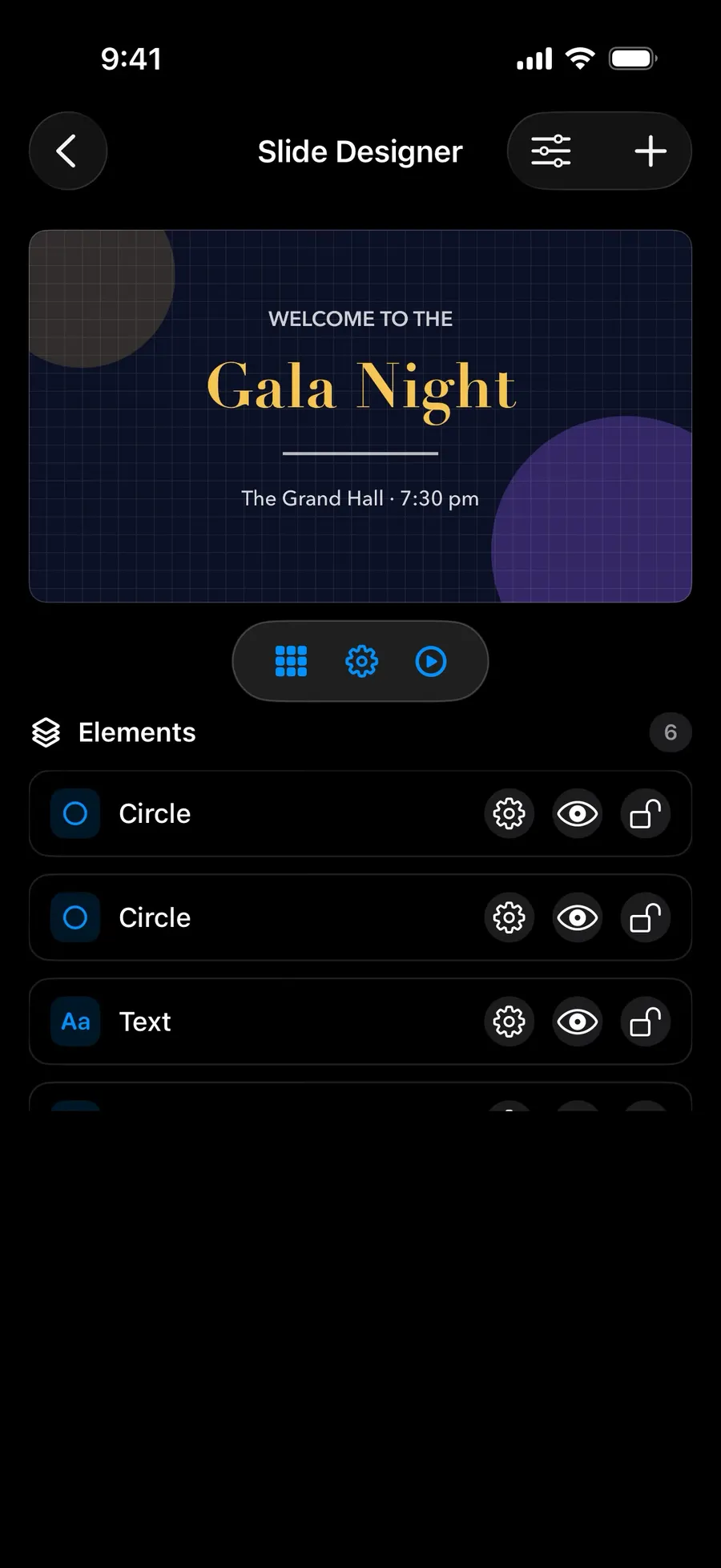
On iPad the designer uses the whole screen: see On iPad below.
The canvas
The 16:9 canvas at the top is your slide, exactly as it will appear on the output.
- Tap an element to select it. Handles appear around it and its settings open below.
- Drag to move it, pinch to resize it, and drag the handles to resize or rotate it.
- Tap an empty area to deselect and go back to the elements list.
The controls
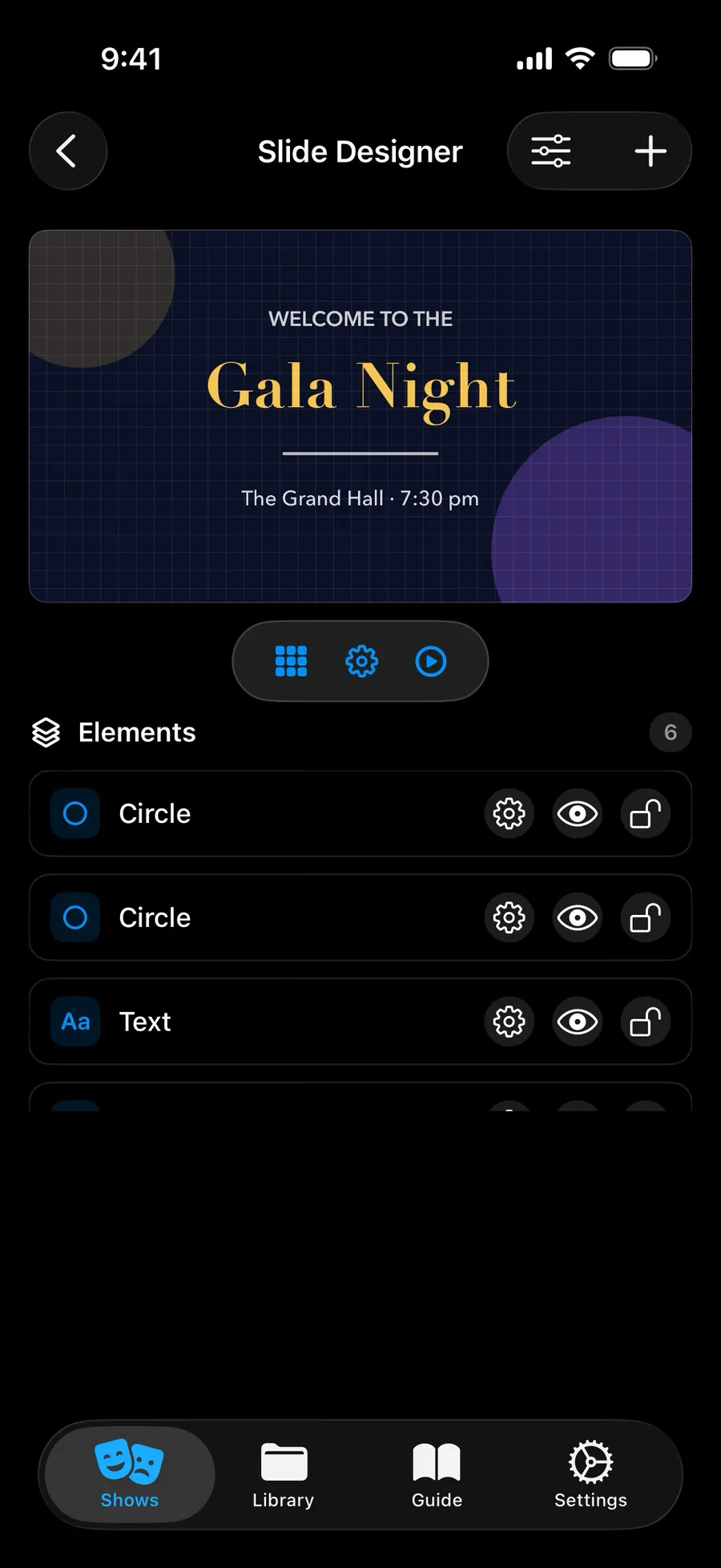
The capsule under the canvas has three buttons:
- The grid button shows or hides a faint grid over the canvas.
- The gear opens the grid options: Snap To Grid, Center Guides and Grid Size. See Transforms, grid and fine positioning.
- The play button previews animations: Replay Intro or Play Loop. See Intro and loop animations.
The elements list
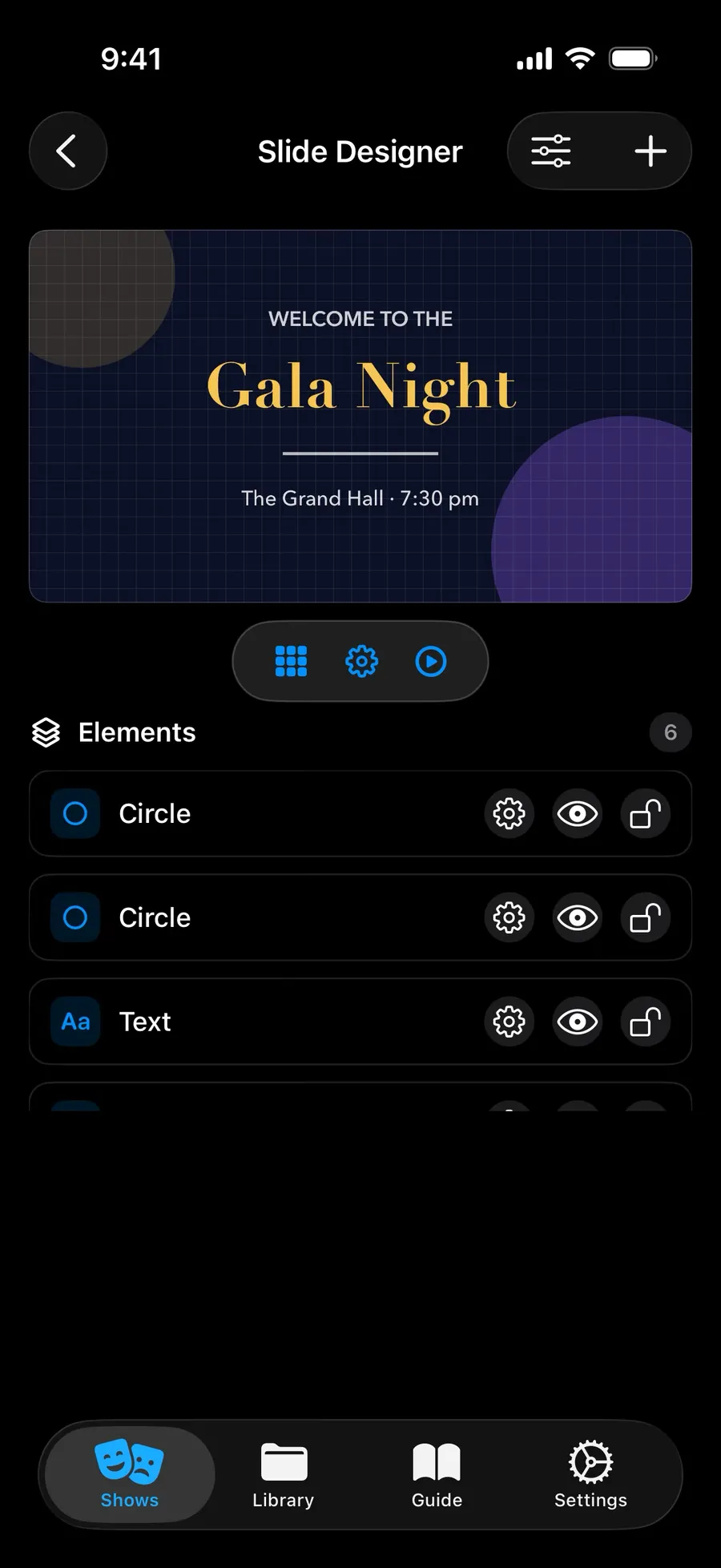
Elements lists everything on the slide, back to front, with a count. Each row has three buttons:
- The gear opens that element's settings.
- The eye hides the element. It stays hidden when you reopen the slide, and hidden elements never appear on the output.
- The lock stops it being selected or moved by accident. A locked element turns red in the list.
To add an element, tap + at the top right. Text, fonts, Google Fonts and custom fonts and Images, shapes and QR codes cover each type.
Slide settings
Tap the sliders button at the top right, next to +.
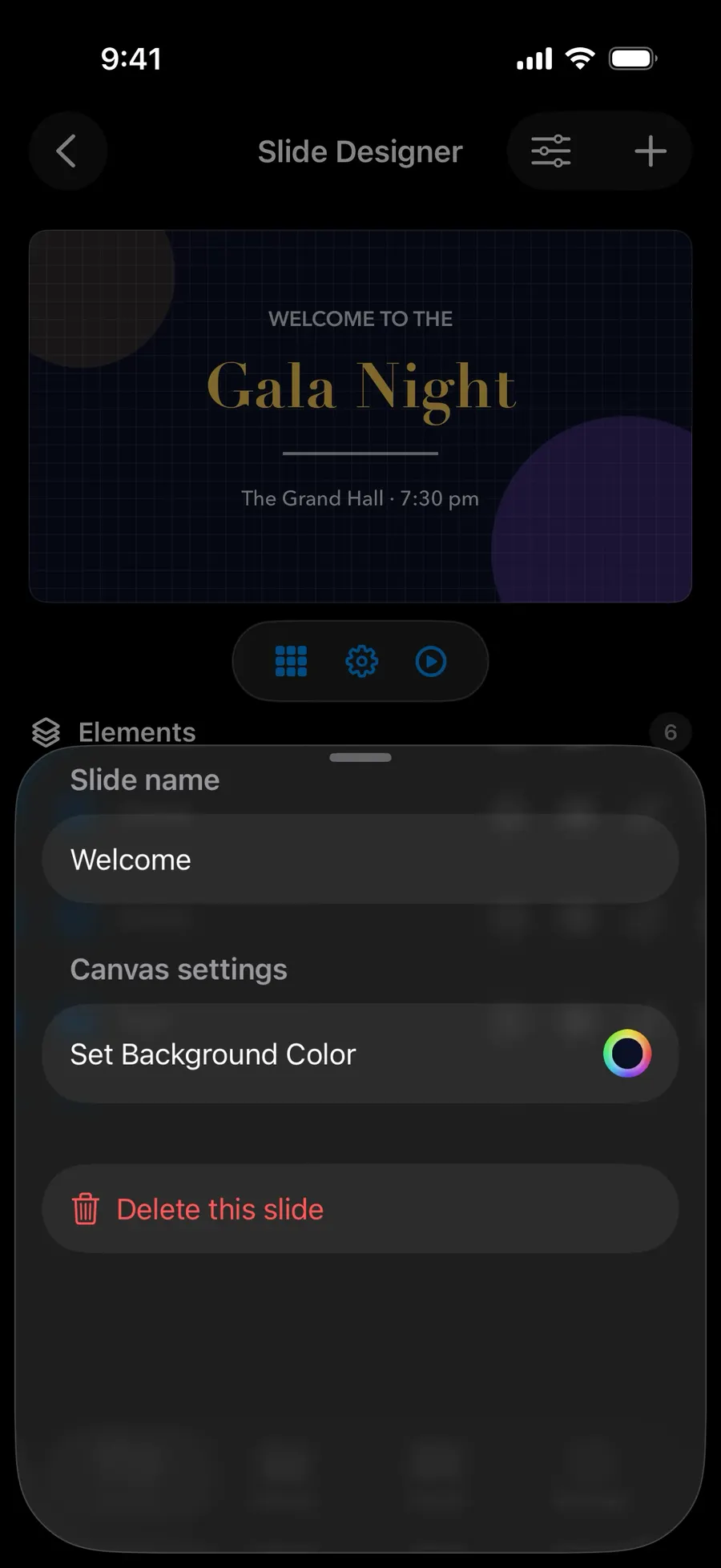
- Slide name is the name you see in Configure Slide.
- Set Background Color under Canvas settings changes the slide's background. Lower the opacity to zero for a transparent background that shows the layers underneath.
- Delete this slide removes the slide from your library.
On iPad
On iPad the Slide Designer has three parts side by side:
- Elements on the left lists everything on the slide, front to back. Tap an element to select it, use its eye and lock buttons, or drag it up or down to bring it forward or send it back. Touch and hold for Duplicate and Delete. Add Element at the bottom of the list adds a new one.
- The canvas in the middle, with the grid and animation buttons under it.
- The inspector on the right shows the selected element's settings. With nothing selected it shows the slide's Name, Background and Delete Slide; tap an empty part of the canvas, or Slide Settings at the bottom of an element's settings, to get there.
The slide's name is at the top of the canvas, with undo, redo and Save beside it.
Save and close
Tap the back arrow at the top left (Save on iPad) to save the slide and return to Configure Slide. iQ Pro also saves it whenever you leave the designer another way.
