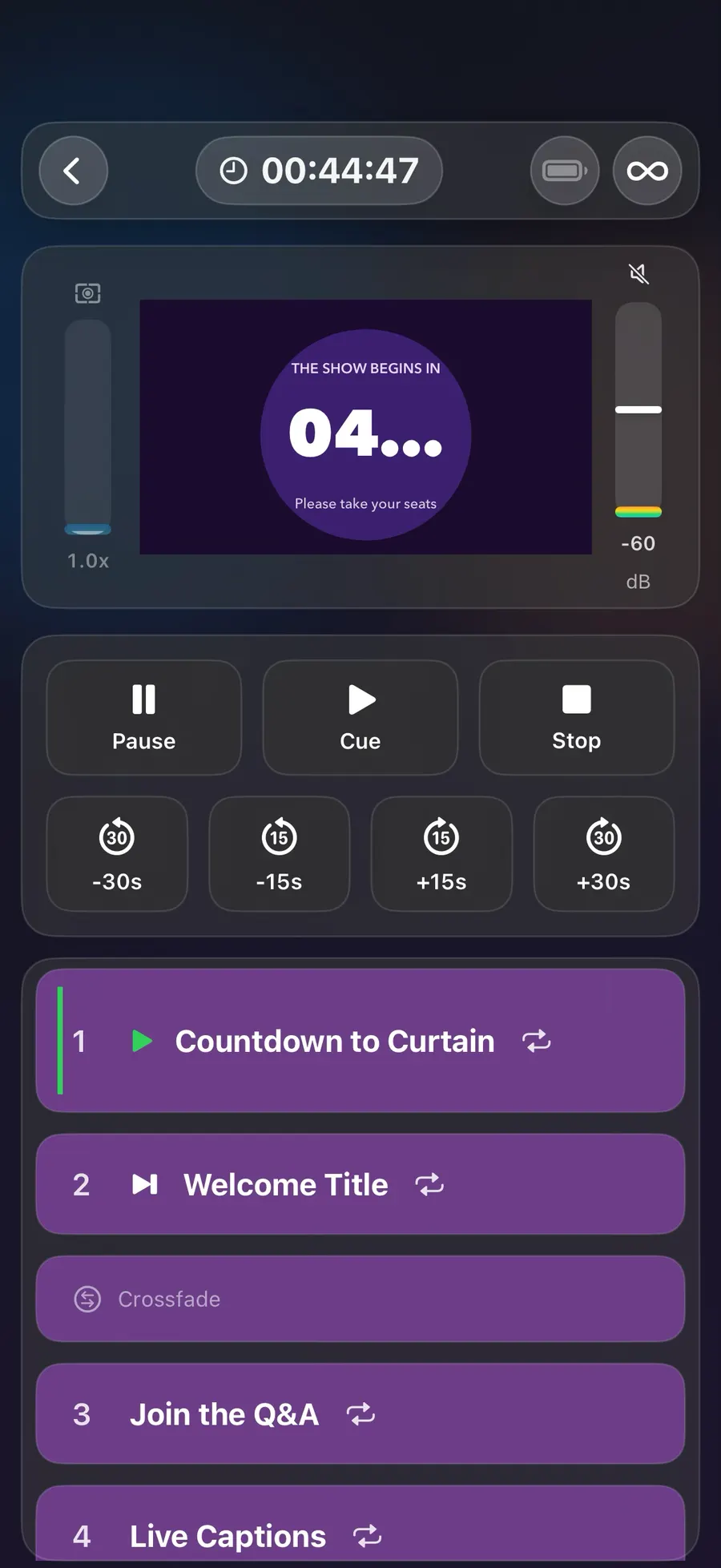
A countdown counts down on the output while its slide is on screen: The show begins in 05:00, an interval timer, or a speaker's remaining time. It's styled like text, so it can match the rest of your slide.
Add a countdown
- 1
In the Slide Designer, tap + (on iPad, Add Element), then Countdown Timer.
- 2
Under Text, set Hours, Minutes and Seconds. You can go up to 99 hours.
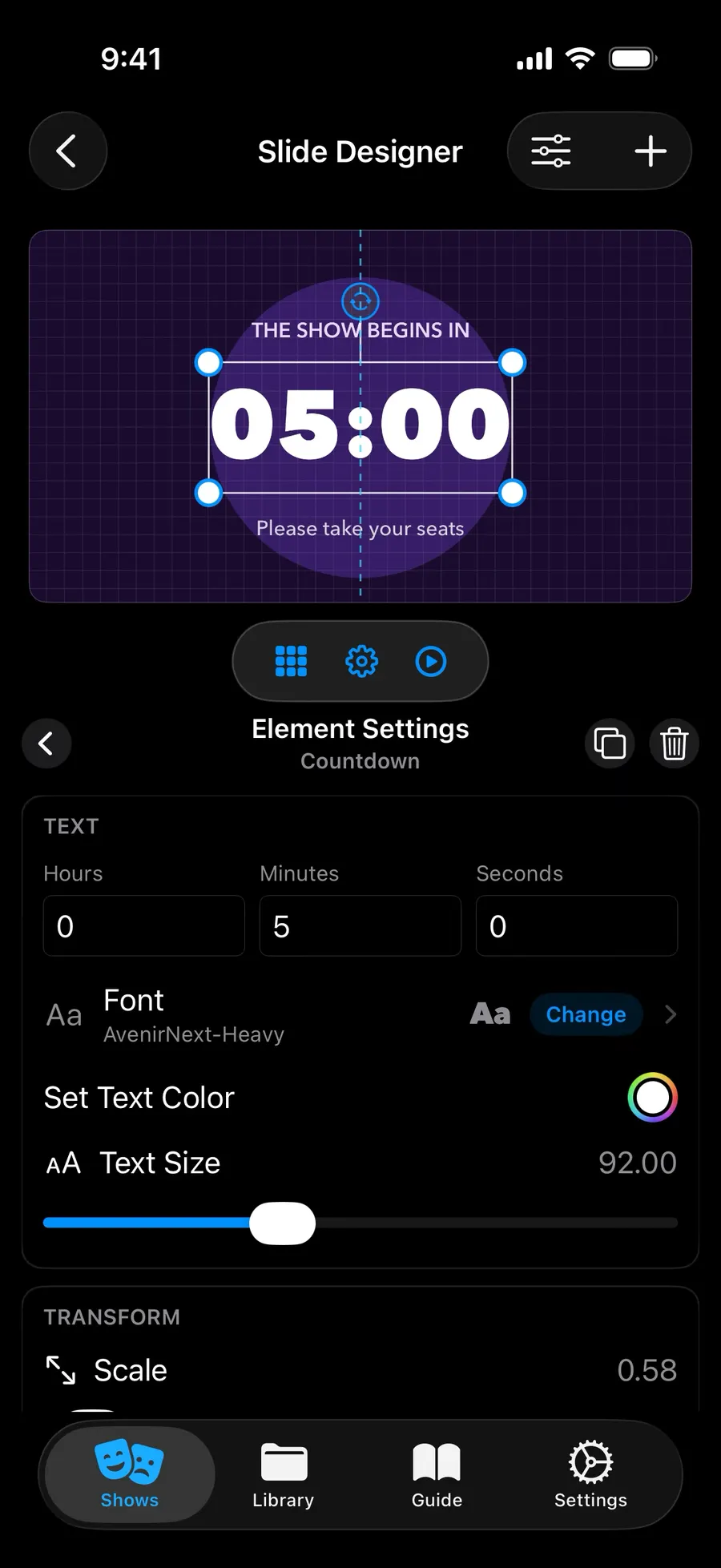
A five-minute countdown in Avenir Next Heavy - 3
Change the font, Set Text Color and Text Size just as you would for text. See Text, fonts, Google Fonts and custom fonts.
- 4
Drag it into place, and add a line of text above it, such as The show begins in.
In the designer the countdown stays still at its full length, so it's easy to position.
When it runs
The countdown starts from its full time each time the slide appears on the output, and stops at 00:00. Times under an hour show as minutes and seconds (05:00); longer times add the hours (01:30:00).