
Every element can be placed by hand on the canvas, then fine-tuned with sliders. The grid and centre guides help you line things up.
On the canvas
Tap an element to select it. A frame with handles appears around it.
- Drag the element to move it.
- Pinch, or drag a corner handle, to resize it.
- Drag the rotate handle to turn it. It clicks into place at every 45°, so it's easy to get it straight again.
- Shapes also have middle handles to stretch just the width or height.
The Transform settings
Below the element's own settings, Transform has four sliders for precise values:
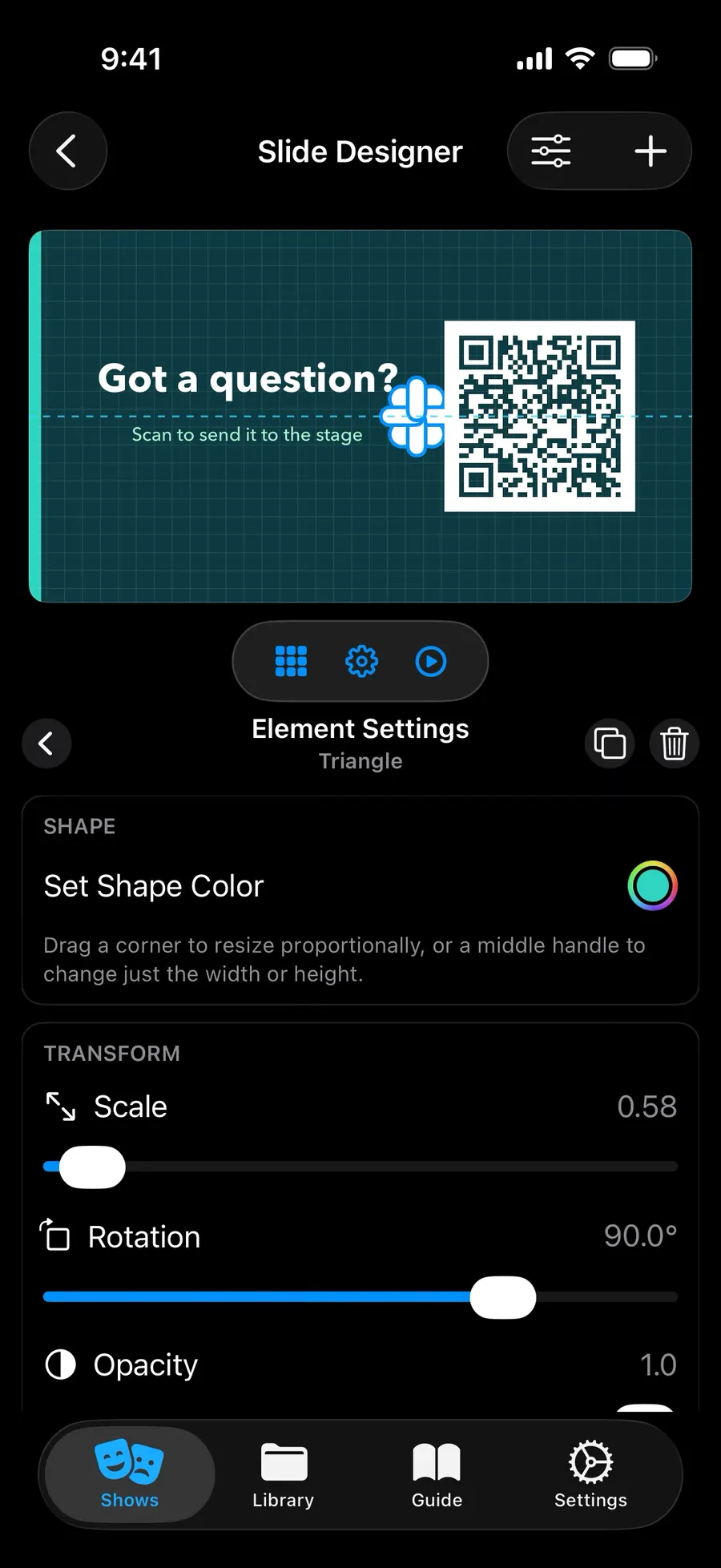
- Scale: from 0.01 to 20 times its original size.
- Rotation: from -180° to 180°.
- Opacity: fade the element down to make it see-through.
- Blur: soften it, up to 20. Great for a glowing shape behind a title.
The grid and guides
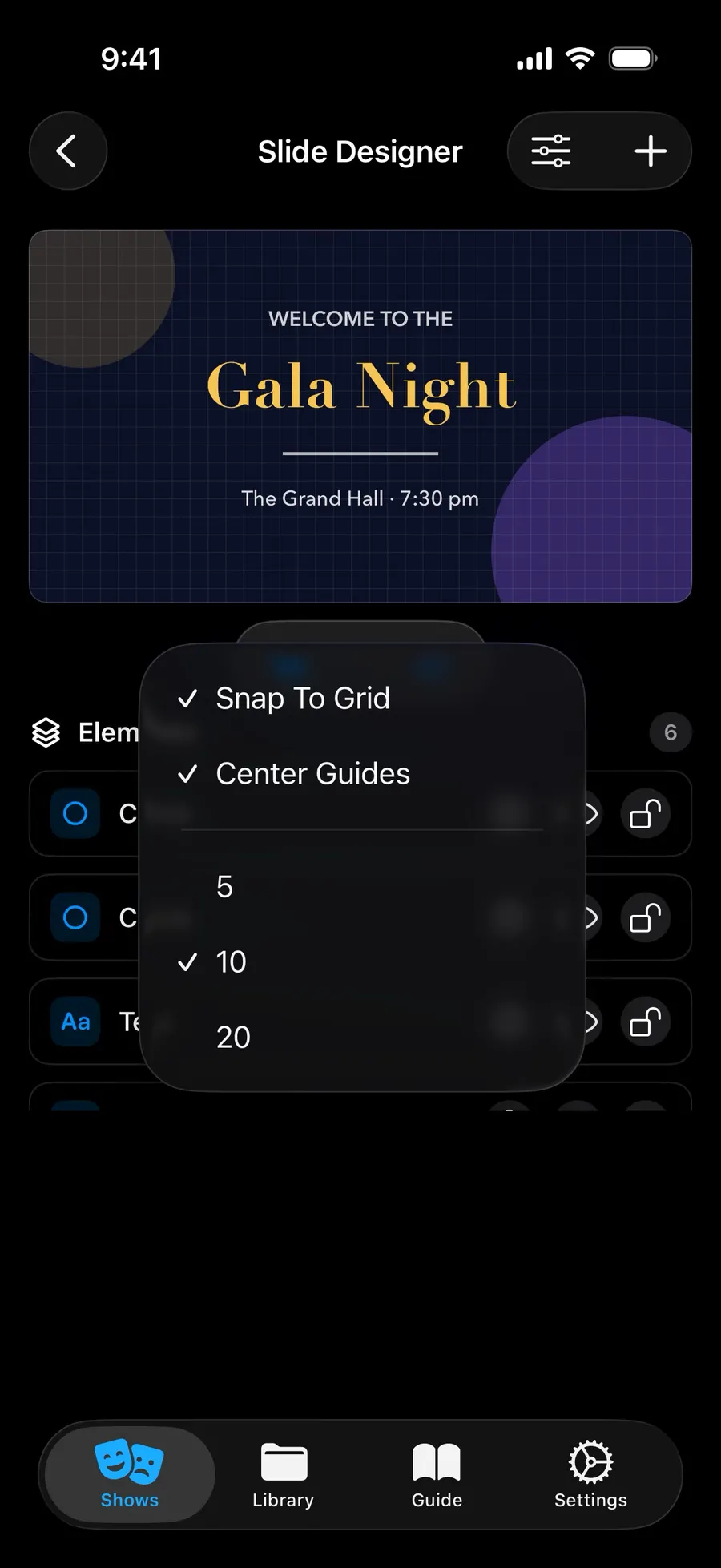
The capsule under the canvas controls the grid:
- Tap the grid button to show or hide the grid lines. They're only shown in the designer, never on the output.
- Tap the gear for the grid options.
In the grid options:
- Snap To Grid makes elements jump to the grid as you drag them. Turn it off for free placement.
- Center Guides pulls an element to the exact centre and shows a dashed cyan line when it's centred horizontally or vertically.
- Grid Size sets the spacing: 5, 10 or 20. A smaller grid gives finer steps.
Hide and lock
In the elements list, the eye hides an element, and the lock stops it moving when you tap or drag near it. Both are saved with the slide. A hidden element isn't shown on the output either, so you can keep an alternative version of a title on the slide and switch between them. Lock backgrounds and big shapes once they're in place.
