
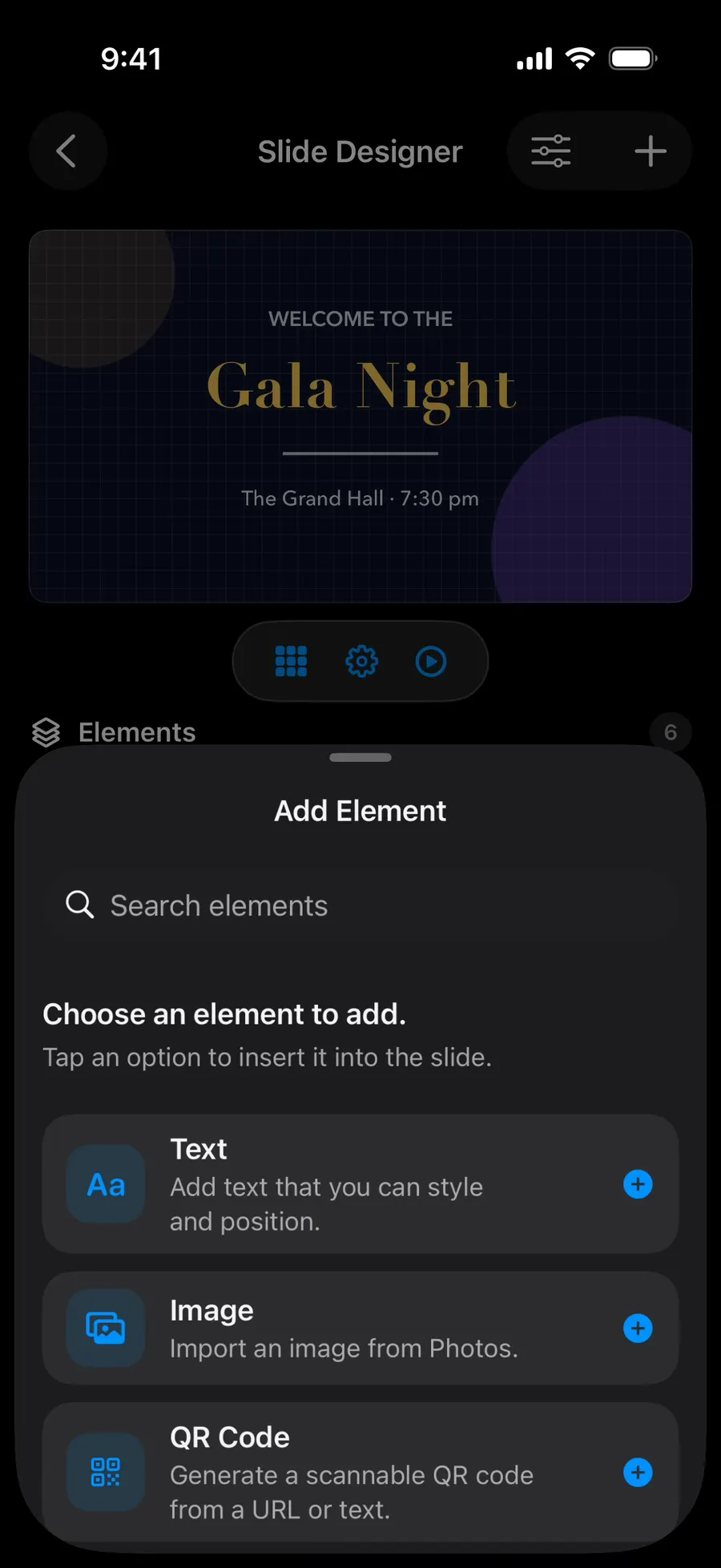
Every element starts from the Add Element sheet. Tap + at the top right of the Slide Designer (on iPad, Add Element at the bottom of Elements), then tap the element you want. Search at the top if you know its name.
Images
- Image imports a picture from Photos.
- Files adds a PNG or JPEG from the Files app, including iCloud Drive.
The image lands in the middle of the slide. Pinch or drag its corner handles to size it, and drag it into place. On iPad you can also drag an image from another app straight onto the designer.
Shapes
Square, Circle and Triangle add a solid shape you can stretch freely: a square becomes any rectangle, and a circle any ellipse. Use them for colour bands, lower-third bars, frames and decoration.
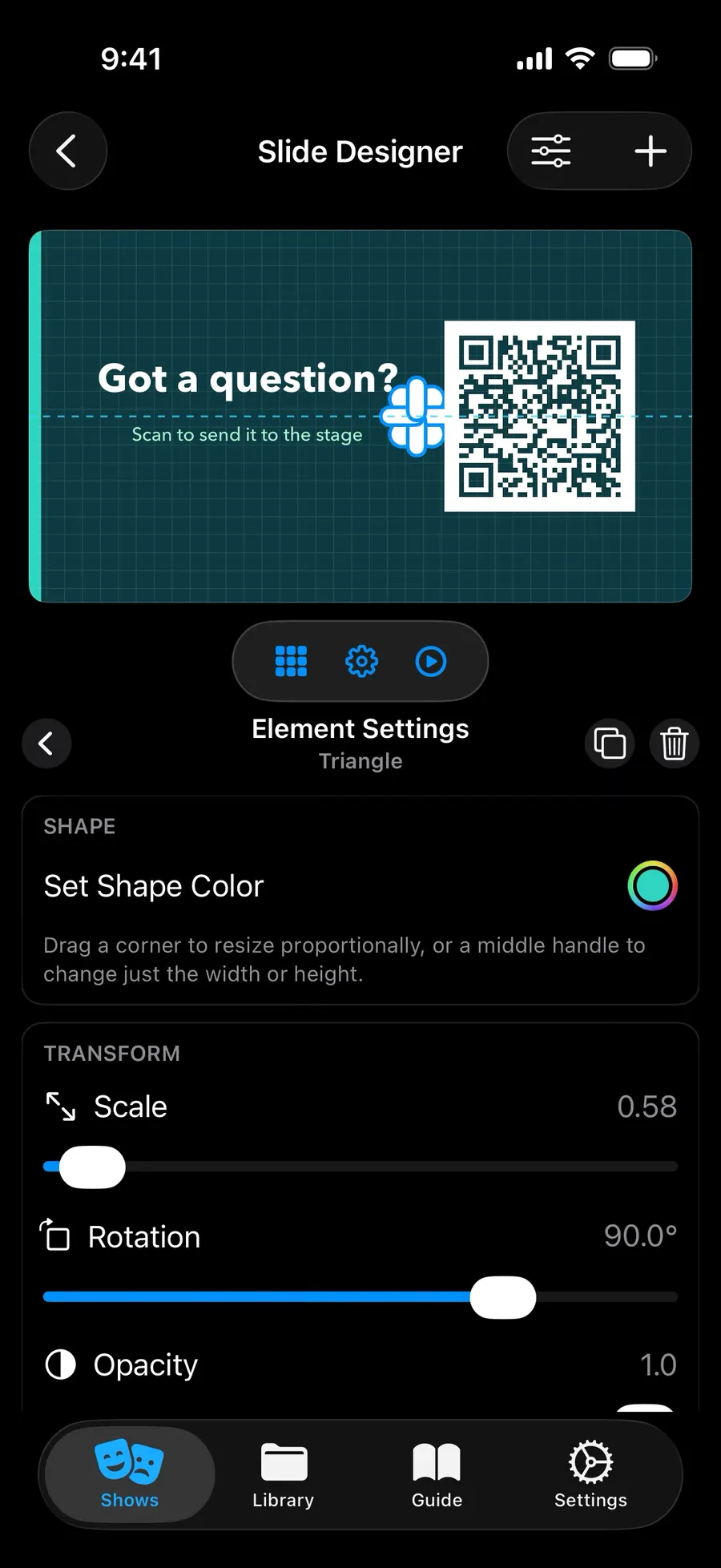
- Drag a corner handle to resize in proportion, or a middle handle to change just the width or height.
- Tap Set Shape Color to change its colour. Use the colour's opacity, or Opacity under Transform, to make it see-through.
QR codes
A QR Code turns a web address or any text into a code your audience can scan with their phone camera: a feedback form, a social account, a donation page.
- 1
Tap + (on iPad, Add Element), then QR Code.
- 2
Under QR Code, type the address in Enter URL or text. The code updates as you type.
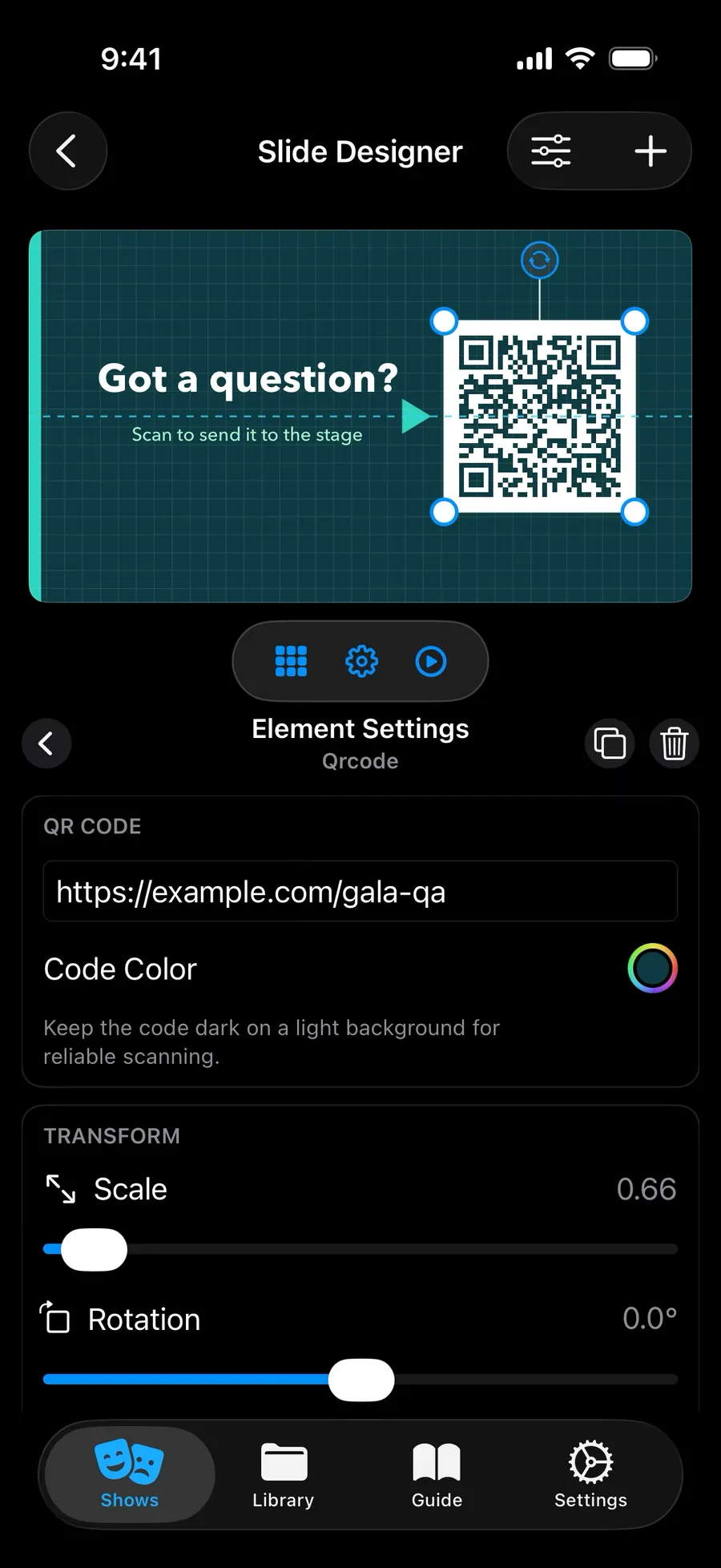
The Q&A slide's QR code, selected - 3
Tap Code Color to match your slide, then resize the code so it's easy to scan from the back of the room.
Stacking order
Elements are drawn in the order they appear in the elements list, so later ones sit on top. To bring something forward, duplicate it with the two squares button in Element Settings (the copy goes on top) and delete the original.
