
A slide cue shows a slide you design in iQ Pro: titles, sponsor cards, a countdown before the show, a QR code for audience questions, or live captions. Unlike an image cue, everything on a slide stays editable, and countdowns and captions update live while the slide is on screen.
Add the cue
- 1
Open your show, tap the group the slide belongs in, then tap Add cue.
- 2
Under Media, tap Slide: Present slides or speaker visuals.
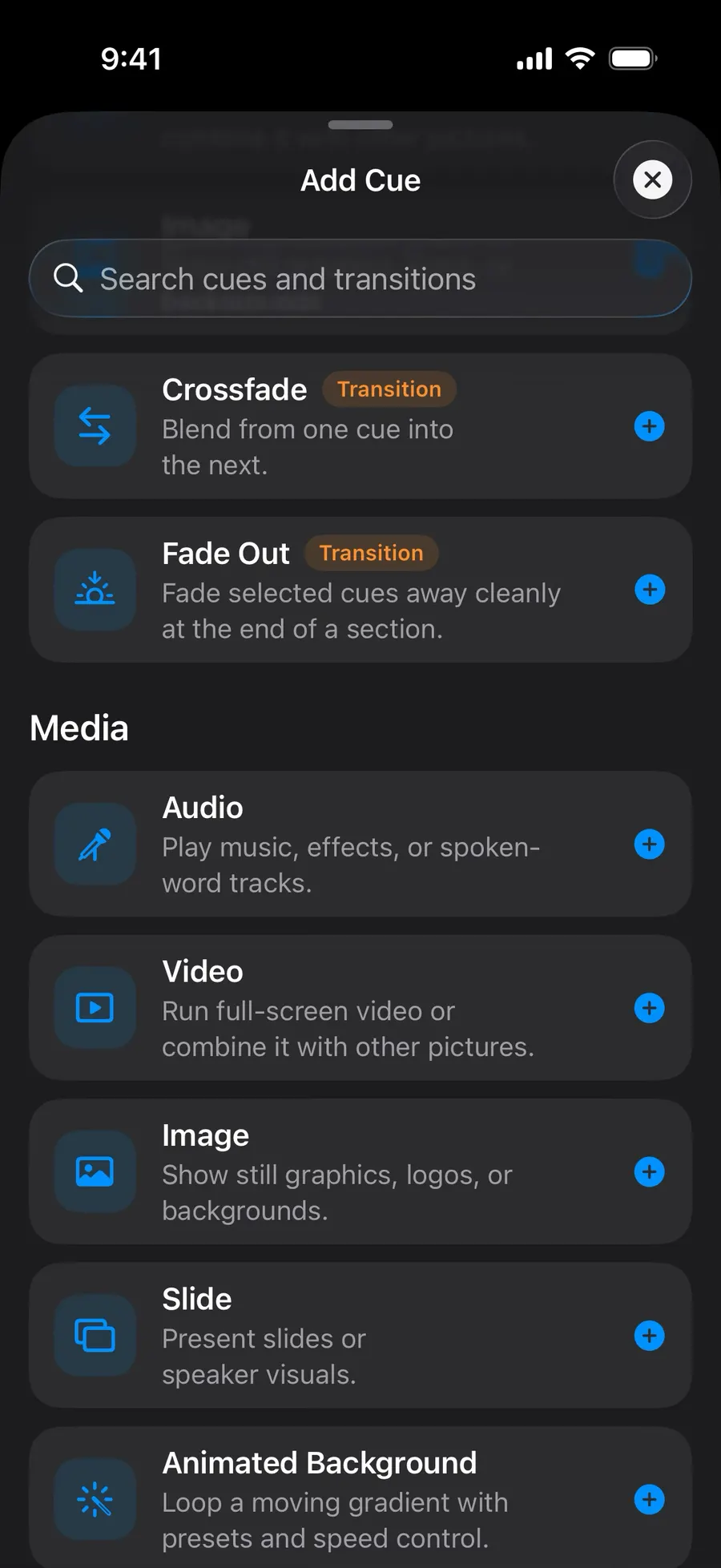
Slide is in the Media section - 3
iQ Pro adds the cue and opens Slide Settings. Type a name you'll recognise mid-show in the field at the top, such as Welcome Title.
- 4
Tap Configure Slide.
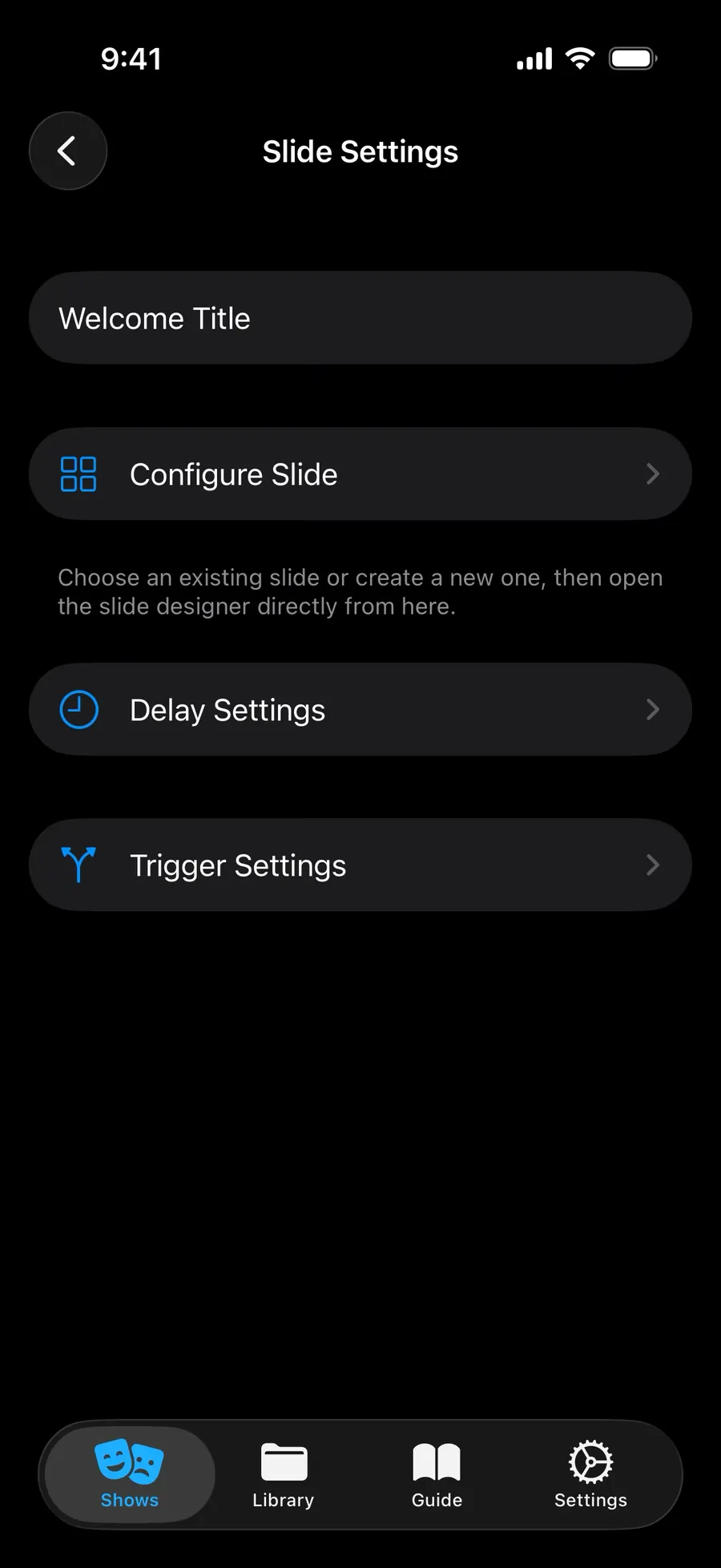
Configure Slide picks or creates the slide - 5
Tap the slide this cue should show. It gets a highlighted border, and the Slide Designer opens so you can check it or make changes.
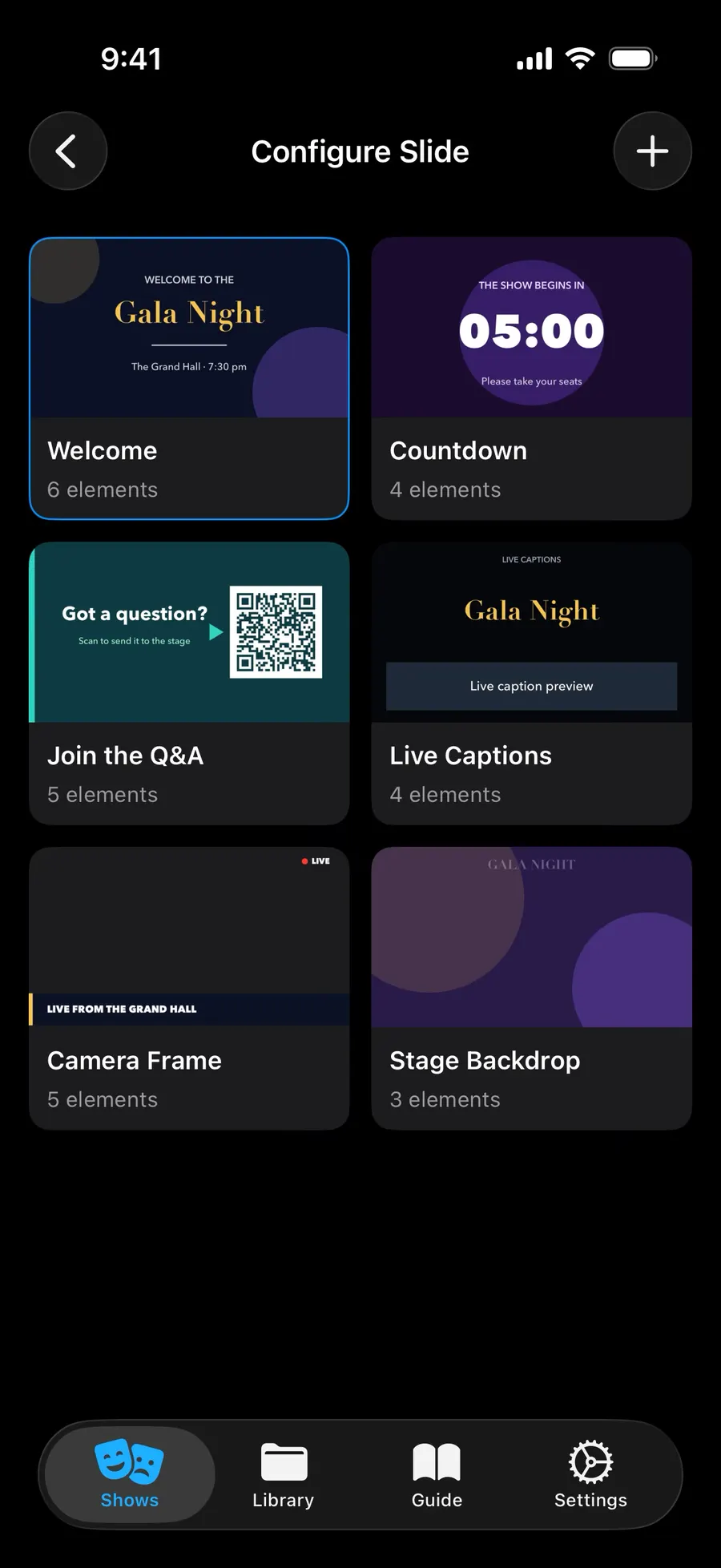
Every slide in your library, with its element count
To start a new slide instead, tap + at the top right of Configure Slide, type a Slide Name and tap Create. The new, empty slide opens in the designer. A tour of the Slide Designer shows you around.
See it in the show
Fire the cue on the Perform screen and the slide appears on your output. The preview shows exactly what your audience sees, including a countdown ticking down.
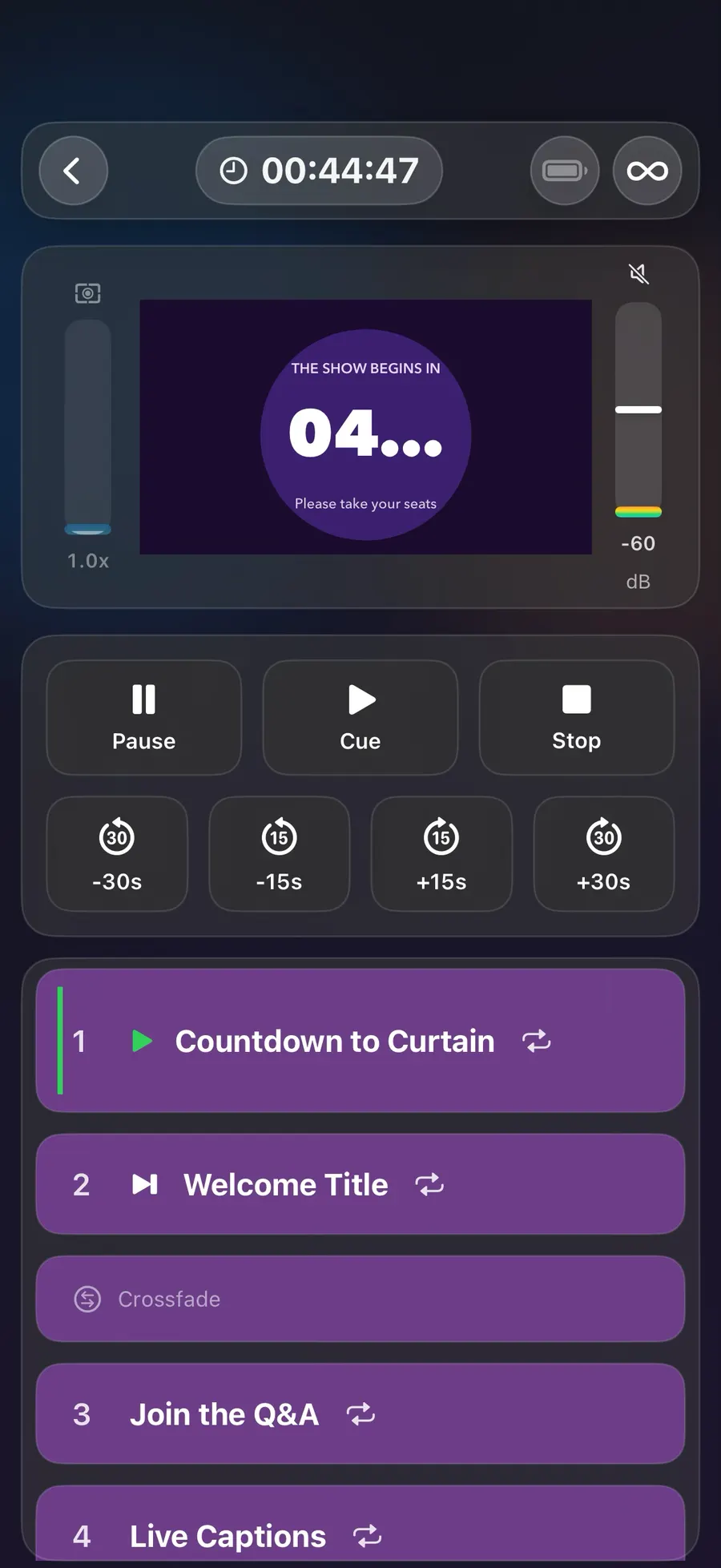
Slides go on screen instantly by default. To fade one in, or blend from one slide to the next, see Slide transitions.
