

Smooth handovers, every time.
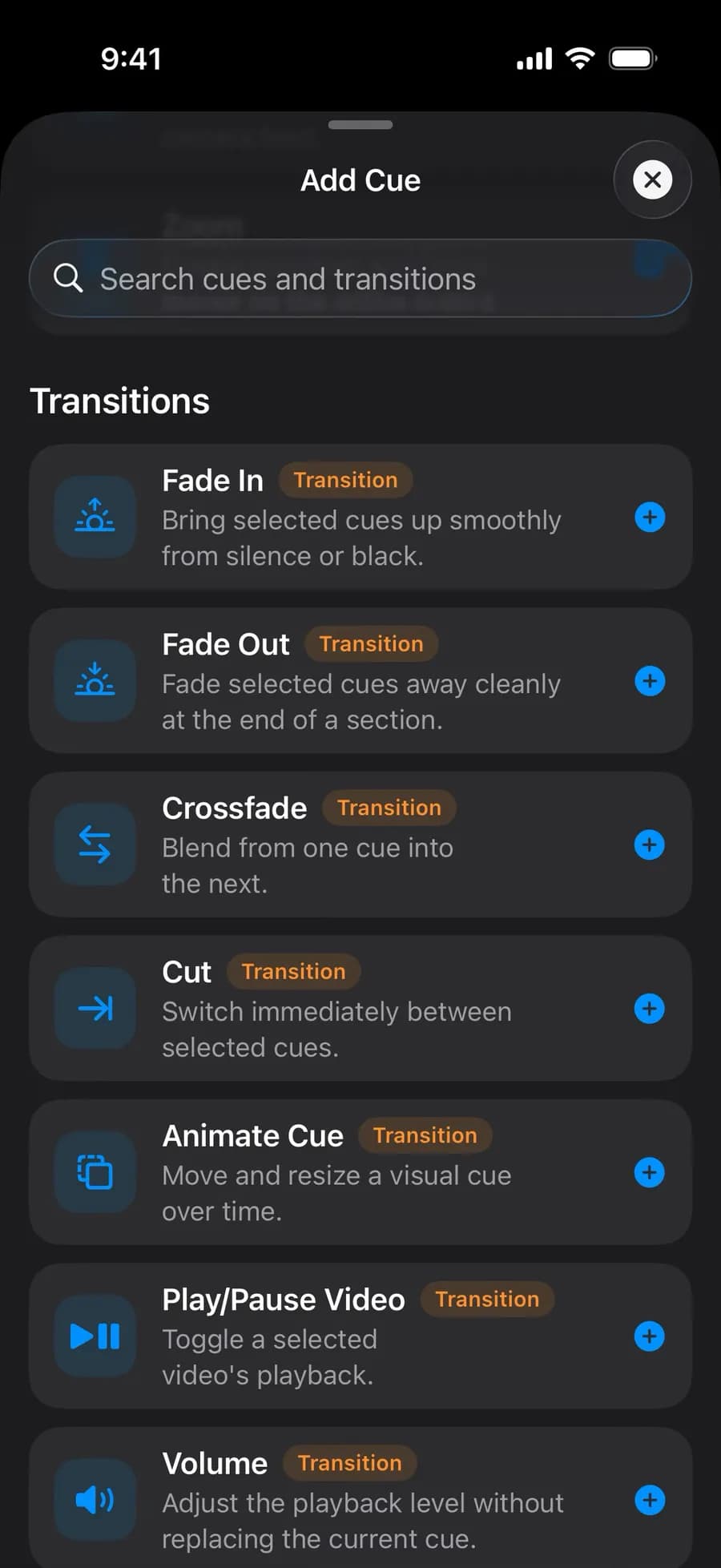
Fades, crossfades, cuts, moves and volume changes are cues too, so the show flows exactly the way you rehearsed it.

What you can do
Fade in and fade out
Bring pictures and sound up smoothly, and fade a whole section away at the end.
Read the guide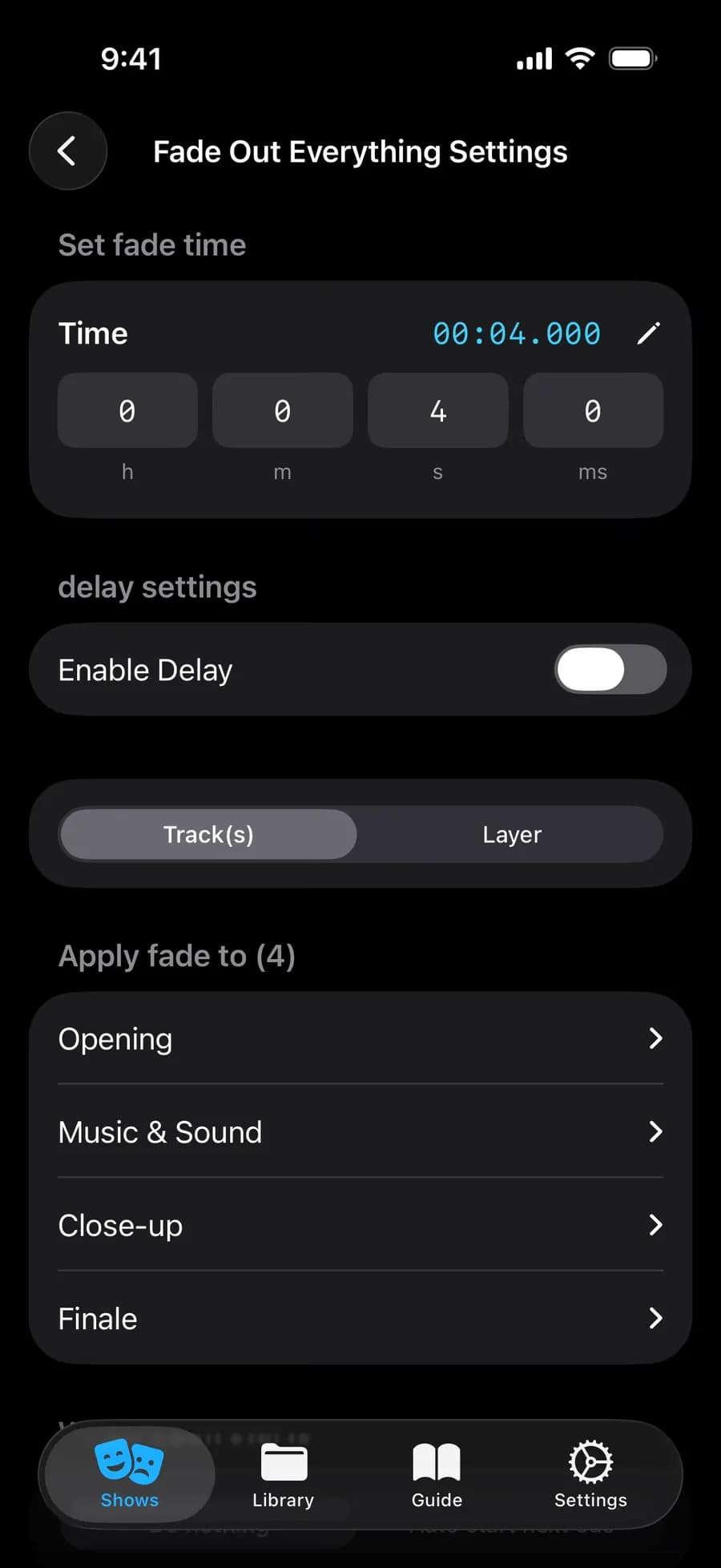
Two taps from the cue menu
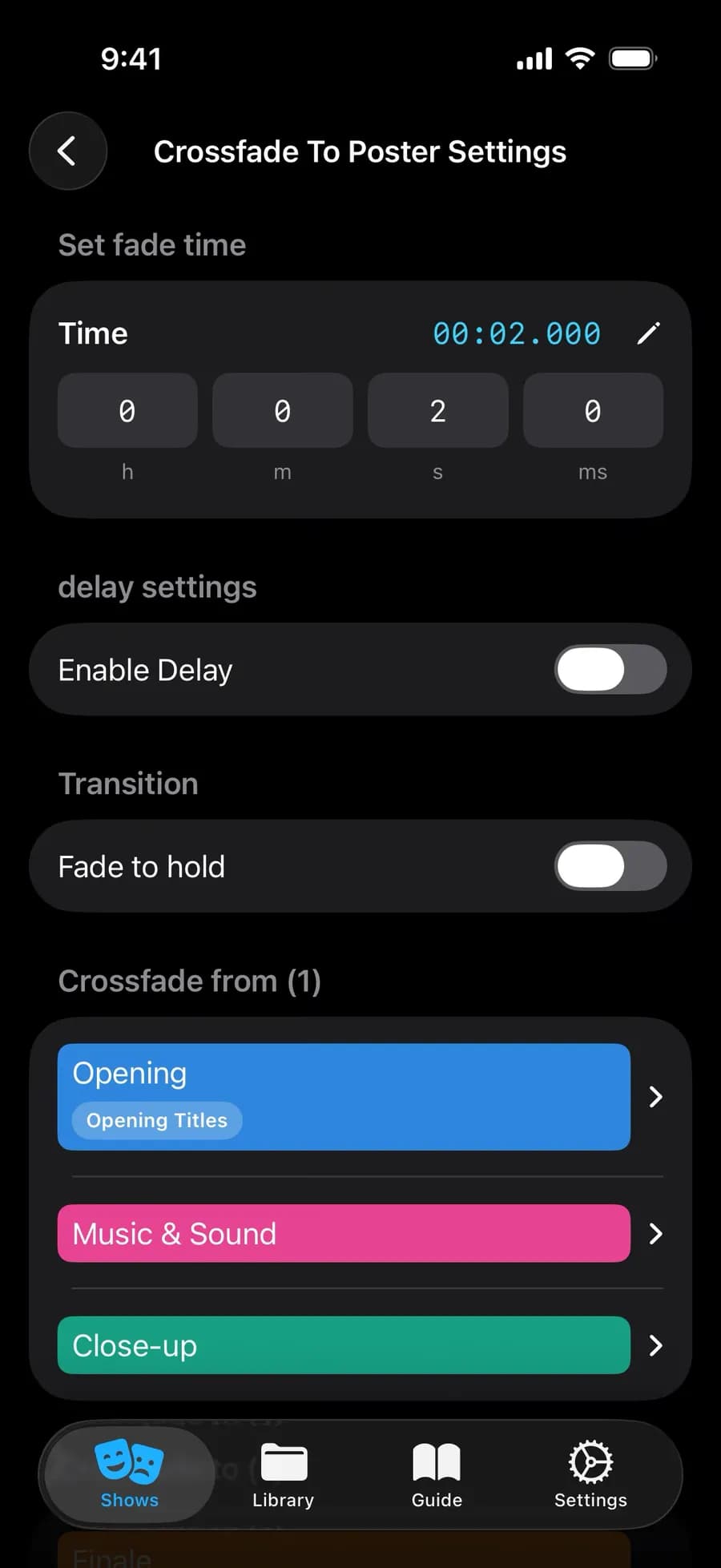
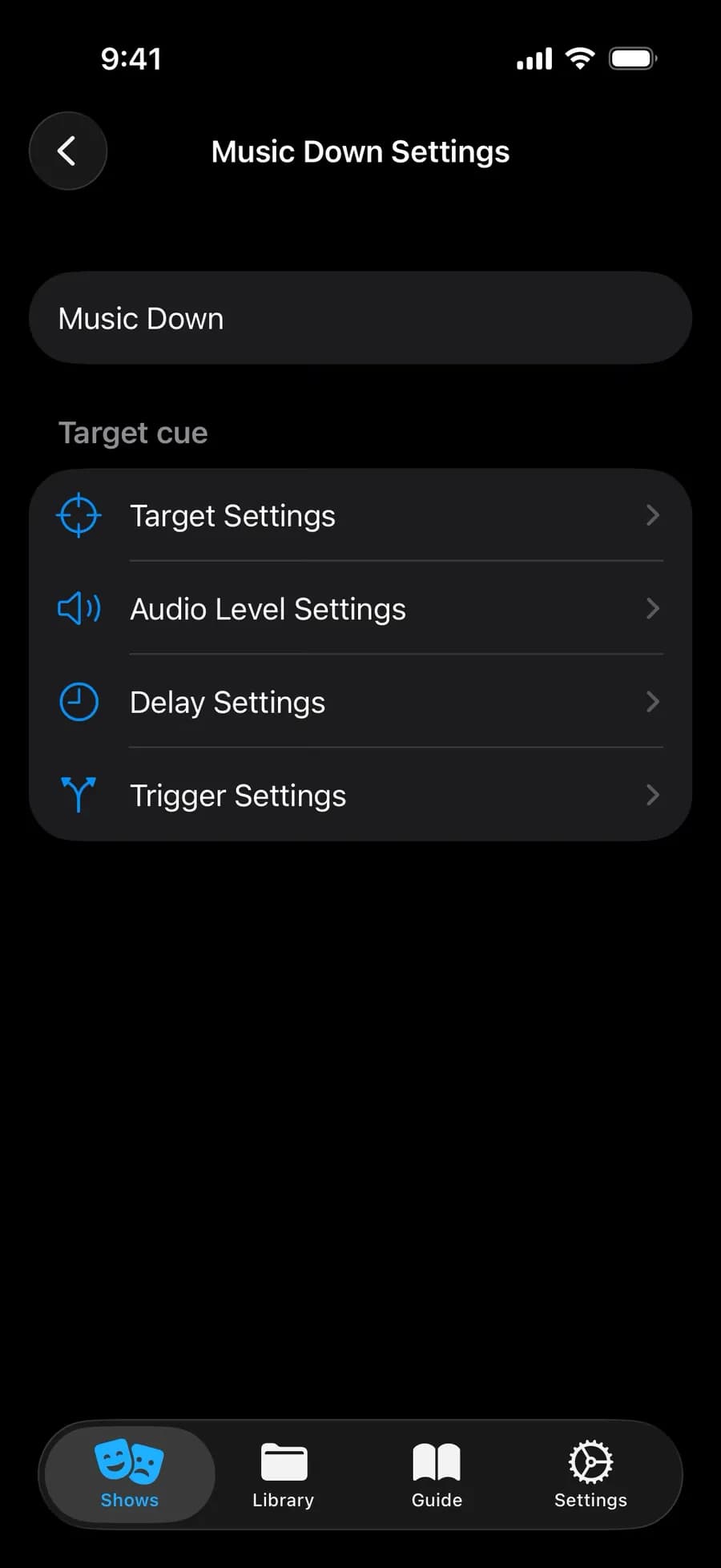
Add a fade or crossfade around any cue, already linked to the right cues.
Read the guide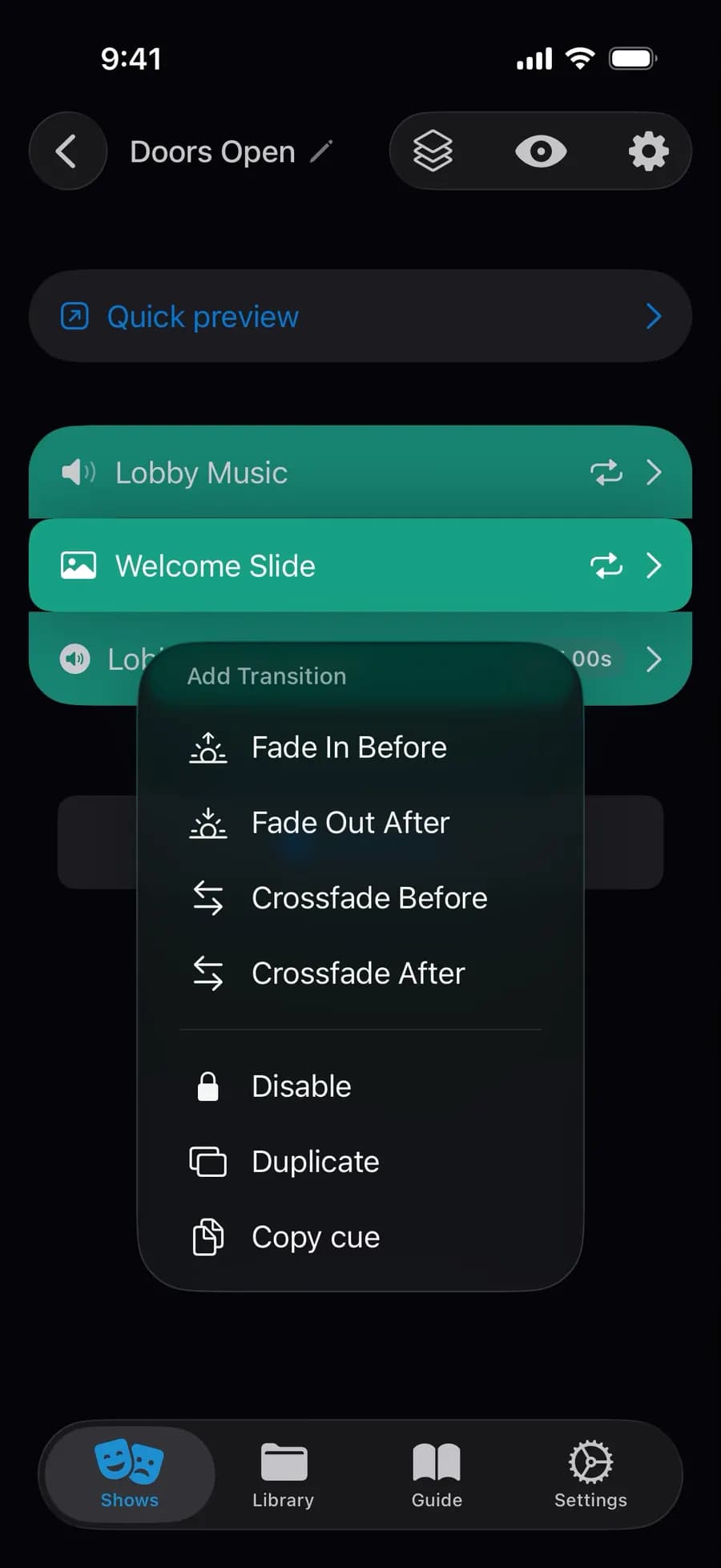
Animate a cue
Move, resize or rotate a picture that's already on screen, over a time you set.
Read the guide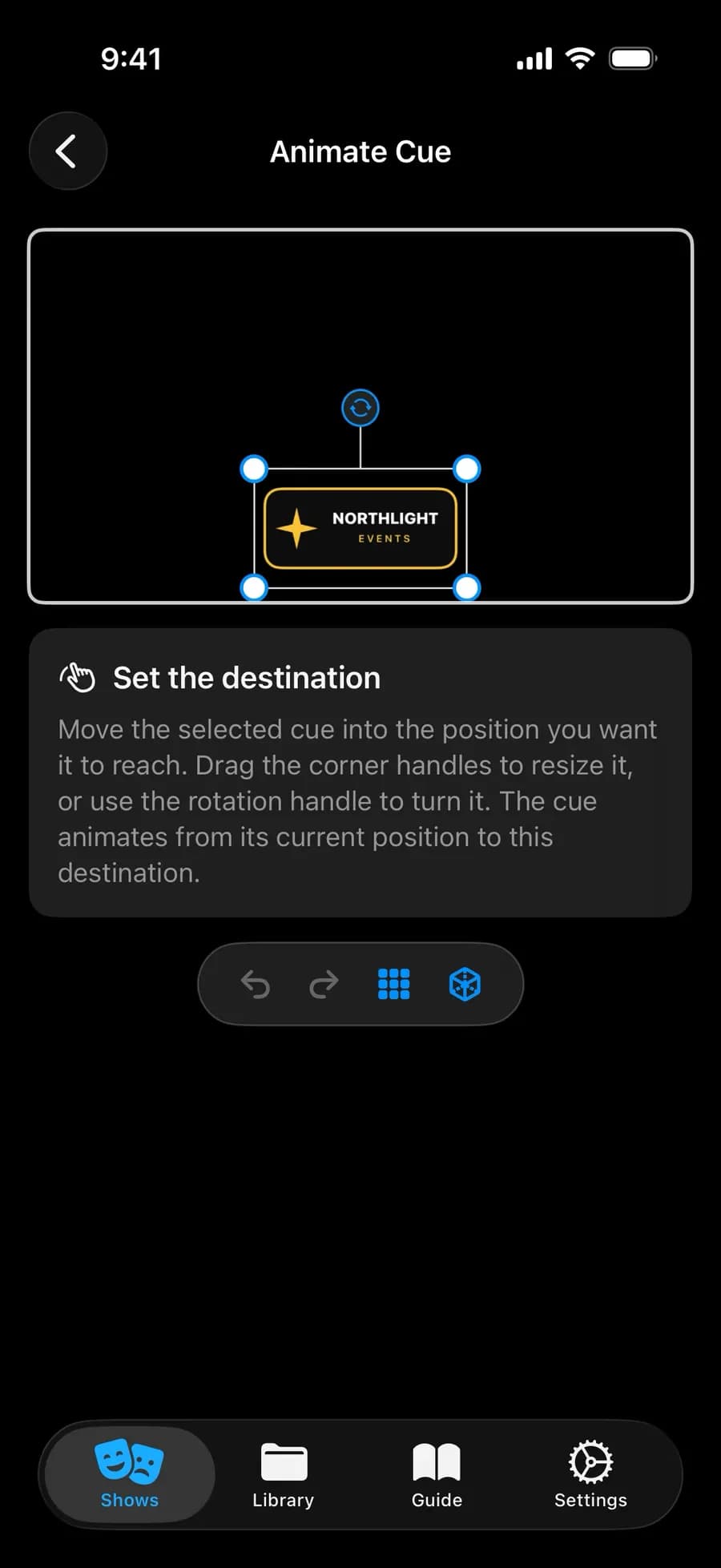
How it works
Three steps from idea to showtime.
- 01
Pick a transition
Choose a fade, crossfade, cut, animation or volume change in the Add Cue sheet.
- 02
Point it at your cues
Choose which cues it affects and how long it takes.
- 03
Let it run
It fires in order with everything else, the same way every night.
Learn it step by step
6 guides on transitions.
The same guides that live in the app, with real screenshots of every step.
- Beginner · 2 minFade in and fade out cuesBring pictures and sound up smoothly, and fade them away at the end of a section.
- Intermediate · 1 minCrossfade and cutBlend from one cue into another, or switch between them instantly.
- Intermediate · 1 minAnimate a cueMove, resize or rotate a picture that's already on screen, smoothly over a time you set.
- Intermediate · 1 minPlay and pause video cuesPause a video mid-show and carry on from the same frame later, or hold it until you're ready.
- Beginner · 1 minVolume cuesTurn a playing track up or down mid-show, smoothly over a time you set, without stopping it.
- Intermediate · 1 minZoom cues for camerasPunch in on a live camera, smoothly, to a point you choose.
Keep exploring
More that iQ Pro can do.
Audio
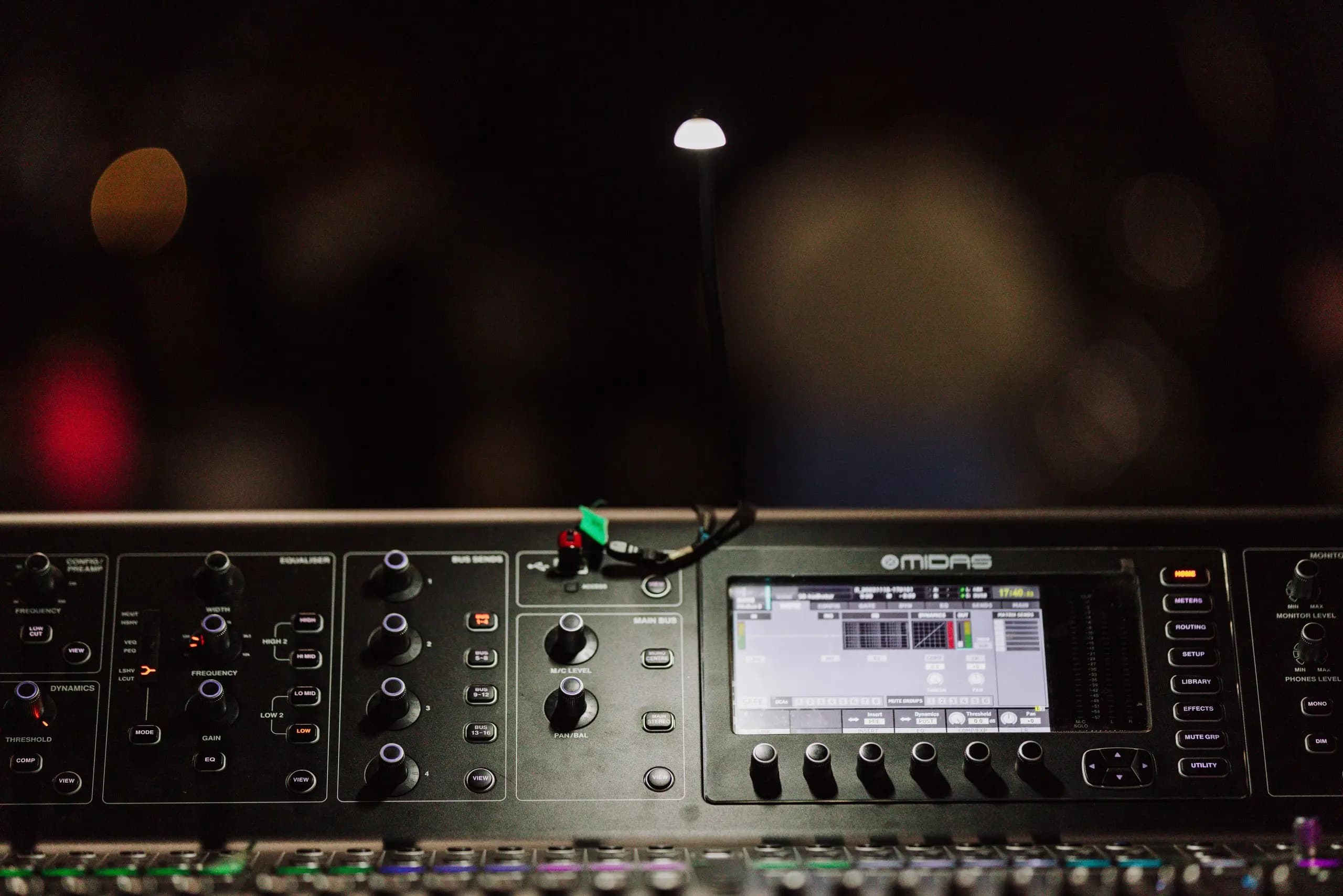
Music, sound effects and spoken voice-overs from one cue list. Trim them, shape the level and let iQ Pro handle the fades.

Layers and composition
Stack, move, mask and style everything on screen on a live preview of your output. Picture-in-picture in seconds.

Perform
The Perform screen puts the live preview, transport, running order and show timer under your thumb.
Audio
Music, sound effects and spoken voice-overs from one cue list. Trim them, shape the level and let iQ Pro handle the fades.
Layers and composition
Stack, move, mask and style everything on screen on a live preview of your output. Picture-in-picture in seconds.
Perform
The Perform screen puts the live preview, transport, running order and show timer under your thumb.
Take control of your next show.
Download iQ Pro and run your first cue in minutes.
